Feature guideSolo+
Xero & QuickBooks
Bill the job from the note it's written on.
Connect Xero or QuickBooks once. Every finished job then waits in one list until it's billed, and one dialog turns the note into an invoice in your accounts: saved as a draft, emailed to the customer, or marked paid there and then.
Included from Solo+ upwards.
What goes on the invoice
Everything is set in one dialog on the web, or one screen in the app, and pushed straight into Xero or QuickBooks.
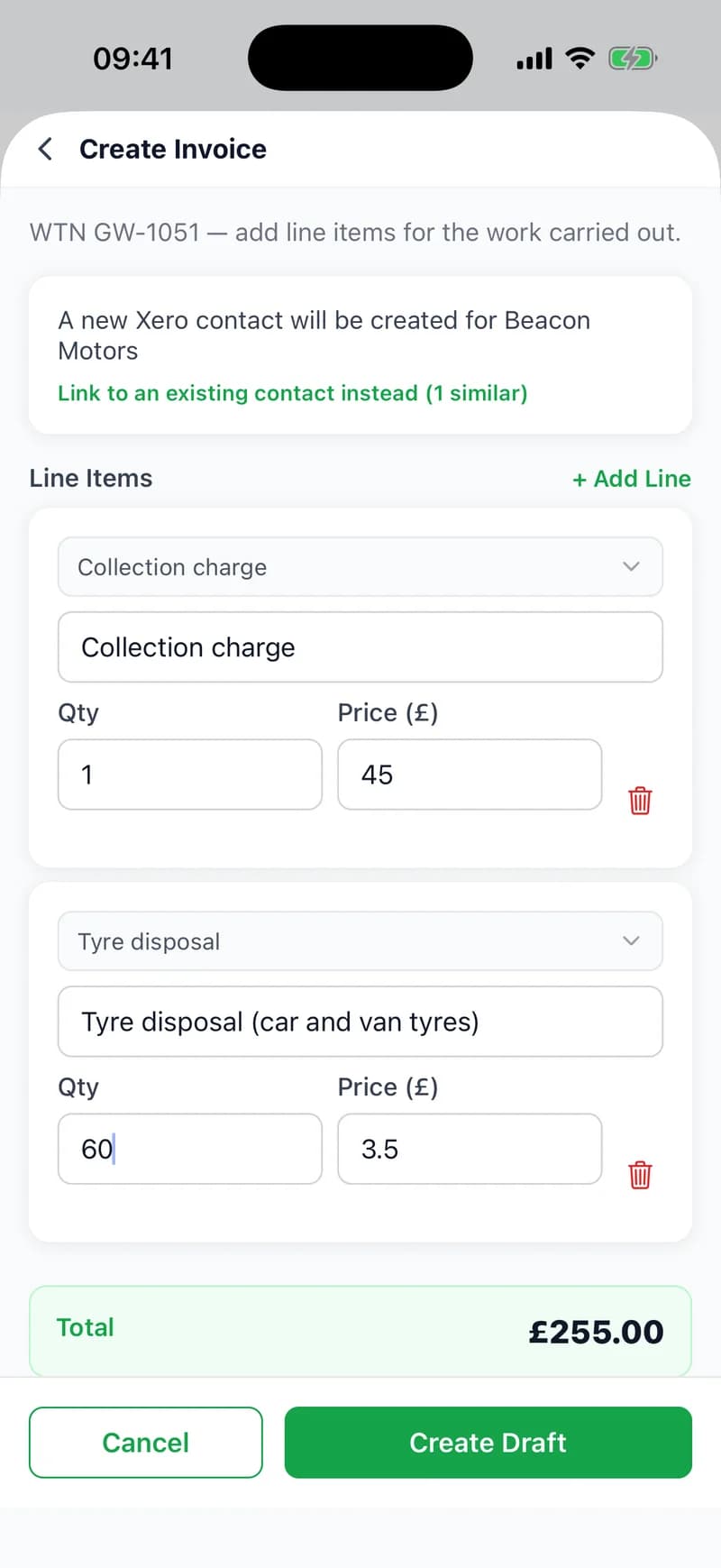
- Your saved products and servicesPick one from Xero or QuickBooks and its description and price fill in. Both stay editable.
- Lines of your ownType any description, quantity and price, with as many lines as the job needs.
- Your VAT rateChosen once in invoice settings and put on every line, or left to Xero or QuickBooks to apply.
- The right contactSee which contact in your accounts will be billed, and link a near match instead of adding a duplicate.
- Sent by emailApprove the invoice and send it from Xero or QuickBooks without opening either.
- Paid on the dayTook cash or card at the job? Record the payment as the invoice is made.
- The WTN numberAs the invoice reference in Xero, and in the invoice's private note in QuickBooks.
- Your payment termsEach invoice falls due the number of days you set: 30 unless you change it.
Step by step
How it works
Step 1: Connect Xero or QuickBooks
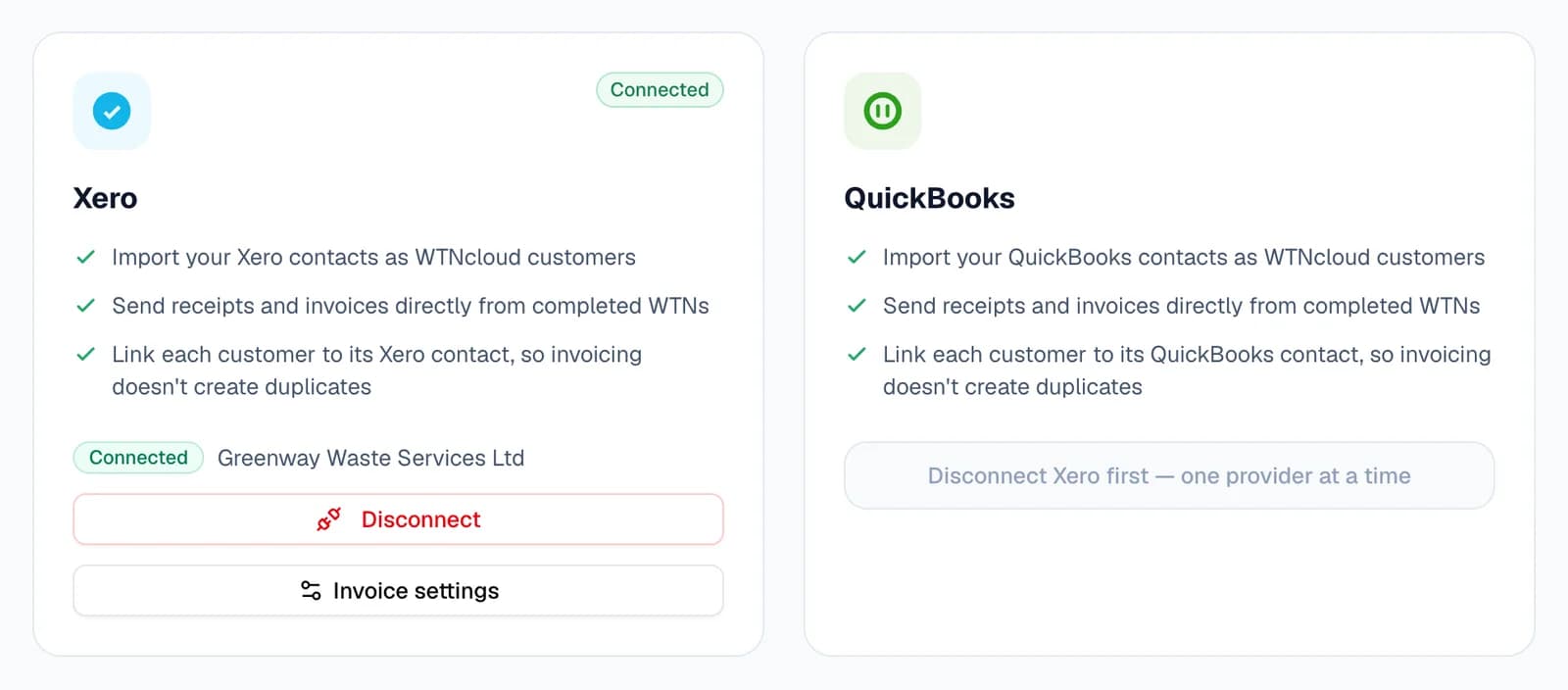
Go to Settings → Integrations and choose Connect Xero or Connect QuickBooks. You sign in on their own page and allow WTNcloud access, then land back in WTNcloud with the card marked Connected.
You can connect one of the two at a time. To switch, disconnect the one you have first.
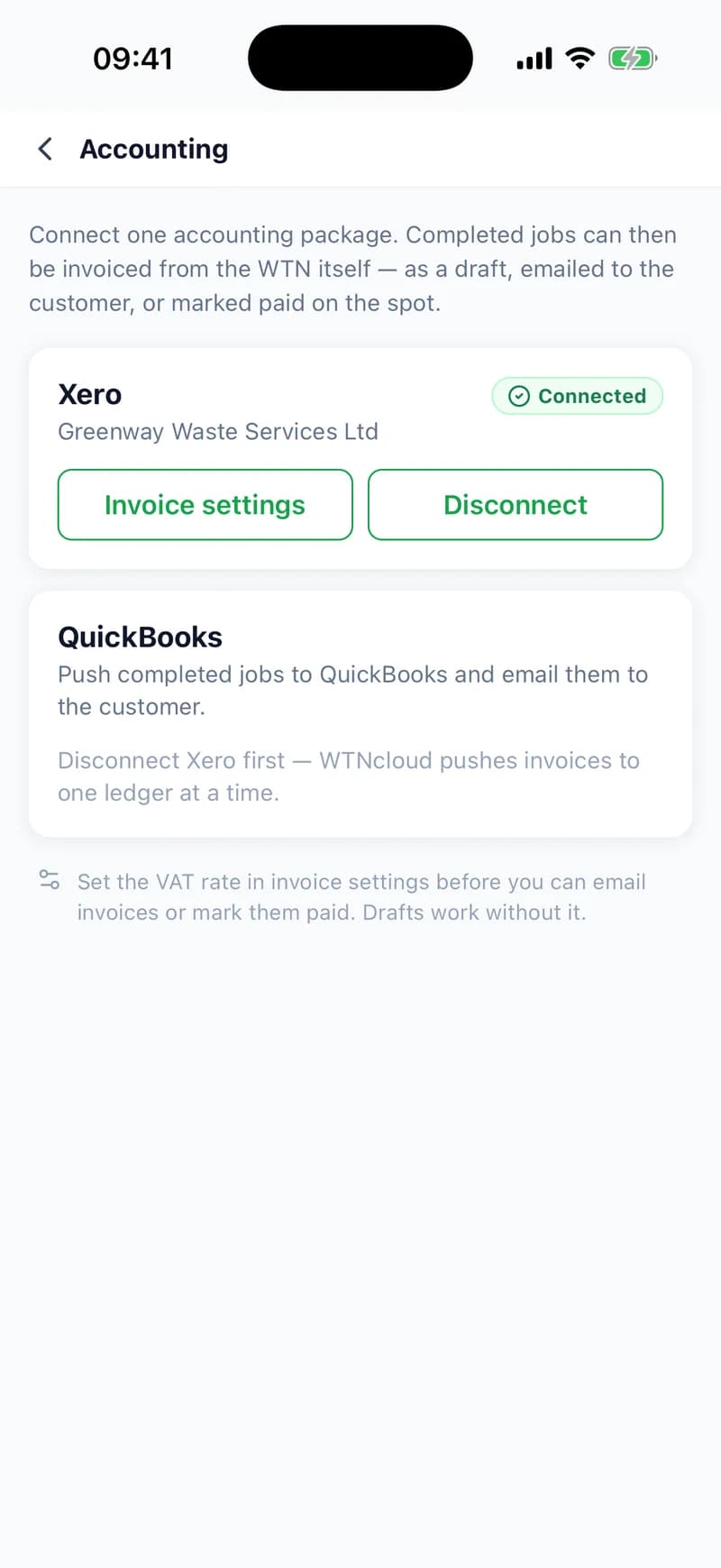
- In the app, Settings → Accounting connects the same way, in your phone's browser.
Step 2: Set your invoice defaults
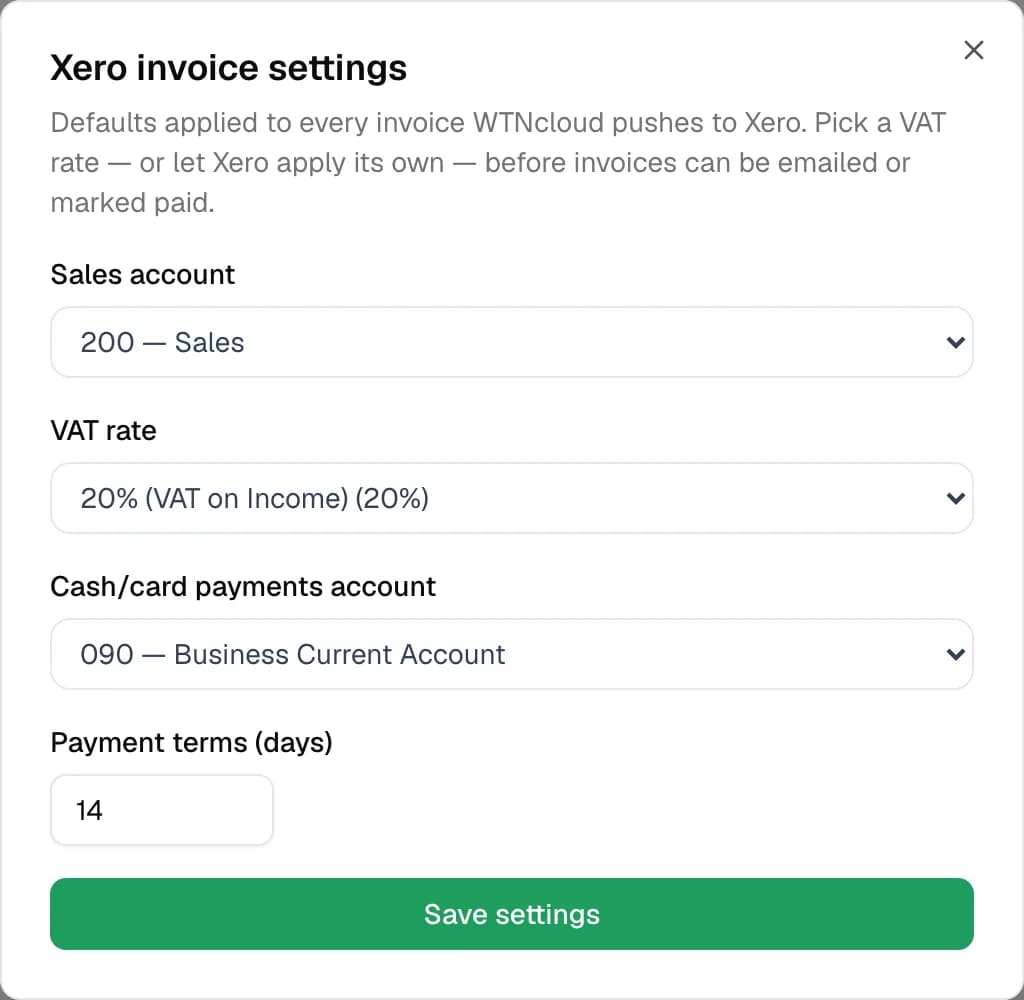
Open Invoice settings on the connected card. For Xero, choose the sales account, the VAT rate and the account that cash and card payments go into. For QuickBooks, choose the default product or service and the VAT code. Payment terms set how many days each invoice has until it's due.
Until a VAT rate is chosen, invoices can only be saved for you to review. Emailing one or marking it paid is refused, so nothing goes to a customer with its VAT guessed. If Xero or QuickBooks already sets VAT on your accounts and products, you can leave it to them.
Step 3: See every job still to bill
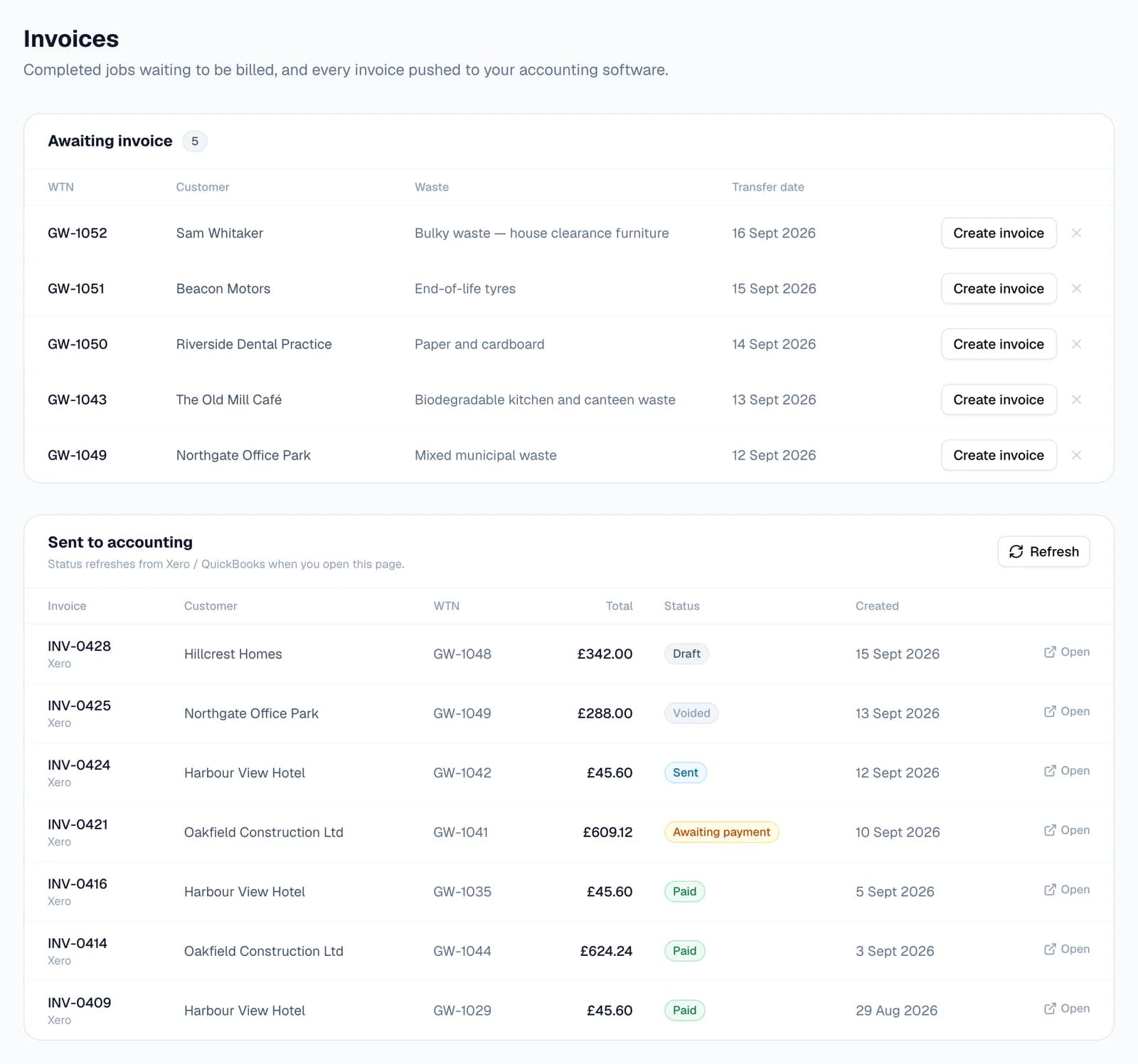
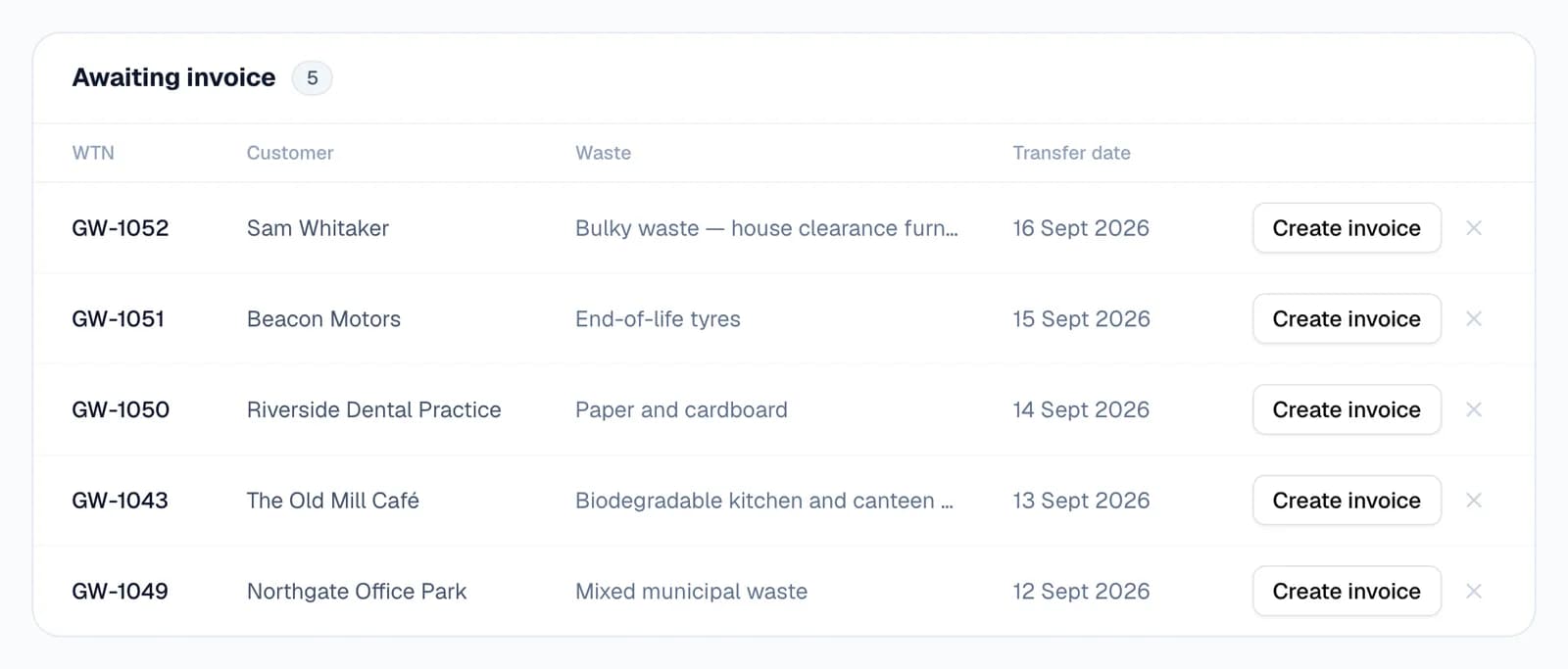
Invoices, under More in the sidebar, lists every completed job that hasn't been invoiced yet. That includes one-off cash jobs with no customer record, which are billed to the name and email written on the note.
If a job won't be invoiced, say a goodwill collection or one billed another way, the cross on its row takes it off the list. You can still invoice it from the note later.
- A load you received at your own site is listed too, whether you logged it at the desk or accepted it from your inbox, billed to the carrier who tipped it.
- Notes you made as the producer and loads that came in on your own lorry aren't listed. There's nobody to bill.
Step 4: Turn the note into an invoice
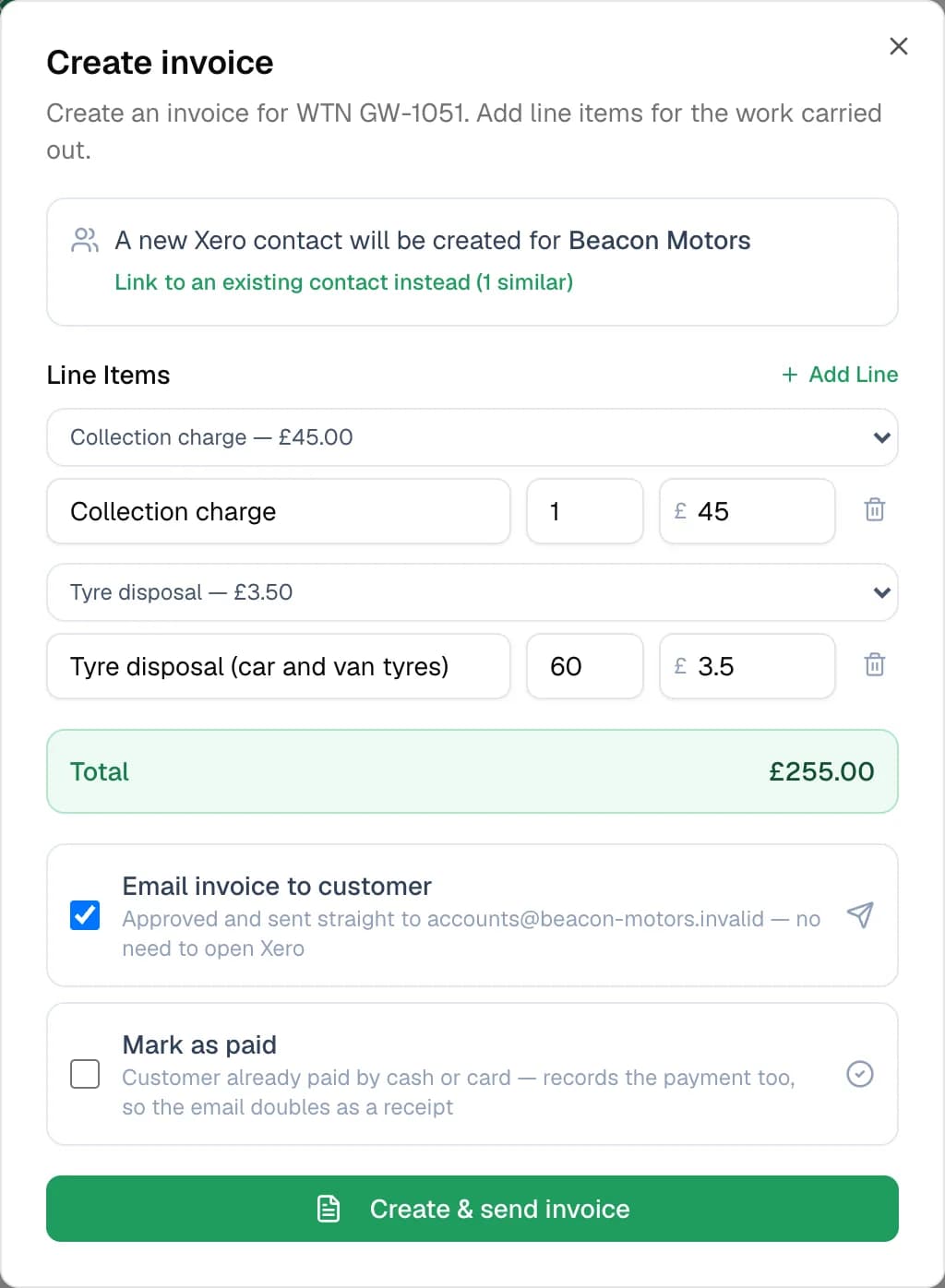
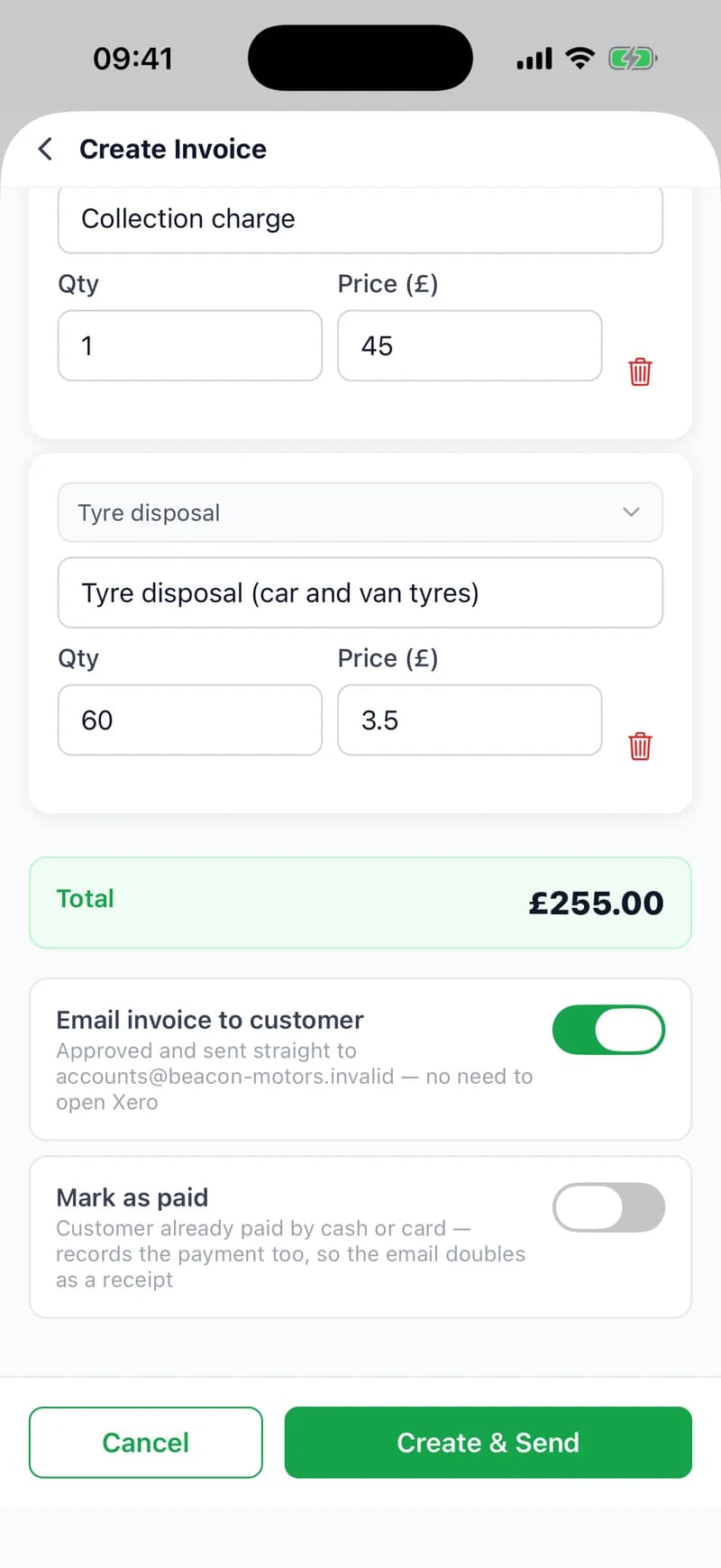
Choose Create invoice on the job's row, on the note itself, or on the screen you see as soon as you finish a note. Add a line for each thing you charge for: pick a saved product or service to fill in its description and price, or type your own.
Then decide what happens next. Email invoice to customer approves the invoice and sends it from Xero or QuickBooks. Mark as paid records a cash or card payment against it; tick both and the email doubles as a receipt. Leave both unticked and Xero keeps a draft for you to check. QuickBooks has no drafts, so it creates the invoice without sending it.
Step 5: Follow it through to paid
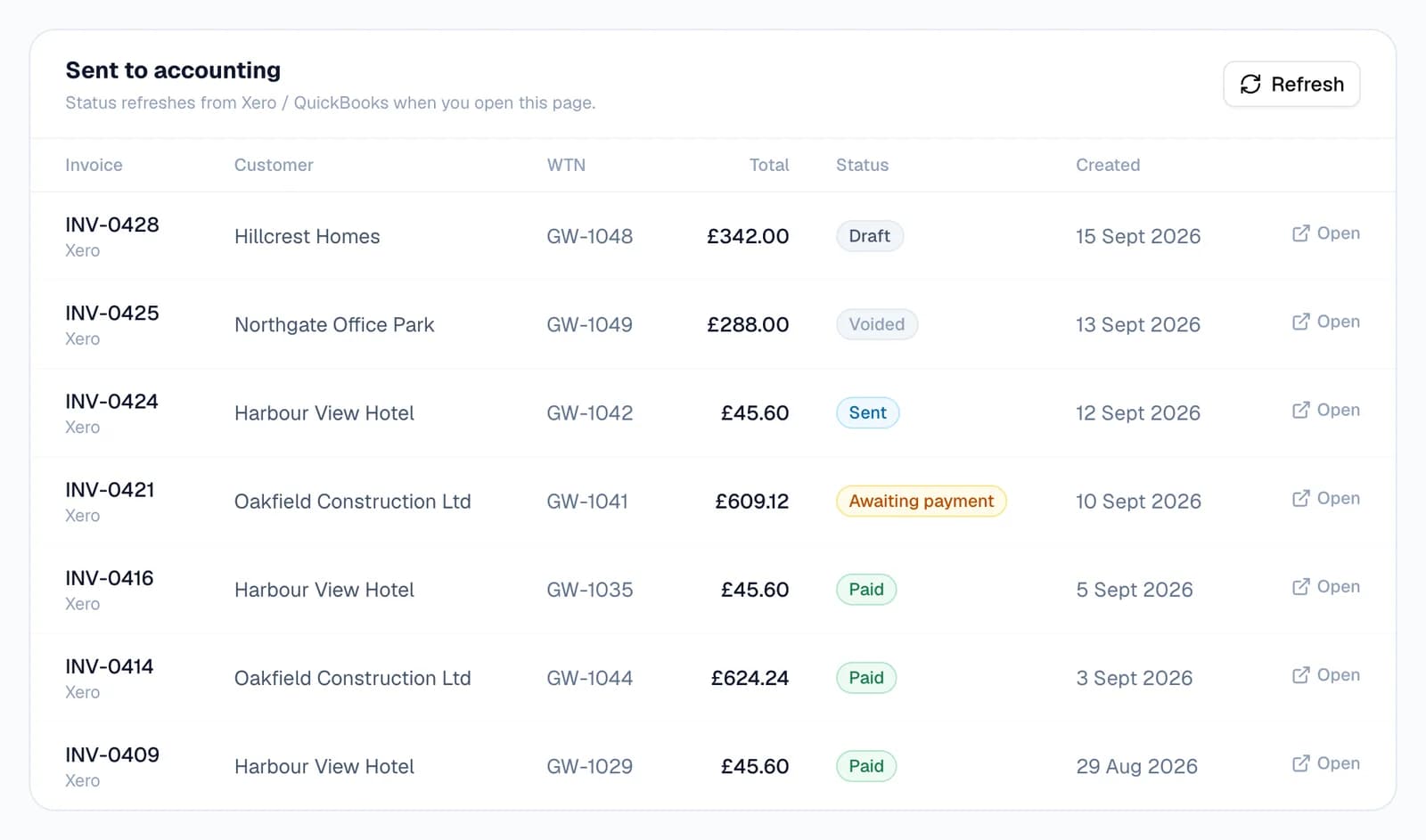
Sent to accounting, on the same page, lists every invoice with its number, customer, WTN, total and status: Draft, Awaiting payment, Sent, Paid or Voided. Statuses update from Xero or QuickBooks when you open the page, and Refresh checks again straight away. Open takes you to the invoice itself.
Void an invoice in your accounts and the job goes back to Awaiting invoice, ready to bill again.
Step 6: In the app
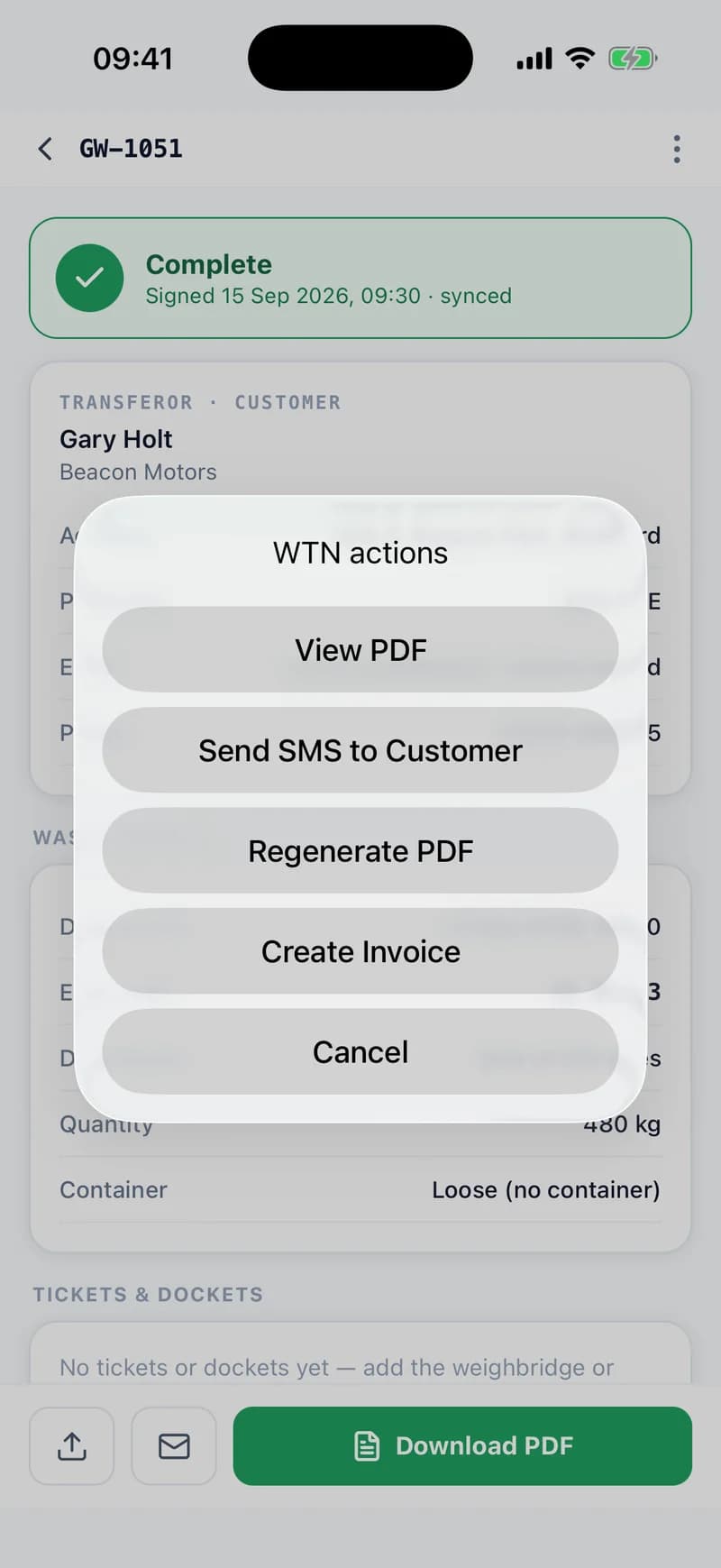
On a completed note, open the ⋮ menu and choose Create Invoice. It's the same invoice as on the web: saved products and services, the contact check, and switches to email it or mark it paid.
The screen you see after finishing a note offers Create invoice too, once the note has synced.
- Invoicing is for the account owner. Drivers don't see it.
Three ways to bill a job
The same dialog, ticked differently.
Check it first
Leave both boxes unticked. Xero keeps a draft; QuickBooks creates the invoice without sending it. Review it in your accounts before it goes out.
For weekly billing from the office
Send it the same day
Tick Email invoice to customer. The invoice is approved and emailed from Xero or QuickBooks as soon as it's made.
For account customers
Paid at the job
Tick Mark as paid, and email too if you like. The payment is recorded first, so the email doubles as a receipt.
For cash and card work, like house clearances
Questions
Answered from how the product actually behaves.
Can I connect Xero and QuickBooks at the same time?
No. WTNcloud invoices into one set of accounts at a time. To switch, disconnect the one you have, then connect the other.
Will it add duplicate contacts to my accounts?
Not if it can avoid it. A customer that's already linked is billed to its contact. Otherwise WTNcloud reuses a Xero contact with exactly the same name, or a QuickBooks customer named after the customer and postcode, and only creates one when there's no match. The dialog shows near matches so you can link one first.
Why can't I email the invoice or mark it paid?
Emailing needs an email address for the customer, and both need a VAT rate chosen in invoice settings. In Xero, marking paid also needs the account payments go into. The message tells you which is missing and links to the setting. Drafts work without any of them.
Can I invoice a one-off cash job?
Yes. A job with no customer record is billed to the name and email written on the note, and appears in Awaiting invoice like any other.
What happens if I void an invoice?
Next time Invoices checks, the invoice shows as Voided and the job goes back to Awaiting invoice, so you can bill it again.
Who can create invoices?
The account owner, on the web or in the app, and admin logins on the web. Office logins and drivers can't connect accounts or raise invoices.
Do my customer details stay in sync with Xero or QuickBooks?
No. Importing copies contacts into WTNcloud once, and invoicing links a customer to its contact. Changes made in one place afterwards aren't copied to the other.