Feature guideSolo+
Customer portal
One private link for all their waste paperwork.
Switch on the customer portal and your customer gets a page of their own, in your branding, holding every waste transfer note, season ticket and consignment note you've issued them. They download what they need and sign what's waiting — with no account to create and no app to install.
Included from Solo+ upwards.
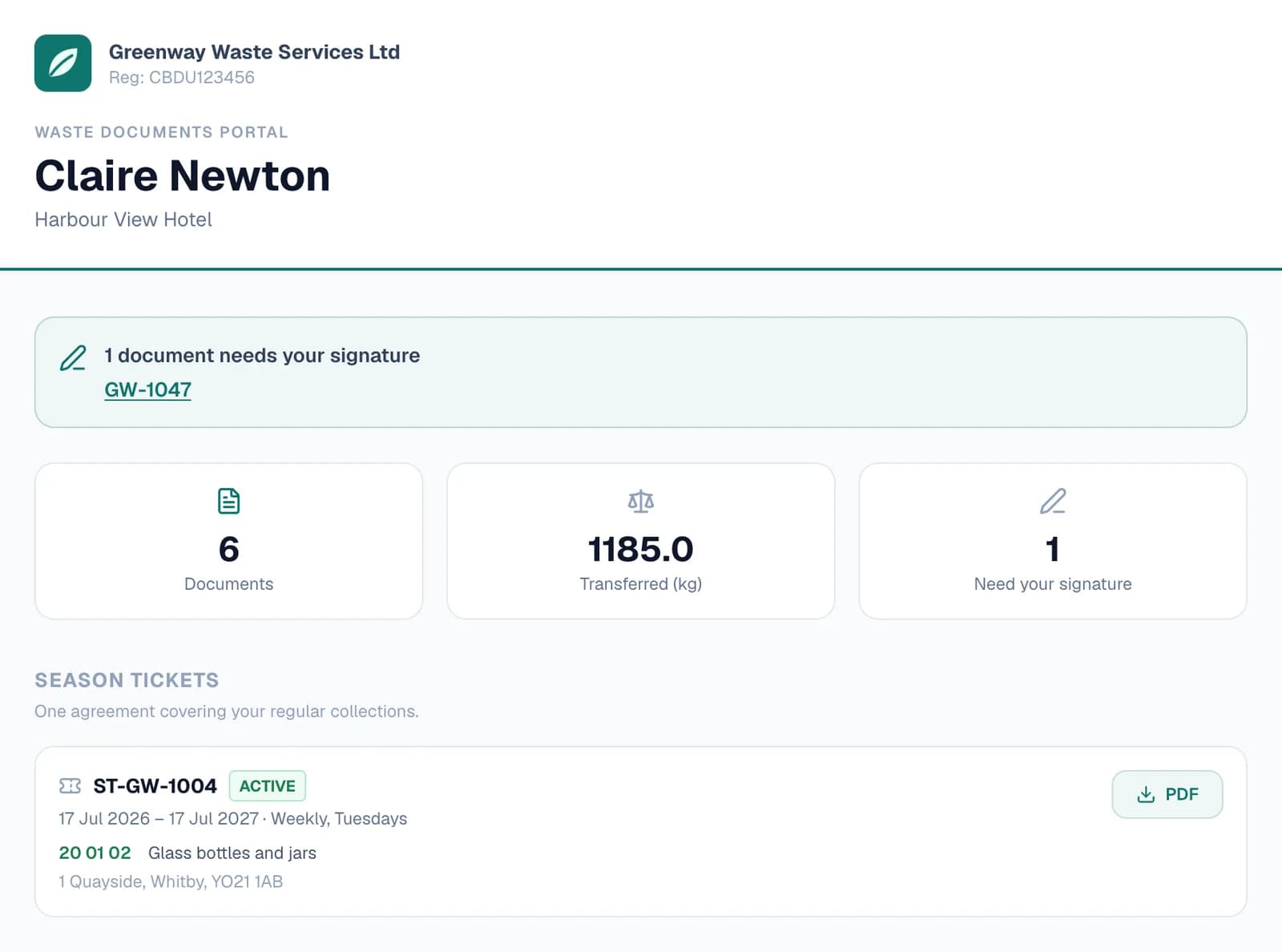
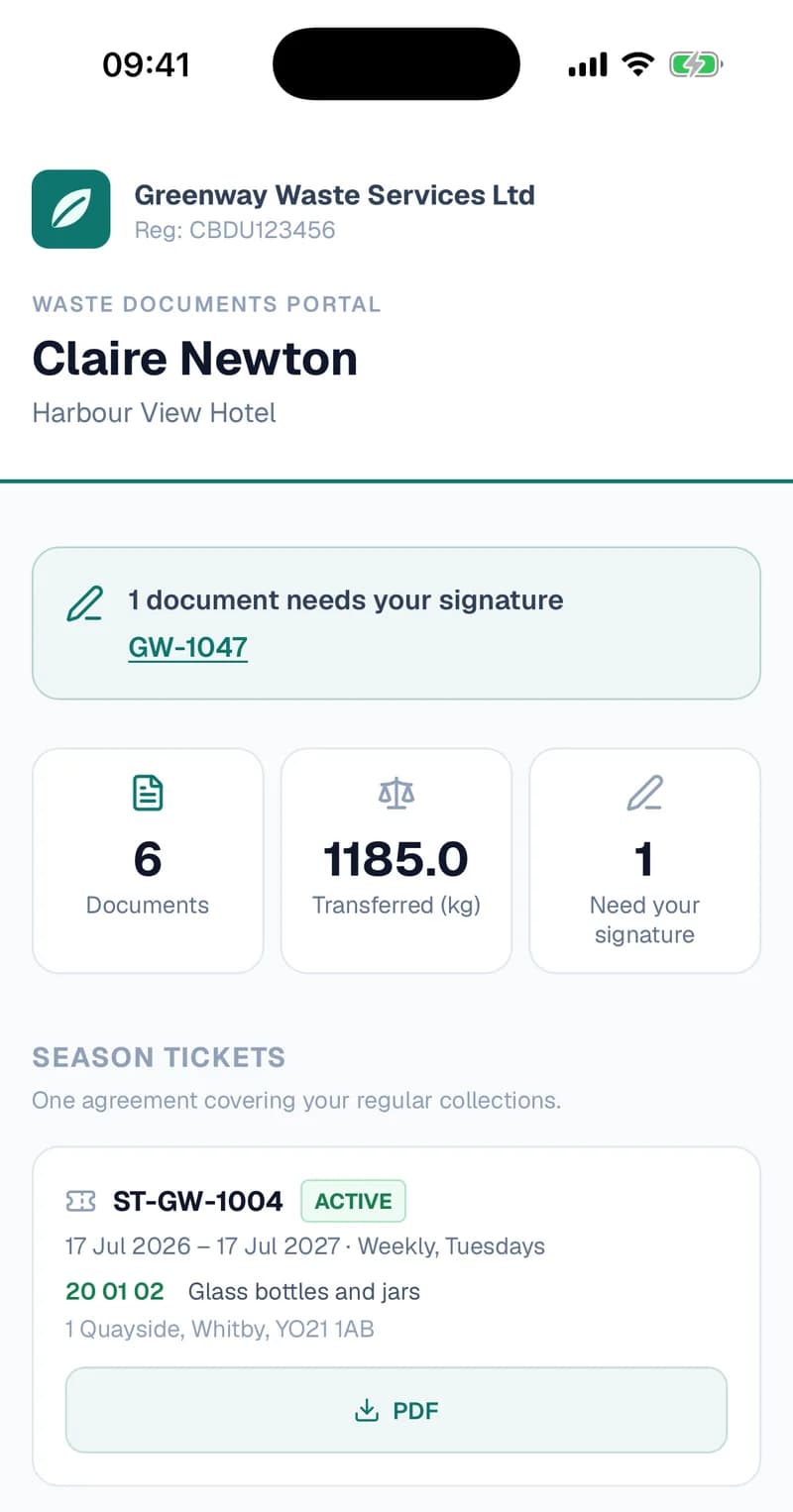
What your customer sees
One page per customer that keeps itself up to date. Notes you issue to them appear on it — there's nothing to upload or send each time.
- Your brandingYour logo, company name and waste carrier registration, in your brand colour.
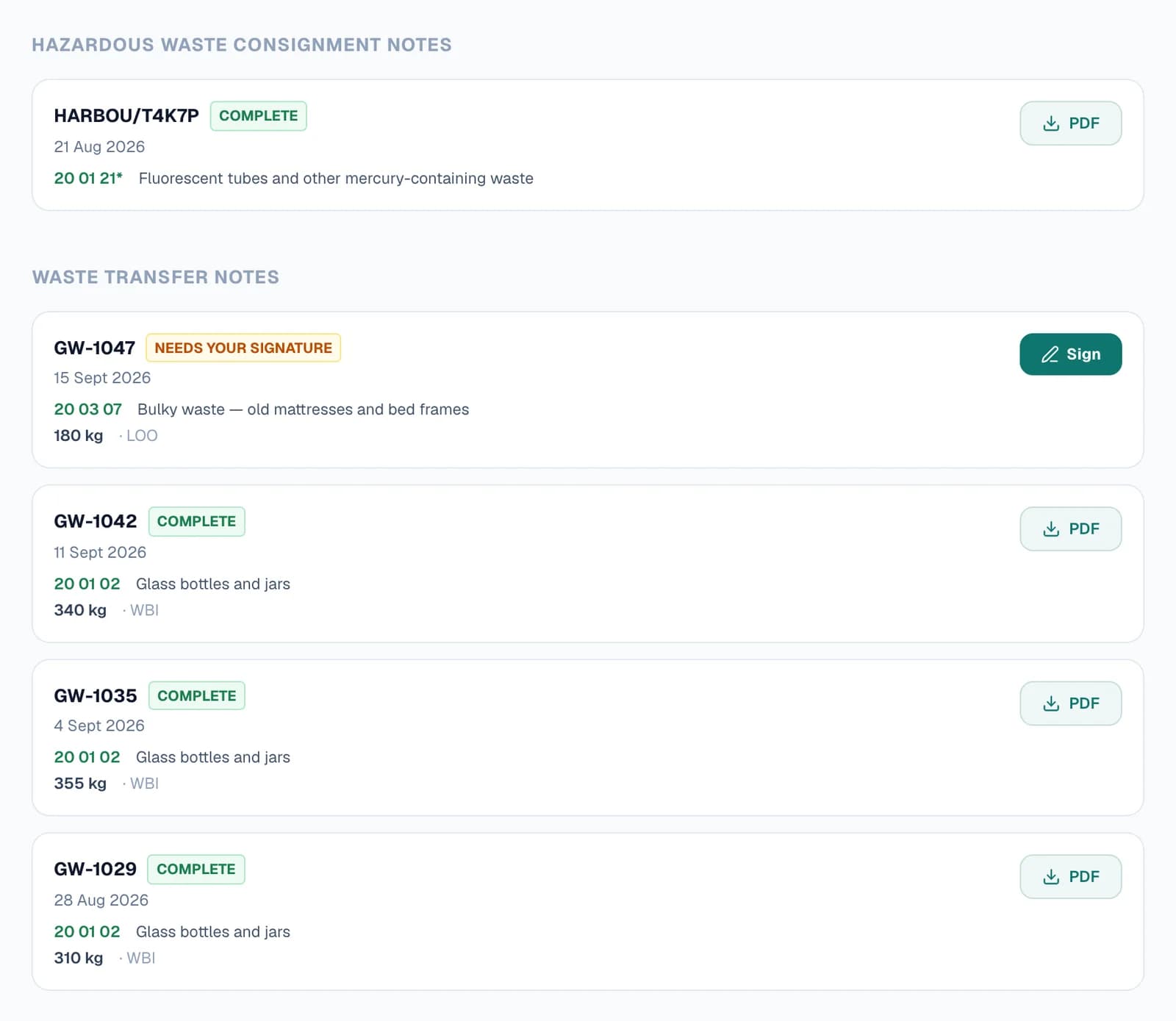
- Waste transfer notesNewest first, each with its date, EWC code, description, quantity and container.
- Season ticketsEach agreement with its dates, how often you collect, and whether it's active.
- Consignment notesHazardous waste consignment notes, under their consignment codes.
- PDF copiesA PDF button to download or print the paperwork.
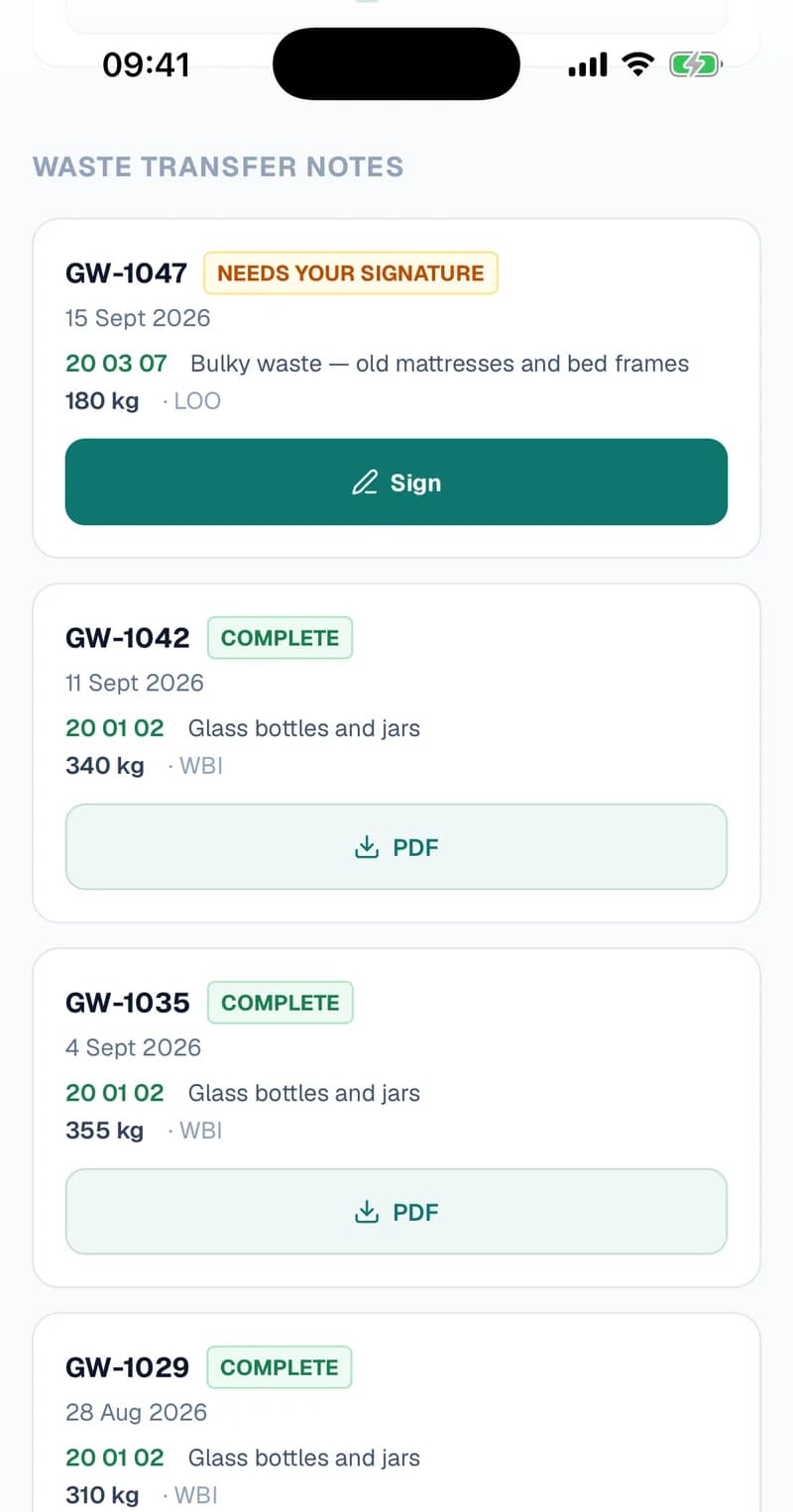
- Sign buttonsOn anything waiting for their signature, with a banner at the top listing each one.
- How to reach youYour phone number and email address at the foot of the page.
- Private to themA long, random link that only works while their portal is switched on.
Step by step
How it works
Step 1: Switch it on for a customer
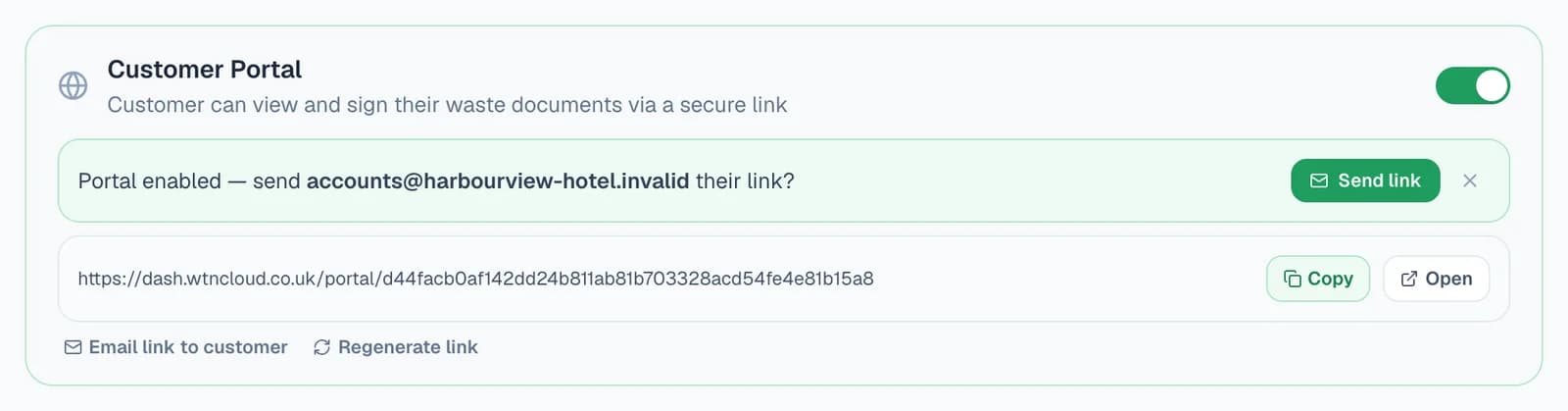
Open the customer from Customers and turn on Customer Portal. Their private link appears straight away — and if they have an email address on file, you're offered to send it to them there and then.
Copy the link to send it your own way, or open it to see exactly what your customer will see. Email link to customer sends it again whenever they ask.
- Creating a season ticket switches the customer's portal on for you, so they have somewhere to see and sign it.
- Office staff logins can switch portals on and send links too.
Step 2: Or switch it on from your phone
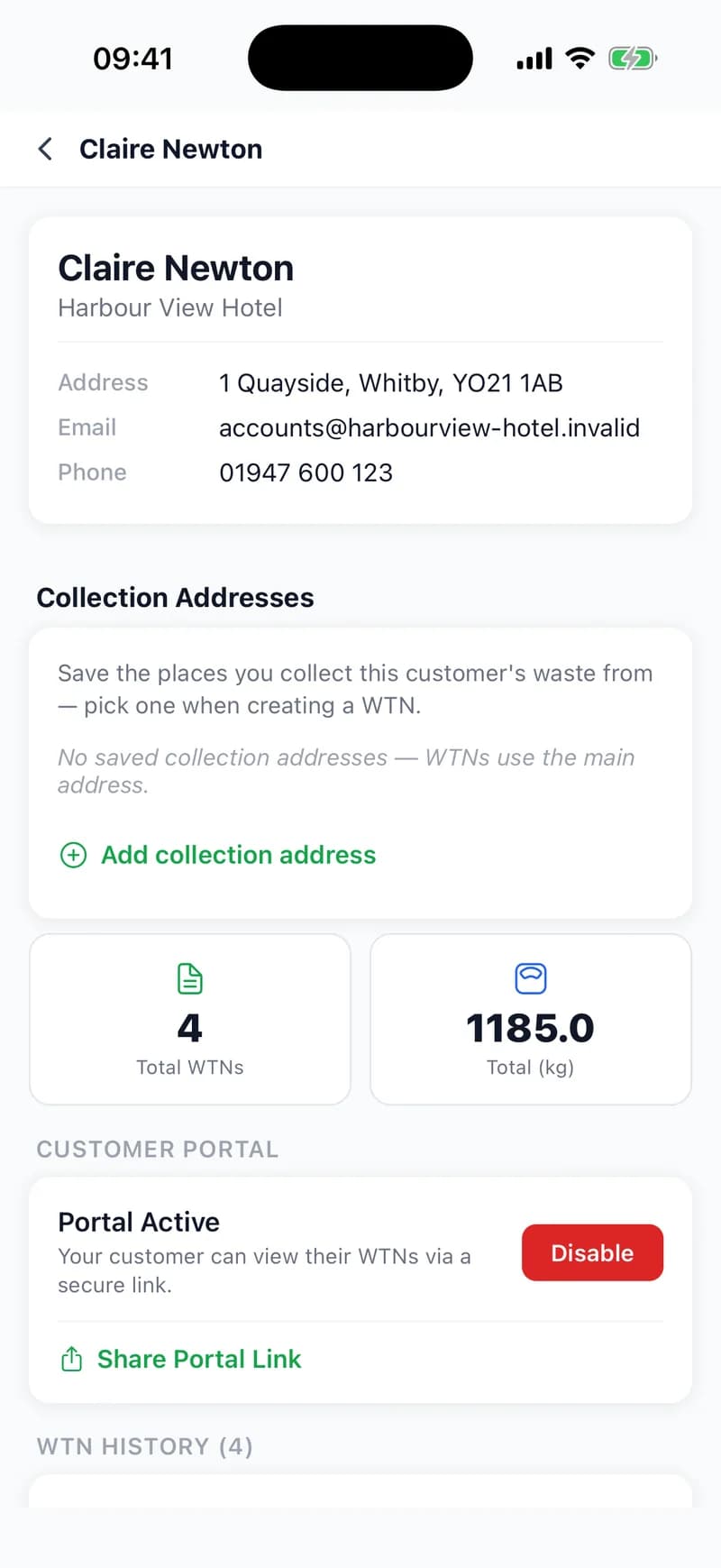
In the WTNcloud app, open Customers, pick the customer and tap Enable under Customer Portal.
Share Portal Link then opens your phone's share sheet, so you can send the link by text, WhatsApp, email or whatever you normally use.
- Replacing a link with a new one is done on the web.
- Driver logins don't see the Customers tab.
Step 3: Your customer opens one page with everything on it
The link opens in any web browser, on a phone or a computer. There's nothing to install and no password to remember.
Your logo, name and registration sit at the top in your brand colour. Below them are every season ticket, consignment note and waste transfer note you've issued that customer, newest first, with PDFs to download.
Step 4: They sign what's waiting, right there
Anything still waiting for their signature is marked Needs your signature and gets its own Sign button — waste transfer notes, season tickets and consignment notes alike. A banner at the top of the page lists each one, so nothing gets missed on a small screen.
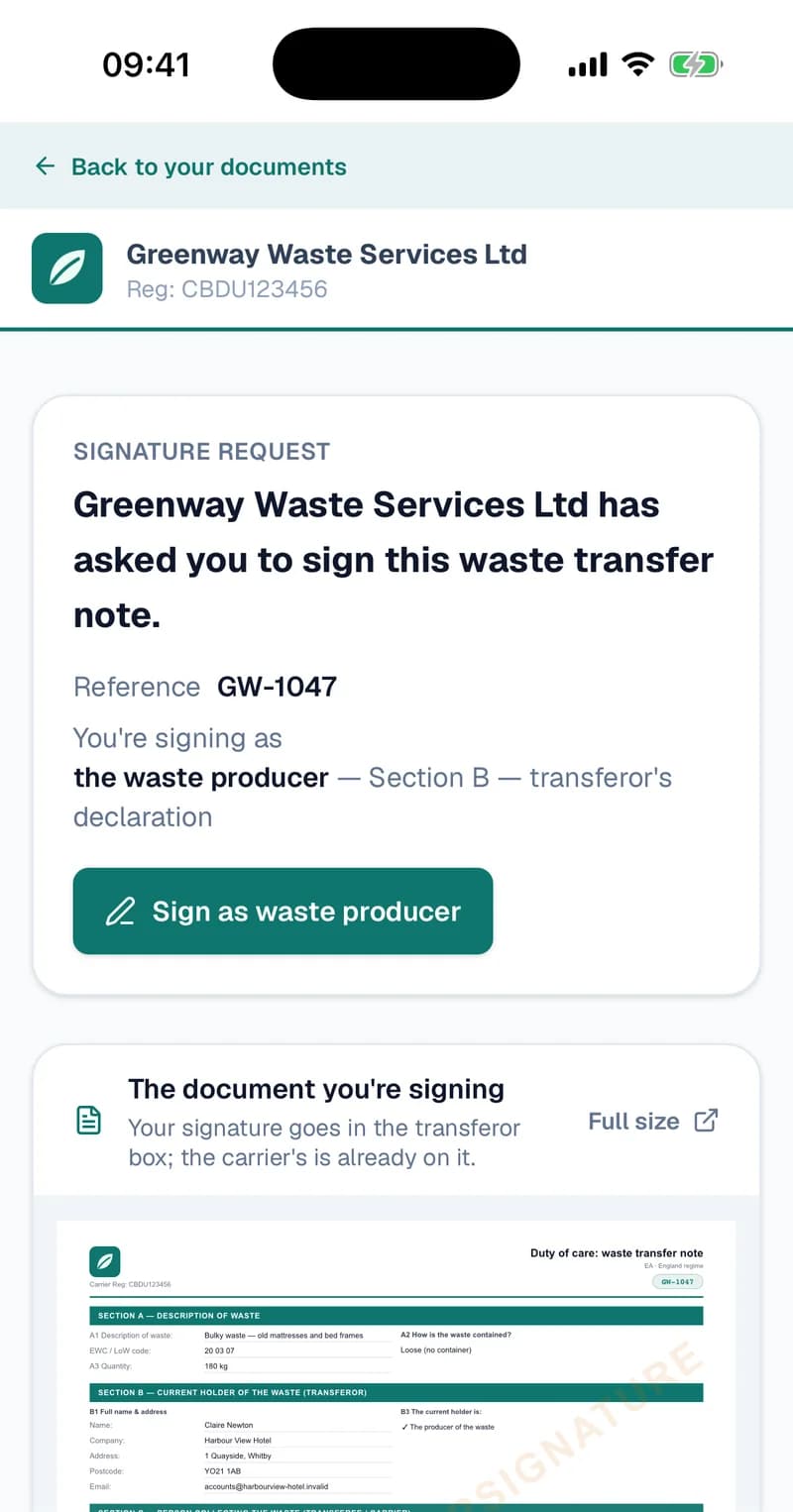
Sign opens the usual signing page, still in your branding, with a Back to your documents link. If you've already emailed them a signing link for that note, the button uses the same one, so the email in their inbox keeps working.
Step 5: Switch it off, or replace the link
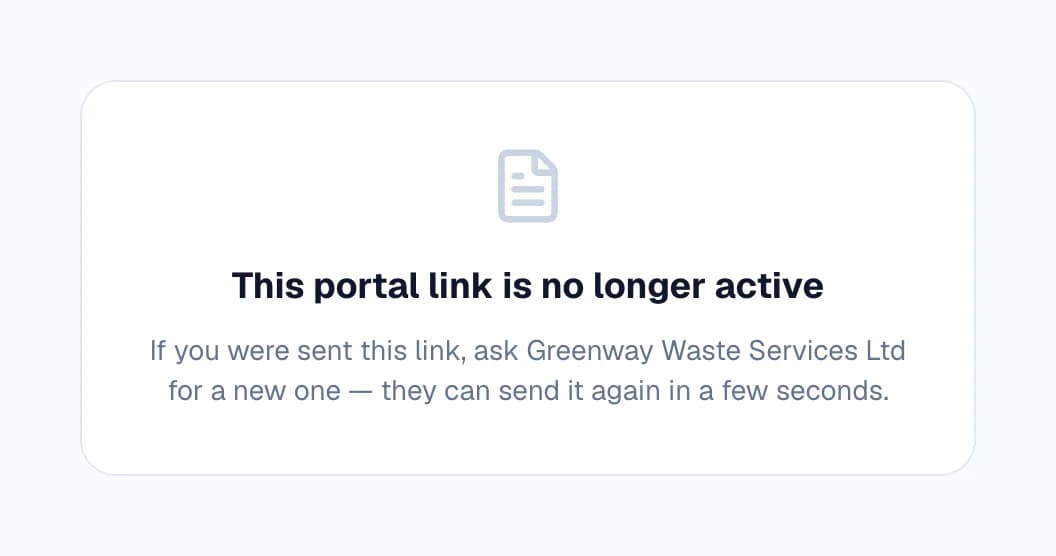
Turn the switch off and the link stops working straight away. Anyone who opens it is told it's no longer active and to ask you for a new one. Turn it back on and the same link works again.
If a link has ended up somewhere it shouldn't, choose Regenerate link instead. The old link stops working immediately, and the new one is emailed to the customer if they have an address on file.
Questions
Answered from how the product actually behaves.
Does my customer need an account or an app?
No. The portal is a web page behind a private link, so it opens in any browser on a phone, tablet or computer. There's no account to create and no password to remember.
What can my customer do in the portal?
See their documents, download the PDFs, and sign anything that's waiting for their signature. They can't change or delete anything.
How private is the link?
Each customer gets their own long, random link, and it only works while their portal is switched on. Anyone who has the link can see that customer's documents, so treat it like a password — the email with the link says the same. If it ends up in the wrong hands, regenerate it and the old one stops working. Portal pages also tell search engines not to index them.
What happens when I switch a portal off?
The link stops working at once and shows a page saying it's no longer active. Switch it back on and the same link works again, so a customer who kept your email can carry on using it. To give them a different link, use Regenerate link.
Which documents appear?
The waste transfer notes, season tickets and hazardous waste consignment notes issued to that customer. Deleted documents don't appear, and neither do waste transfer notes or season tickets you've archived.
Do I have to switch it on for season tickets?
No. Creating a season ticket switches that customer's portal on automatically, so they can see and sign the agreement. Their link is waiting on their customer page whenever you want to send it.
Can I do this from the app?
Yes. In the WTNcloud app, open the customer from Customers, tap Enable under Customer Portal, then Share Portal Link to send it however you like. Regenerating a link is done on the web.
Does the portal carry WTNcloud's branding?
It leads with your logo, company name and brand colour, which you set under Settings → Branding. A small “Powered by WTNcloud” line sits at the very bottom.