Feature guideBusiness+
Waste profiles
Set up a regular run once. Start it in one click.
A waste profile remembers a job you do again and again: who it's for, where you collect, what the waste is, which vehicle goes and where it tips. Pick the profile and the note starts filled in. Change what's different today, and leave the rest for the driver.
Included on Business and Enterprise.
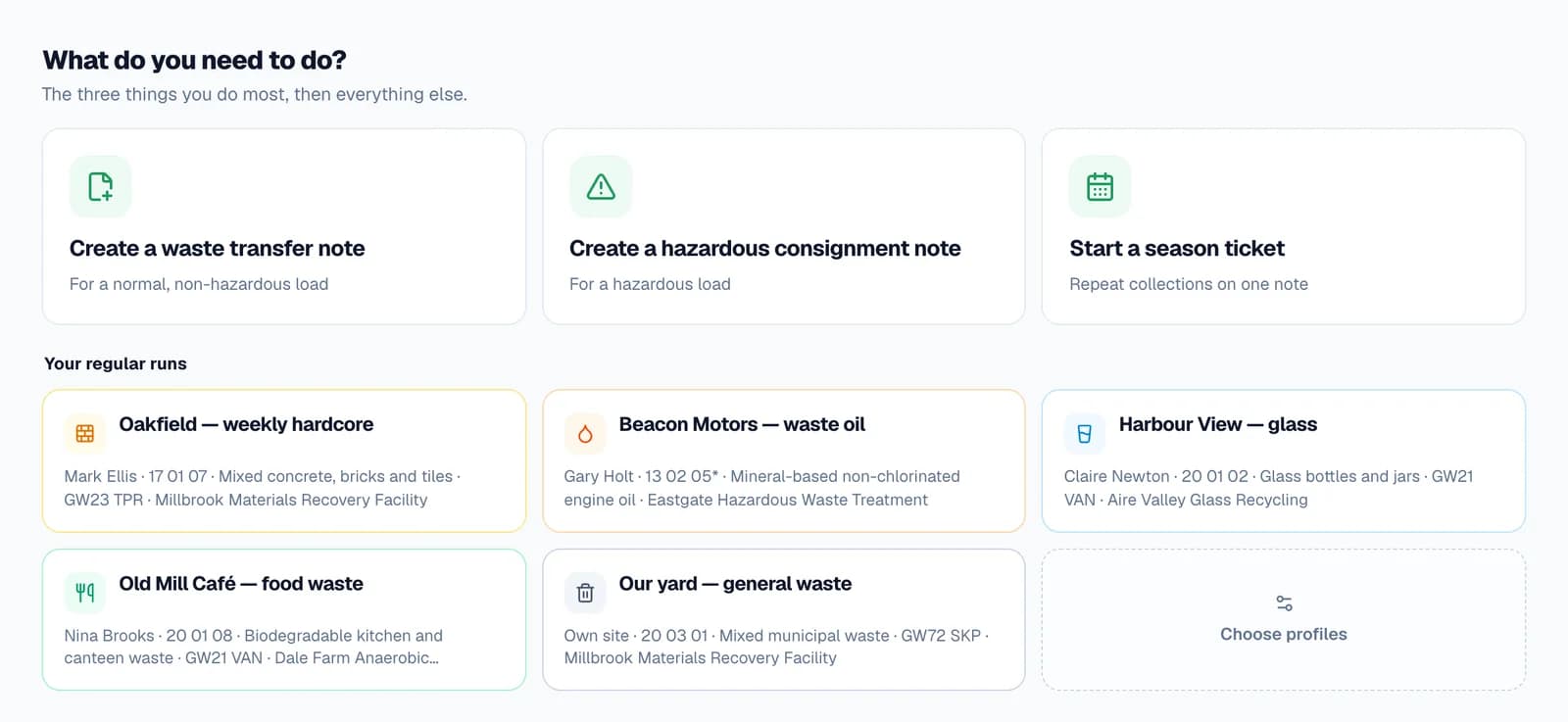
What a profile remembers
Only what stays the same from one run to the next. Anything you leave blank is left for whoever starts the note.
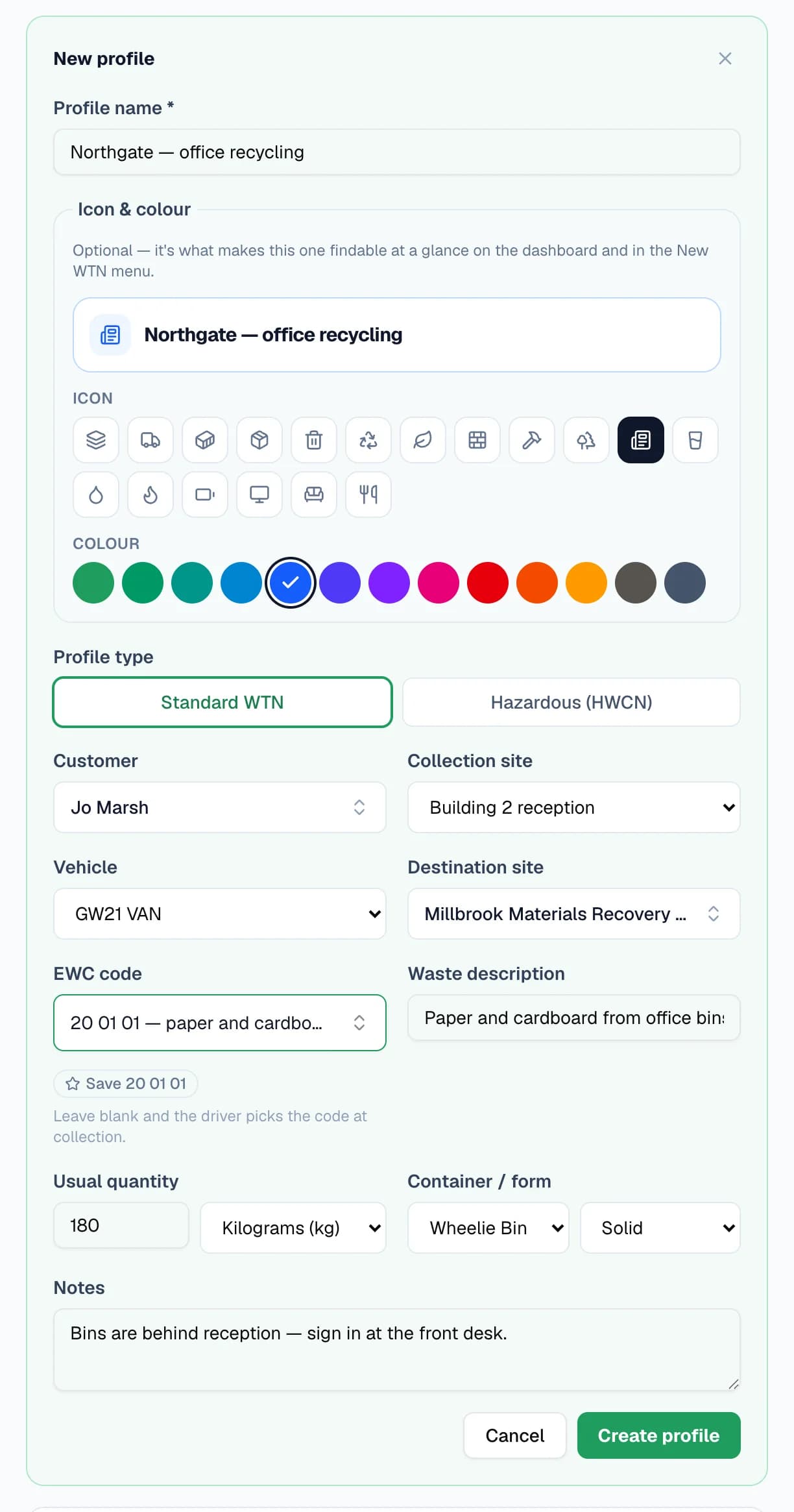
- Customer and collection siteA saved customer and one of their sites — or your own yard.
- The wasteEWC code and description. Leave the code blank and the driver classifies it at collection.
- Usual quantityAmount and unit, plus the container and physical form.
- VehicleThe vehicle that normally does the run.
- Destination siteWhere the load goes, from your saved sites.
- Notes for the driverGate codes, where the bins are, which bay to tip in.
- Hazardous detailsOn a consignment-note profile: HP codes, components, containers, ADR and extra waste lines.
- An icon and a colourSo the right run is easy to spot at a glance, even with the same customer on four tiles.
Step by step
How it works
Step 1: Save the job as a profile
Go to Settings → Notes → Waste profiles and choose New profile. Name it the way your team talks about the job, pick an icon and a colour, and fill in the parts that don't change.
Choose the kind of note it starts: a standard waste transfer note, a hazardous consignment note, or — if you run a receiving site — a received load. A consignment-note profile holds the whole of Part B, just as the note asks for it: HP codes, colour, components, containers, special handling, ADR and any extra waste lines.
Step 2: Pin your busiest runs, star your default
On the dashboard, Choose profiles puts the runs you do most under “Your regular runs” — the tiles at the top of this page — each showing its customer, code, vehicle and destination.
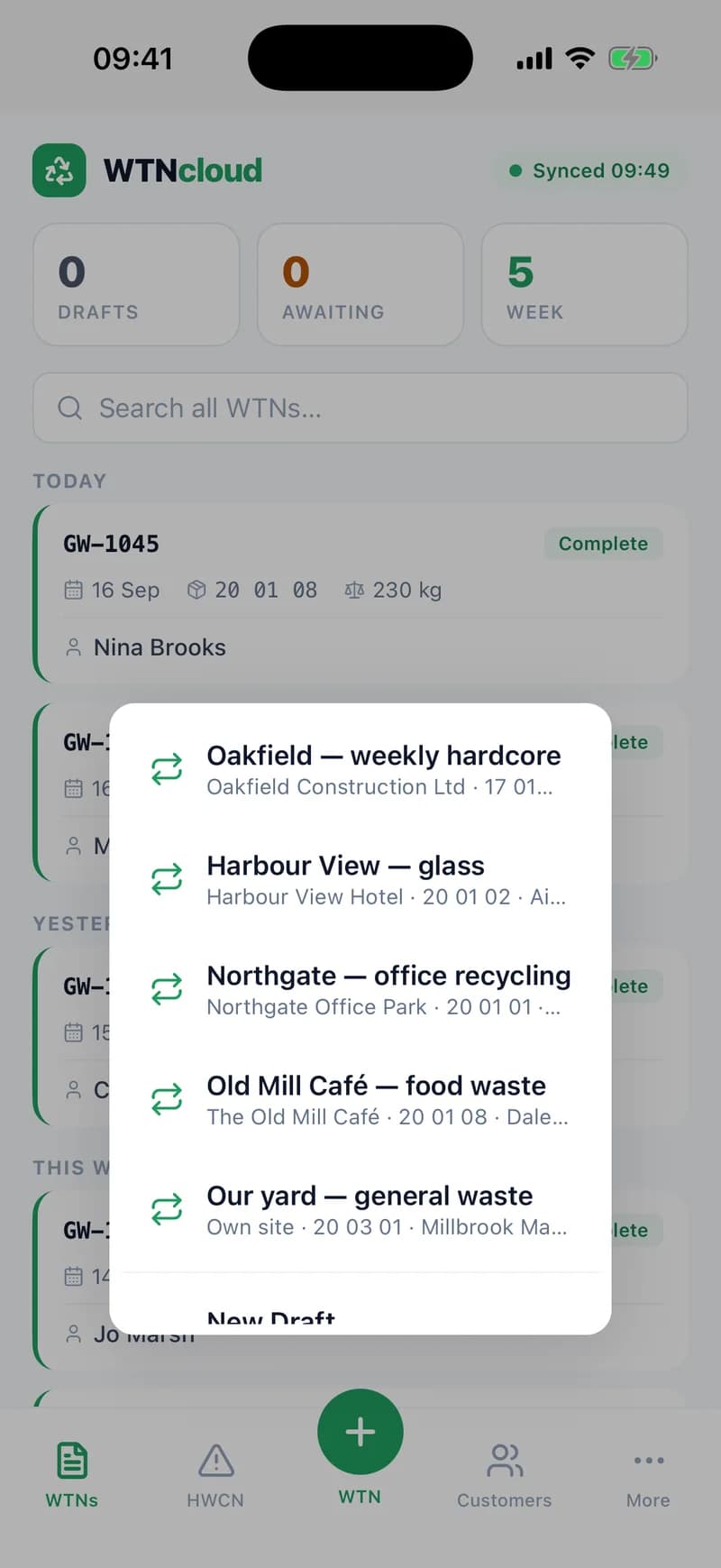
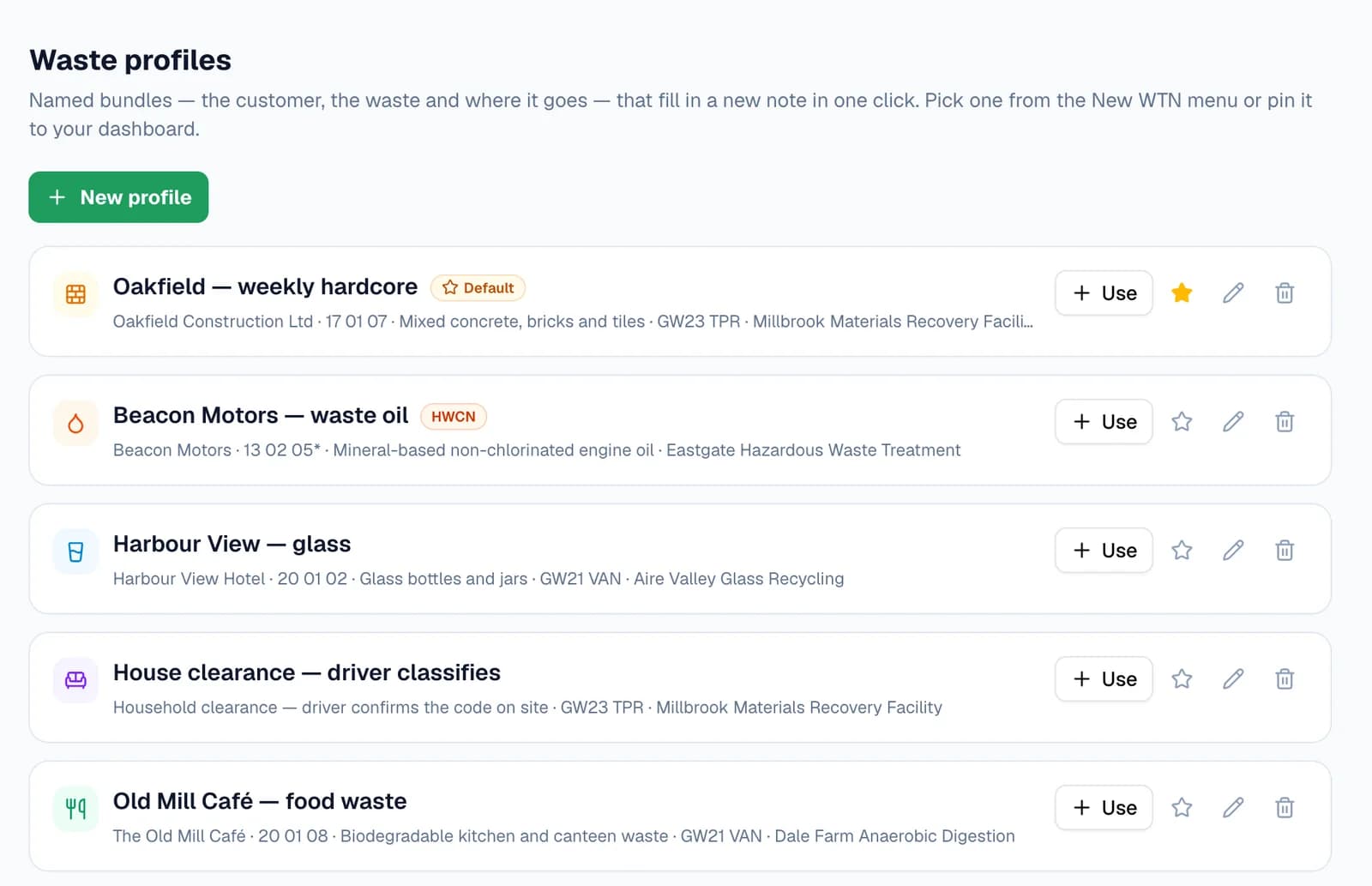
In the profiles list, star one as your default, or press Use to start a note from any of them. Pinned runs come first in the New WTN menu, with your default marked.
Step 3: Send a run to a driver in one window
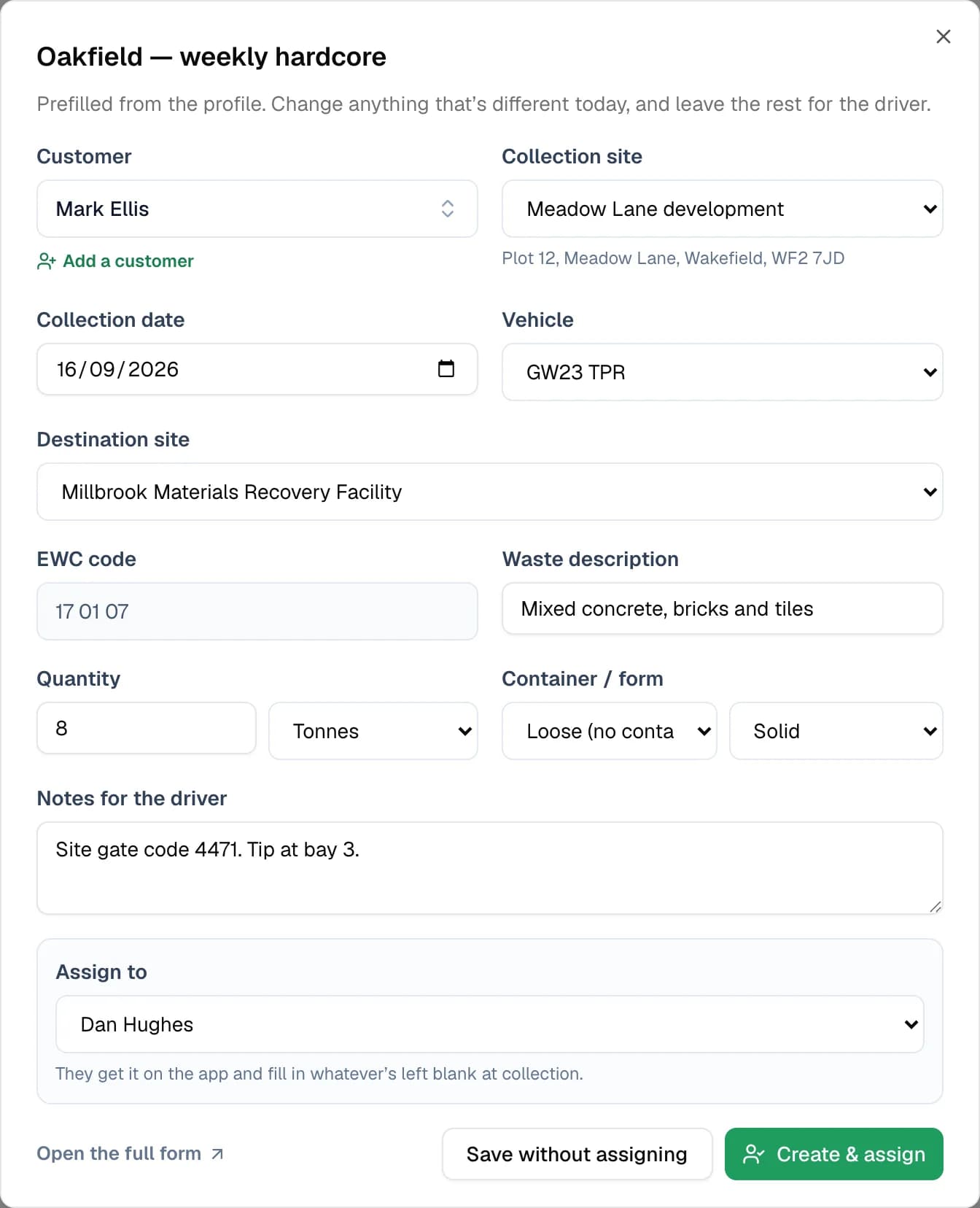
Click a tile and everything the profile knows is already filled in. Change whatever is different today — the collection date, the quantity, a note for the driver — then pick a driver and choose Create & assign.
The job lands in the driver's app, and they fill in whatever you left blank at collection. Nothing is signed or issued until then: it's saved as a draft.
Step 4: Or open the whole note, already filled in
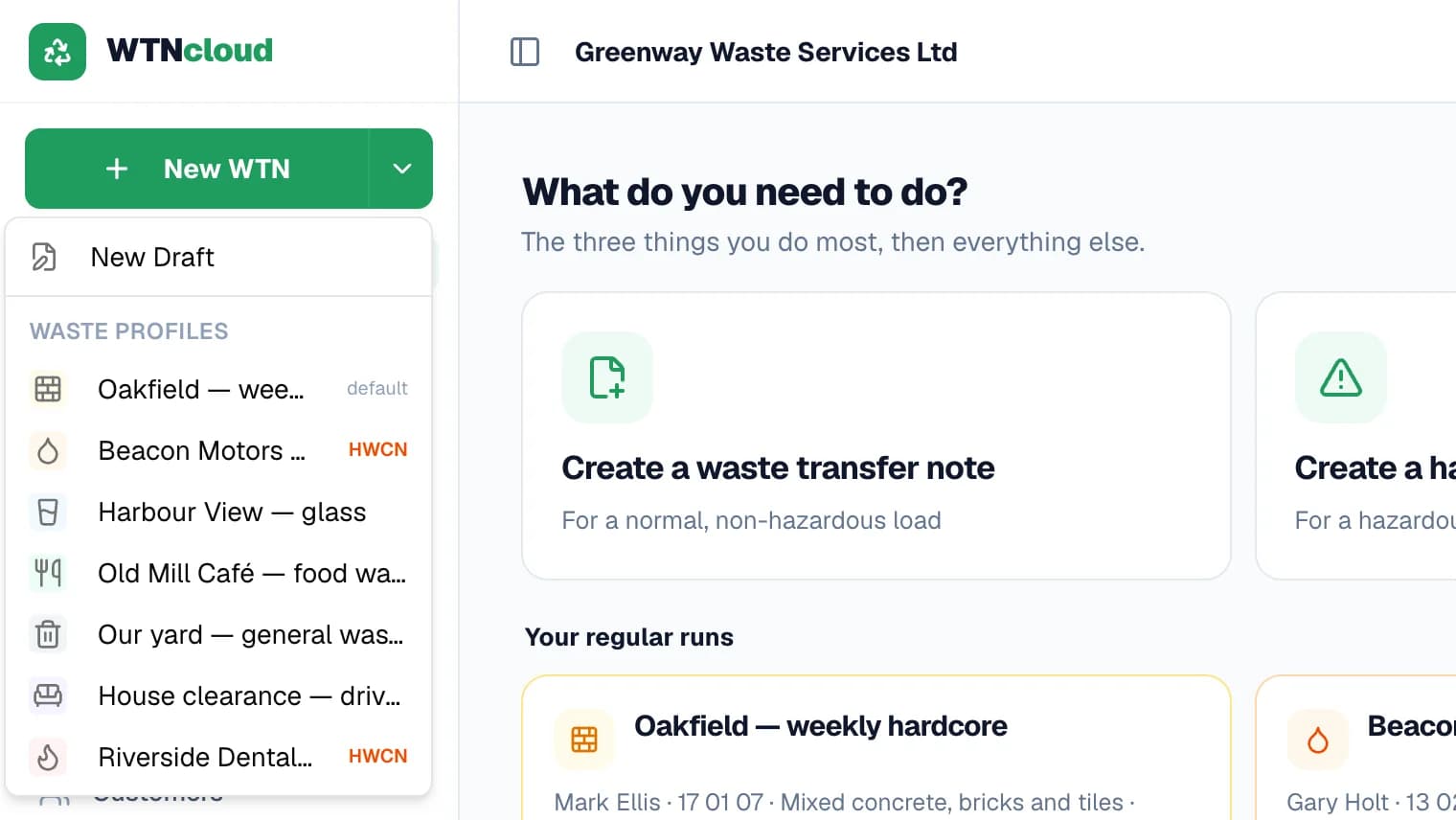
Prefer the full form? Open the arrow beside New WTN and pick a profile under Waste profiles, or choose Use on the profiles page.
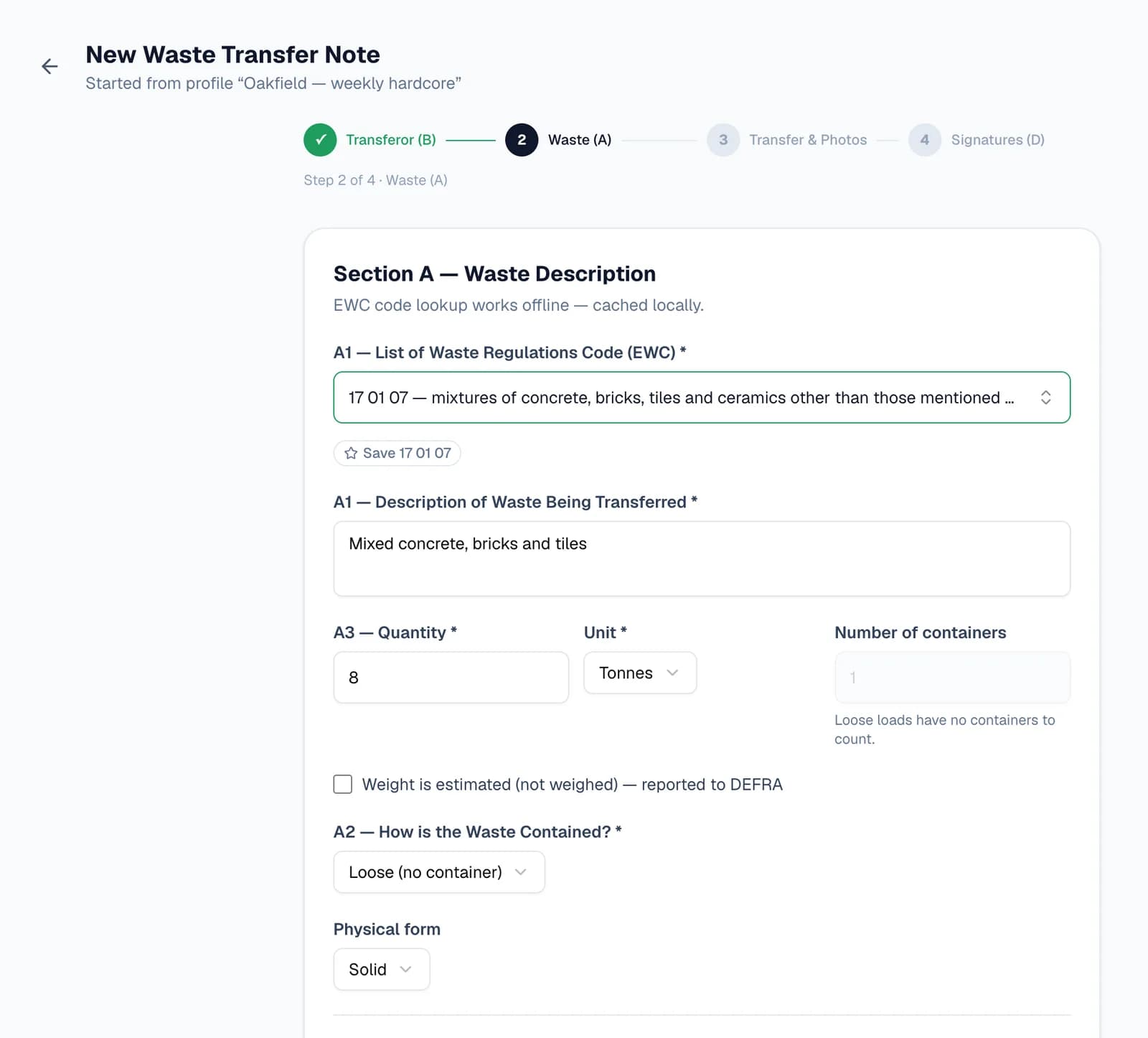
The note opens with the transferor and the waste section filled in, marked “Started from profile”, and you carry on through the steps as normal.
Step 5: Start one from your phone
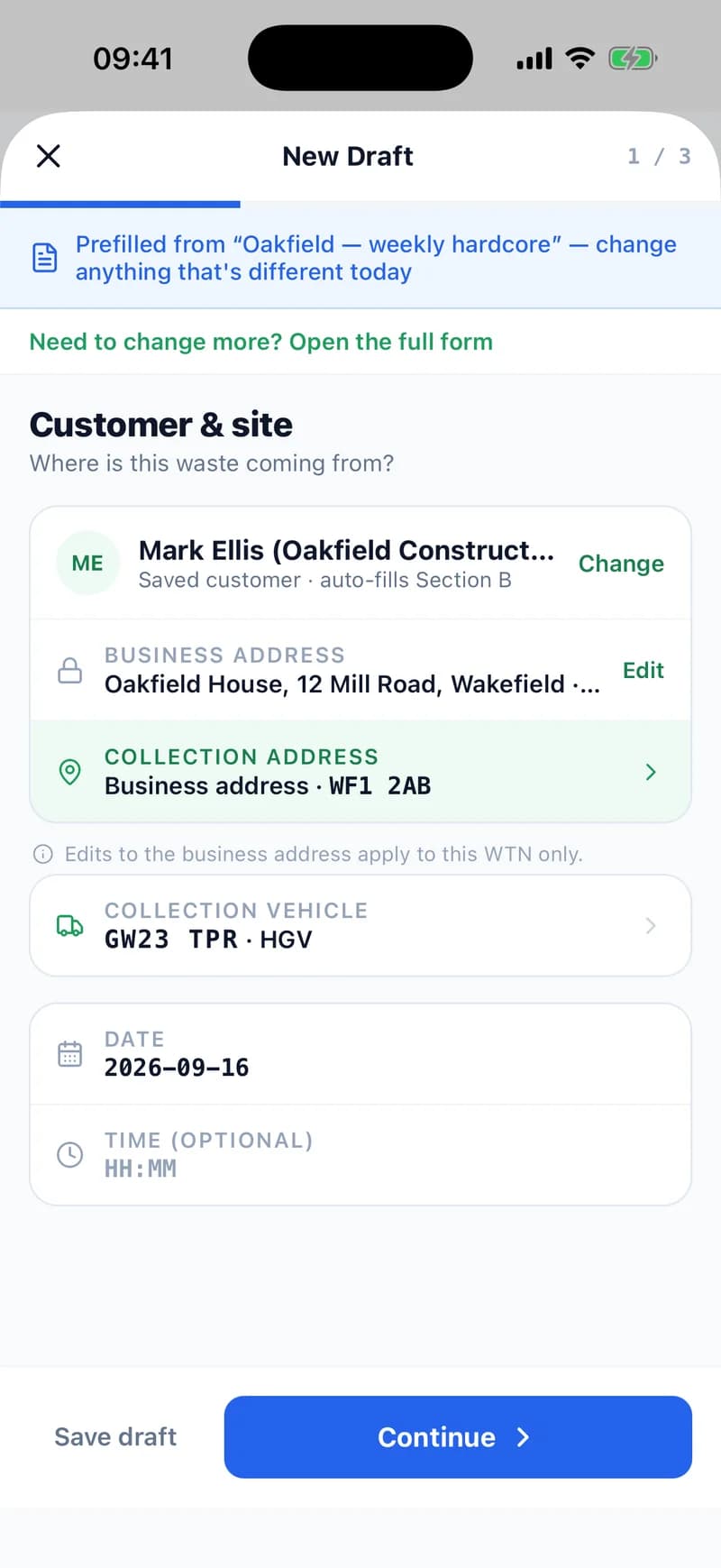
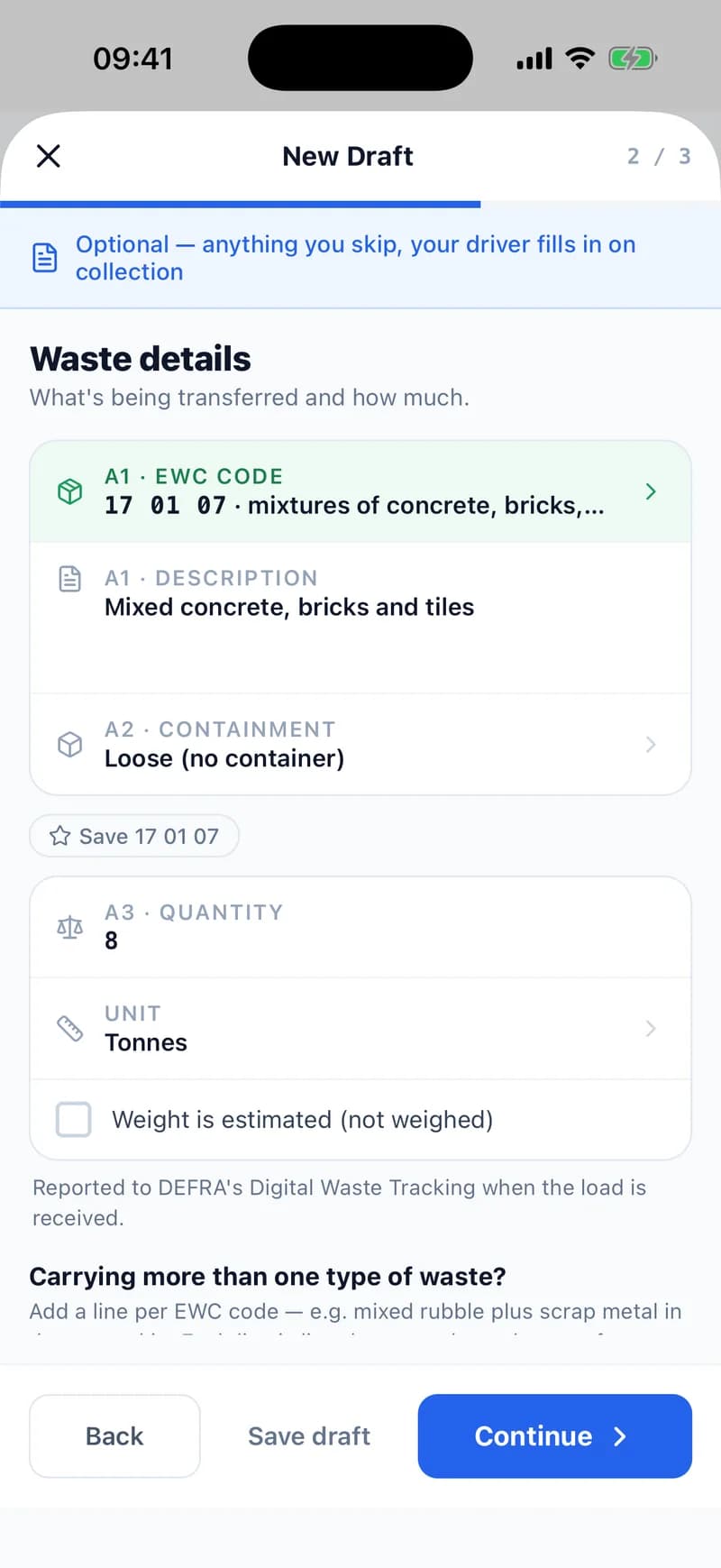
In the WTNcloud app, press and hold the green New button. Your waste profiles are at the top of the menu — tap one and a new draft opens, marked “Prefilled from” the profile, with the customer, vehicle and waste already in.
Anything you skip, the driver fills in at collection.
Profiles are saved on the phone with the rest of your account, so the list is there even when the signal isn't.
- Available on the account owner's login.
- The app starts waste transfer notes from profiles. Hazardous and received-load profiles are started from the web dashboard.
One feature, three kinds of note
Every profile starts one kind of note, chosen when you create it.
Waste transfer notes
Regular collections: customer and site, waste, vehicle and destination. Start them from the dashboard, the New WTN menu or the app.
For carriers
Hazardous consignment notes
The consignor, a hazardous waste facility as the destination, the process, HP codes, components, containers, ADR and extra waste lines — all of Part B. Only the consignment code is per note.
For carriers moving hazardous waste
Received loads
For waste you take in: the producer, the carrier that delivers, the waste and its recovery or disposal code. The intake window then asks only what the weighbridge says.
For receiving sites
Questions
Answered from how the product actually behaves.
Which plans include waste profiles?
Business and Enterprise. Office staff logins on those plans can create and use profiles too.
If I change a profile, do notes I've already made change?
No. A profile only fills in a new note. Notes you've already made keep their own details, and deleting a profile doesn't touch them either.
Can I leave some details for the driver?
Yes — anything you leave blank on the profile stays blank for the driver to fill in at collection. That includes the EWC code: choose “No code — the driver picks at collection”, and the note can't be completed until the driver has picked one.
Does a profile fill in hazard codes on a consignment note?
Yes. Tick HP codes on a consignment-note profile and they're ticked on every note started from it — in the dispatch window and the full form — with a reminder to check they still apply to that load. The consignment code is never saved on a profile.
Can I use waste profiles in the app?
Yes, for waste transfer notes: press and hold the New button in the WTNcloud app and pick a profile. Hazardous consignment note and received-load profiles are started from the web dashboard.
How is a profile different from a WTN template?
A template adds your own extra sections around the standard note — it changes what the note asks for. A profile fills in the answers for one particular job. You can use both on the same note.
Can a profile be for waste from our own yard?
Yes. Choose “— Own site —” as the customer, and notes started from that profile use your own company's details as the transferor.