Feature guideBusiness+
Office & admin logins
Stop sharing your password with the office.
Give everyone who works at a desk their own WTNcloud login. Office logins get the day-to-day work, admin logins help you run the account, and your own sign-in stays yours. When someone leaves, switch their login off from the Team page.
Included on Business and Enterprise.
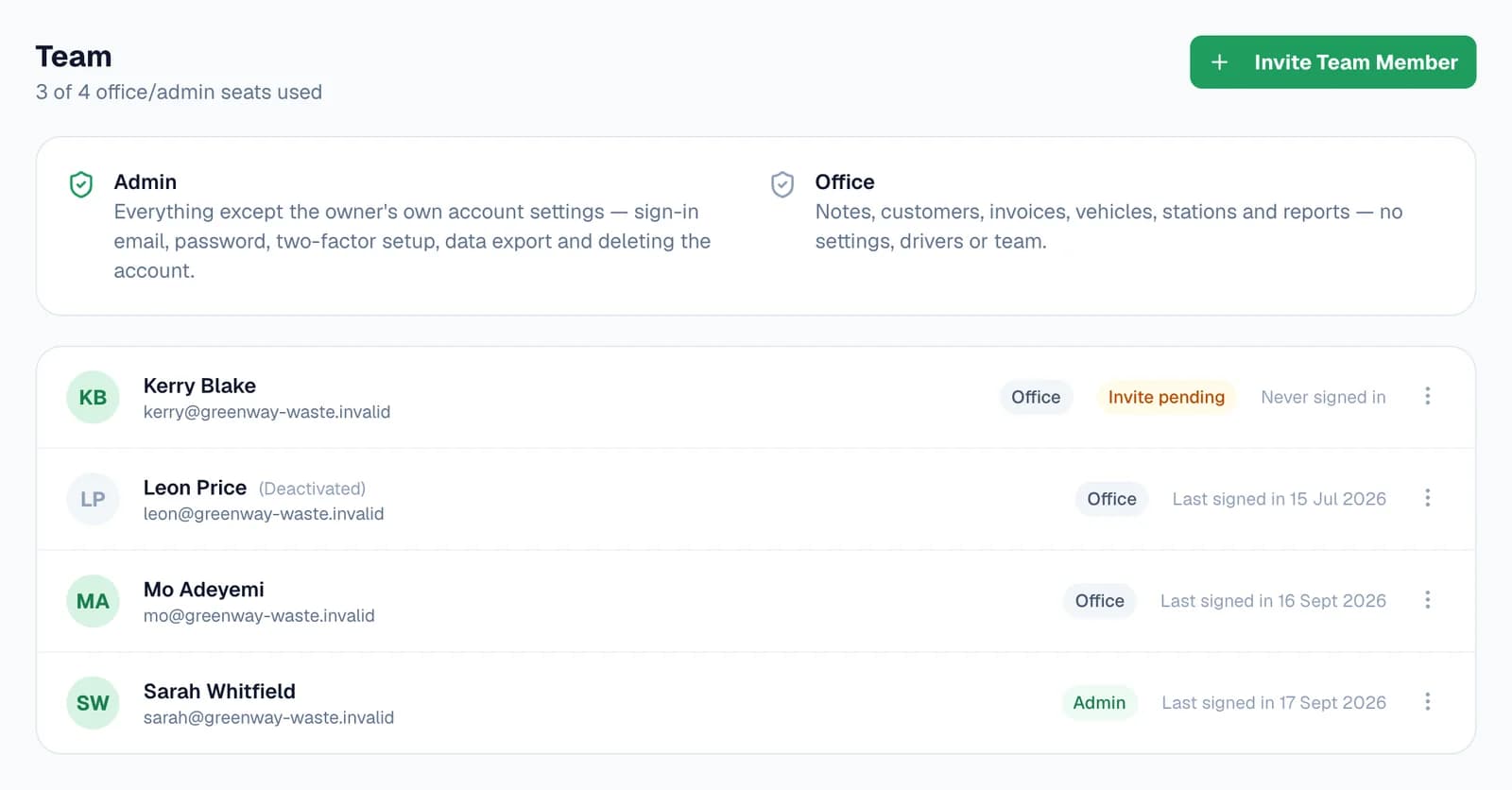
What the Team page shows
Everyone with a desk login on your account, and what each of them can do.
- Their own sign-inEach person signs in with their own email address and password, never yours.
- Admin or OfficeChoose a role when you invite them, and change it from the Team page at any time.
- Seats usedHow many of your plan's office and admin logins are in use. Deactivated logins don't count.
- Invite pendingShown until they've signed in for the first time and chosen their own password.
- Last signed inThe day each login last signed in, or Never signed in.
- DeactivatedSwitched off but kept on the list, ready to switch back on.
- Whose login it isTheir name and role show under your company name at the top of every page.
- Yours stays yoursYour password, two-factor, data export and closing the account are for you alone.
Step by step
How it works
Step 1: Invite someone from the office
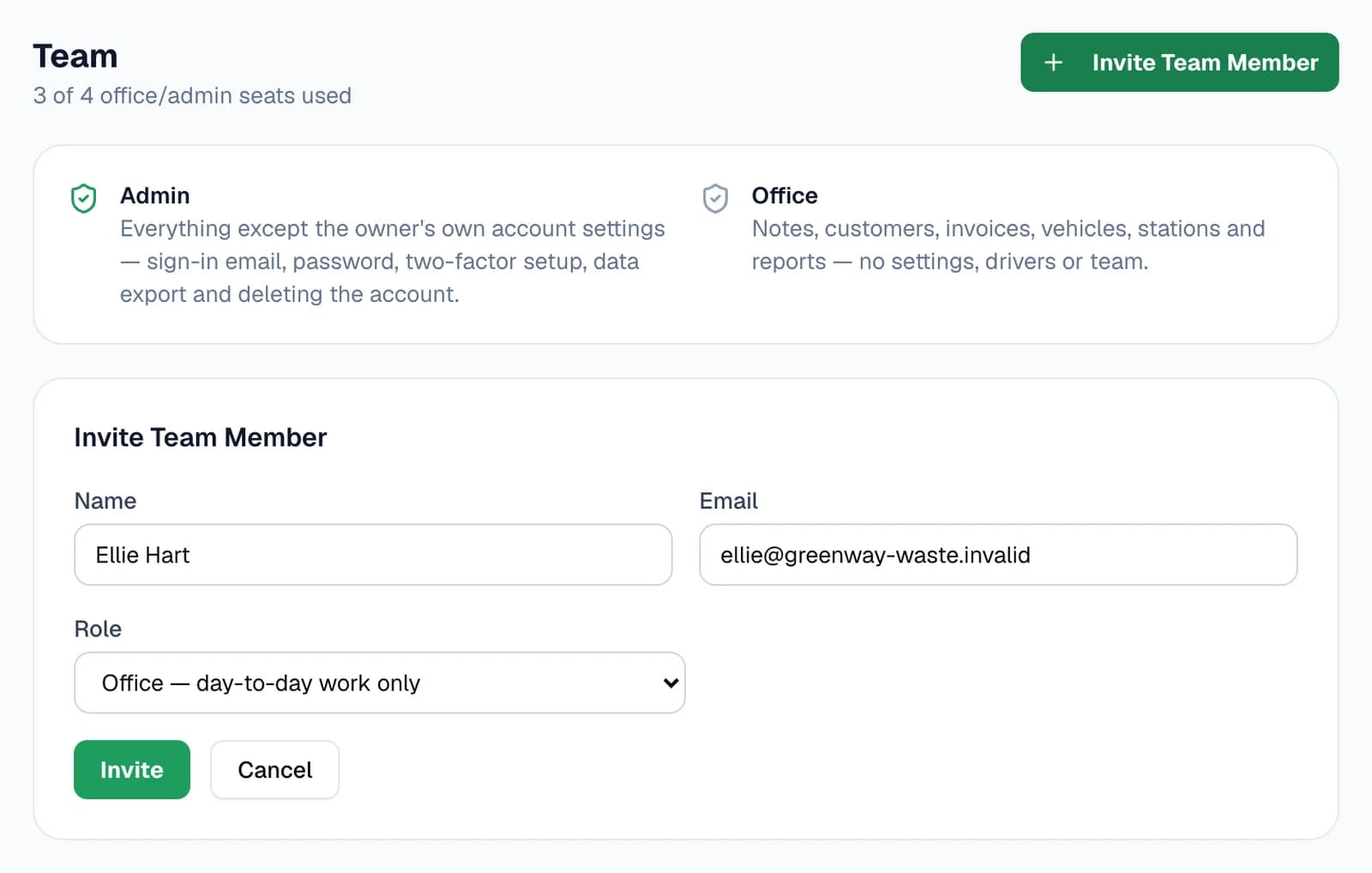
Open Team from the sidebar and press Invite Team Member. Enter their name and email address and choose a role: Office for the day-to-day work, or Admin for everything except your own account settings.
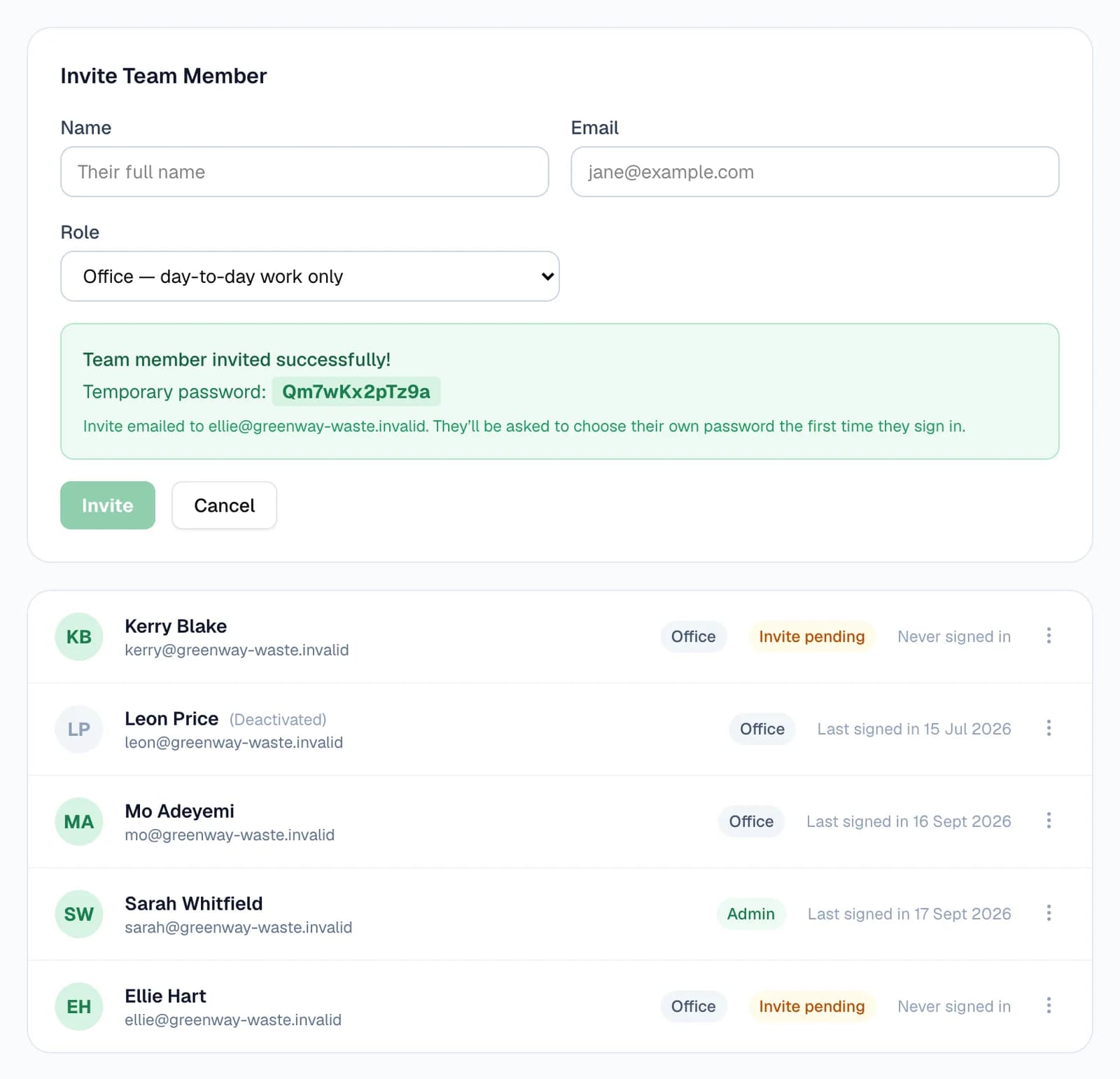
Press Invite and their login is ready straight away. The temporary password is shown on screen and emailed to them with a Sign in button. If the email can't be confirmed, the page says so, and you can pass the password on yourself.
- Each email address can only be one WTNcloud login, so it can't already belong to an account owner, a driver or another team member.
- Only you and admin logins can see the Team page.
Step 2: They sign in and choose a password
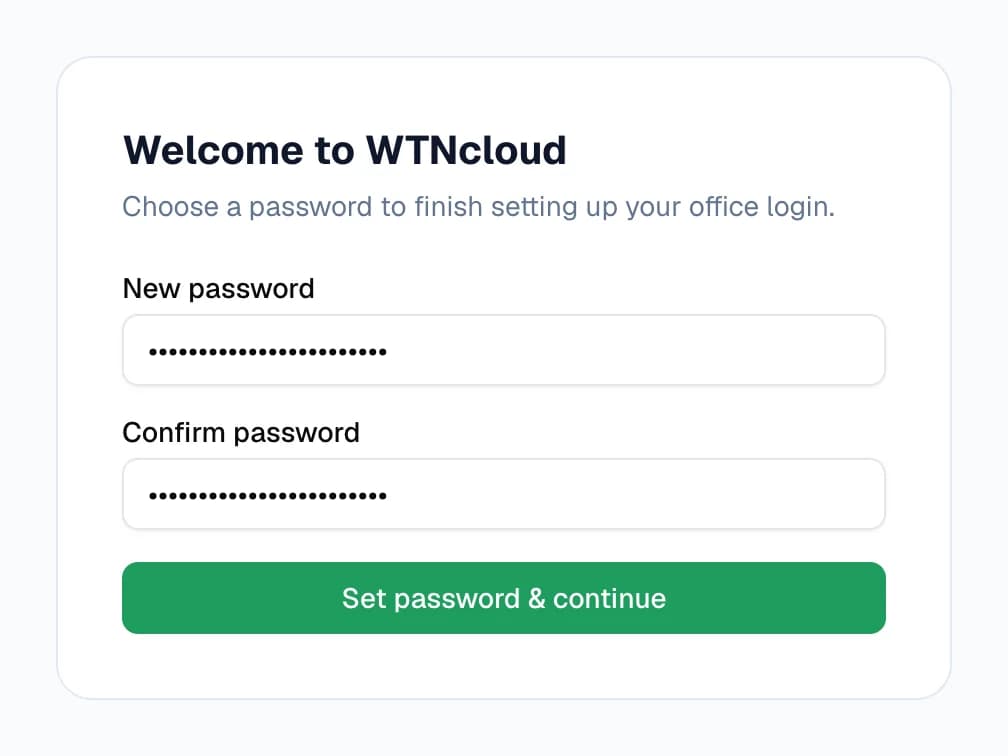
They sign in on the usual WTNcloud sign-in page with their email address and the temporary password. Before anything else, they're asked to choose a password of their own, and it has to be a strong one.
Until they've done that, the Team page shows their login as Invite pending. After that, it shows the day they last signed in.
- Forgotten it later? Forgot password? on the sign-in page works for team logins, or you can press Reset Password on the Team page.
Step 3: What an office login sees
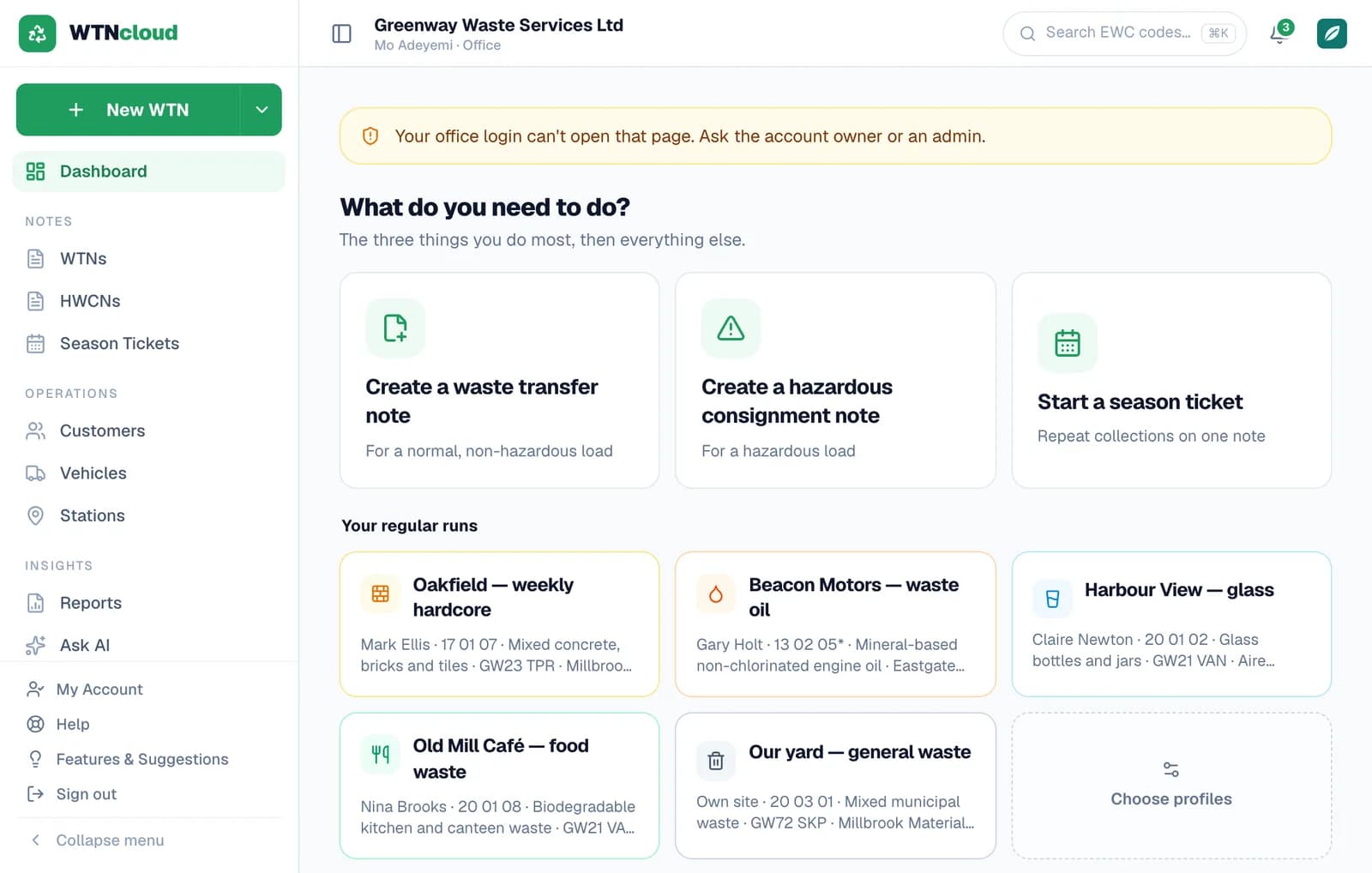
An office login does the day-to-day work: waste transfer notes, consignment notes, season tickets, customers, vehicles, stations and reports, starting from your waste profiles if you use them.
Drivers, Team and Settings aren't in its menu, and My Account takes the place of Settings. If it follows a link to a page it can't open, it's brought back to the dashboard with a note saying so. Your company name is at the top of every page, with the login's name and role beneath it.
Step 4: What an admin login can do
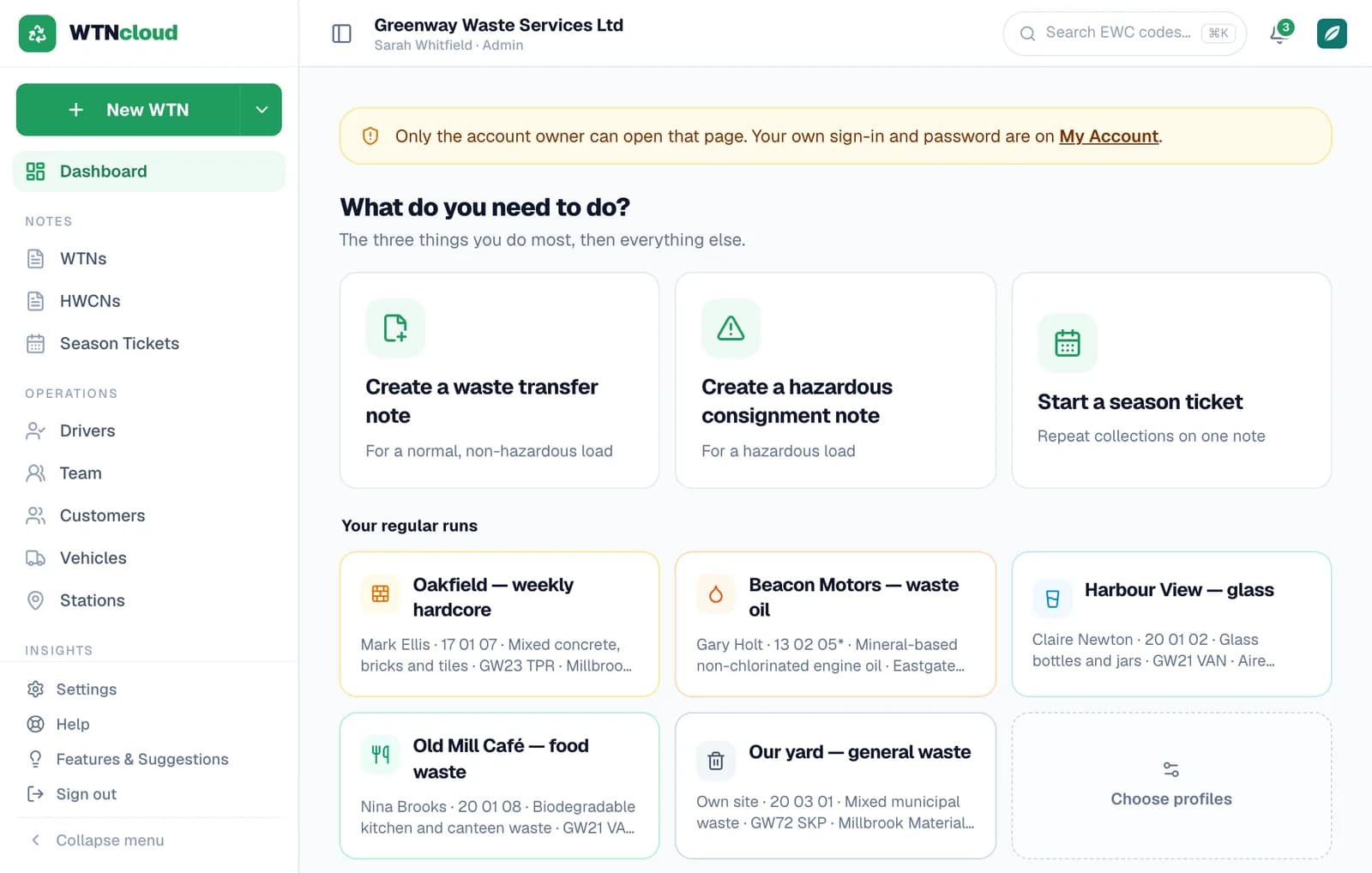
An admin login gets what you get: Drivers, Team and Settings, billing included, as well as all the day-to-day work. It can invite and manage the rest of the team.
Your own account settings stay yours: your password, two-factor, exporting your data and closing the account. An admin who opens that page is brought back to the dashboard and pointed at their own My Account.
- An admin can't change their own role, switch off or remove their own login, or reset their own password from the Team page. You or another admin can.
Step 5: Change a role, or switch a login off
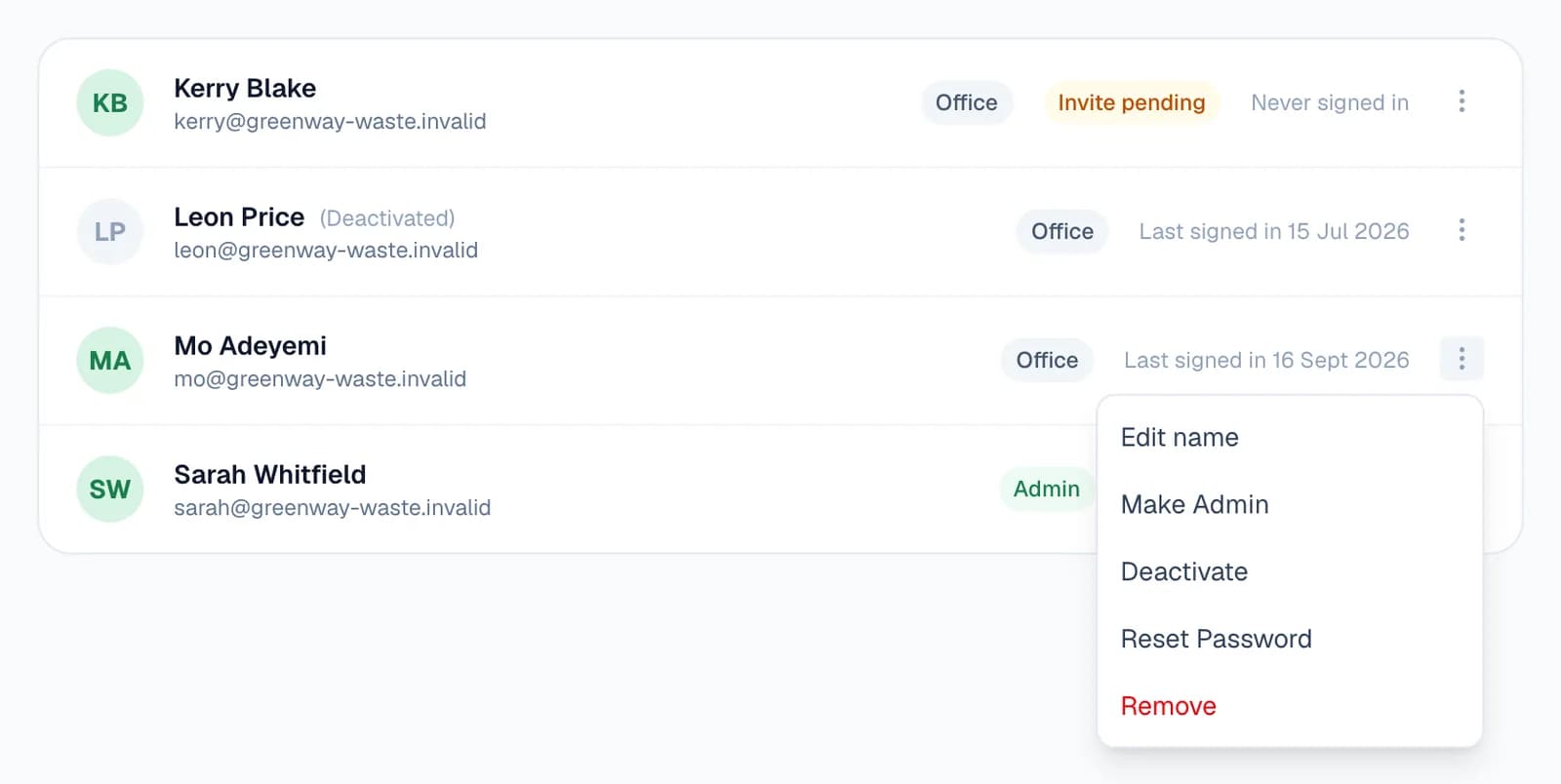
Each login's menu on the Team page has Edit name, Make Admin or Make Office, Deactivate, Reset Password and Remove. A change reaches someone who's already signed in within a minute.
When someone leaves, deactivate their login. They can't sign in, anyone still signed in with it is signed out within a minute, and the seat is free for someone else. Activate switches it back on while you have a seat spare.
Reset Password gives them a new temporary password, shown on screen and emailed to them, and they choose their own again. Remove deletes the login for good. Notes made with it stay on your account.
Three kinds of desk login
You're the account owner. Everyone you invite from the Team page is an admin or an office login. Drivers have logins of their own, on the Drivers page.
Owner
Everything, including your own password, two-factor, data export and closing the account.
For the person who signed up
Admin
Everything else: Drivers, Team, Settings and billing, as well as the day-to-day work.
For managers and business partners
Office
Notes, customers, vehicles, stations and reports, without Drivers, Team or Settings.
For whoever runs the desk
Questions
Answered from how the product actually behaves.
How many office and admin logins do I get?
Business includes one besides you, and Enterprise four, in any mix of admin and office. Solo and Solo + have your own login only. Drivers don't use these seats; they have their own on Solo + and up.
Do they cost extra?
No. They're included in Business and Enterprise.
Does a deactivated login use a seat?
No. Only active logins count, so deactivating someone frees their seat. Switching them back on needs a seat spare.
Can they use the WTNcloud app?
No. Office and admin logins sign in to the dashboard on the web. The app is for you and your drivers.
Can a driver have an office login too?
Not with the same email address. Every WTNcloud login needs its own, so give their office login a different one.
What happens to their logins if I change plan?
Office and admin logins need Business or Enterprise. On any other plan they can't sign in, and anyone signed in is signed out. The logins stay on your account, so they work again when you move back.
Can an admin lock me out?
No. You aren't on the Team page, so nobody can switch you off or remove you, and nobody else can change your password or two-factor.