Feature guideSolo+
Driver accounts
Send the job from the office. Your driver finishes it on their phone.
Give each driver their own login to the WTNcloud app. Send them a note with the customer, waste and destination already filled in, and they collect, get it signed and complete it on site, with or without signal. You choose what drivers can see and change, and every finished note comes back with their name on it.
Included from Solo+ upwards.
What each driver gets
Their own way into your account, with only as much of it as you choose to share.
- Their own loginAn email address and password for the WTNcloud app, or a web browser. No shared passwords.
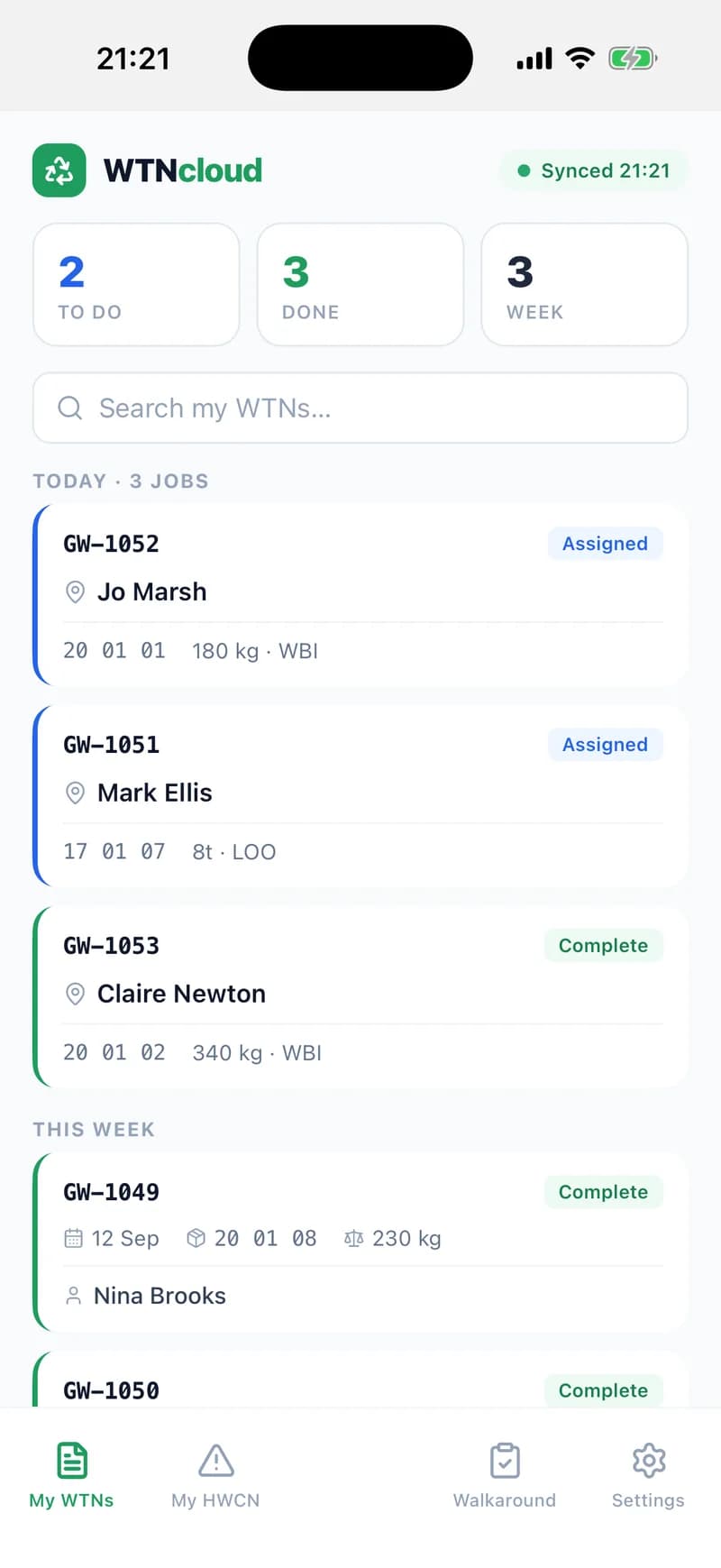
- Jobs sent to their phoneNotes you assign appear in their list, with a push notification if they allow it.
- Jobs already filled inThe customer, collection address, waste, vehicle and destination come from the office.
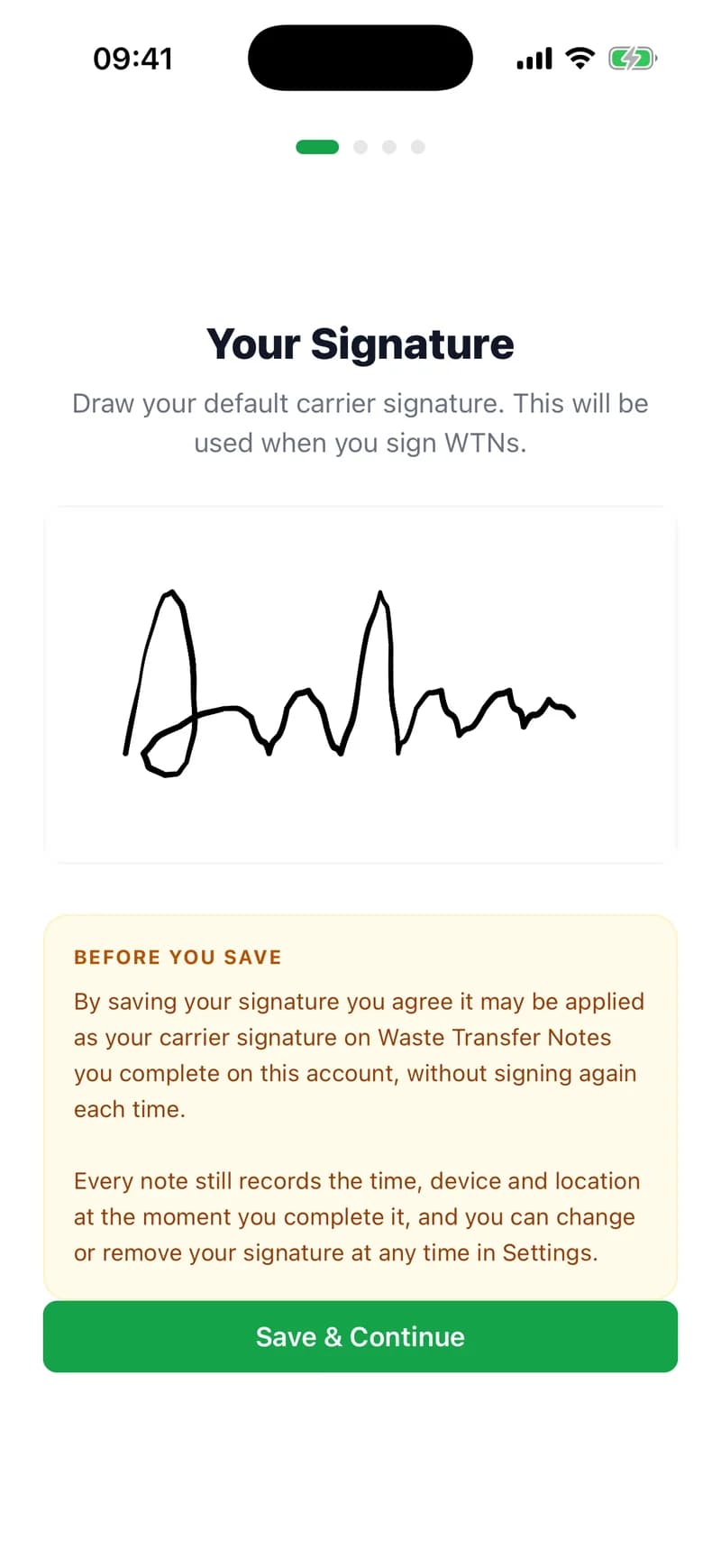
- A saved signatureDrawn once when they set up the app, then added to every note they complete.
- No signal neededJobs are kept on the phone, and a note signed on site completes offline and sends later.
- Your vehicles and sitesShare your fleet and destination sites, or let drivers save their own.
- Customer details, if you say soCustomers' email addresses and phone numbers stay hidden from drivers until you switch them on.
- Time to fix a mistakeAfter finishing a job, a driver can still correct its waste details, notes and photos for as long as you set.
Step by step
How it works
Step 1: Add your drivers
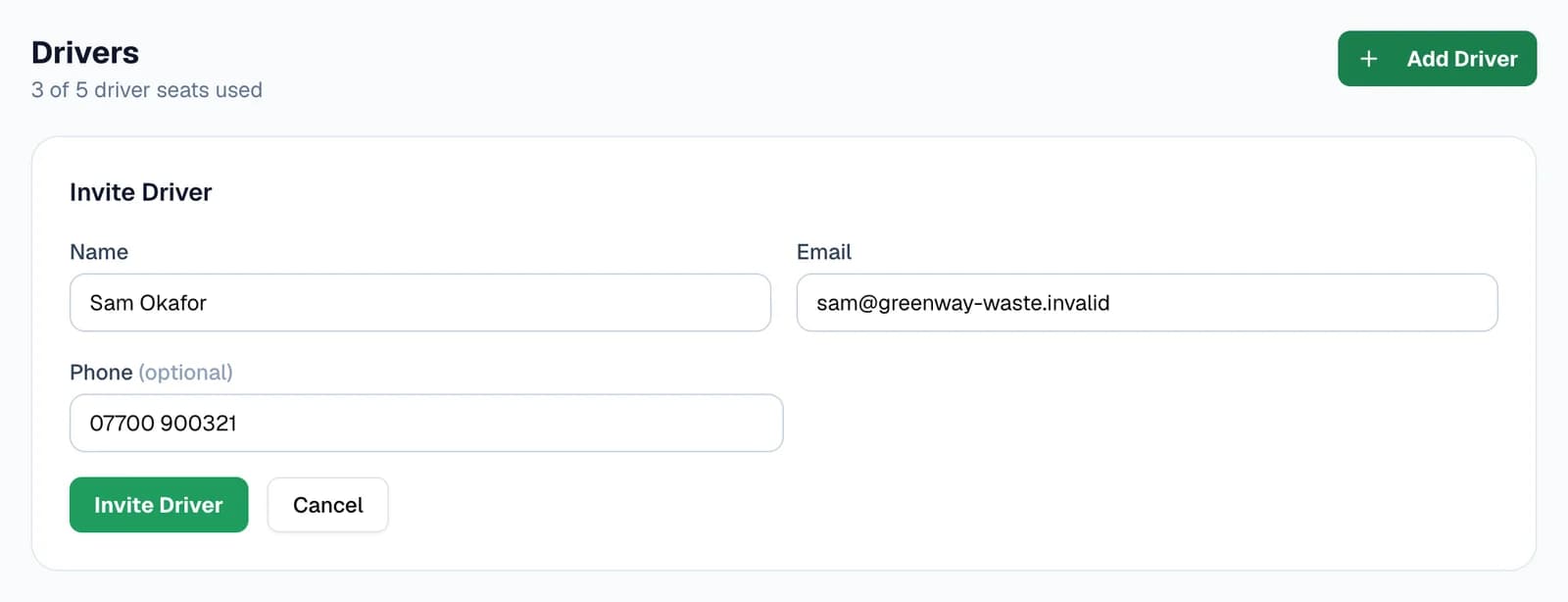
Go to Drivers and choose Add Driver. Enter their name and email address, and a mobile number if they should get a text as well.
Choose Invite Driver, and WTNcloud emails them a link to the app with a temporary password, and texts them their sign-in details if you gave a number. The password also appears on screen, so you can pass it on yourself.
- Solo+ includes 2 driver seats, Business 5, and Enterprise as many as you need.
- Deactivate a driver who leaves and their seat is free again. Their notes stay on your account.
Step 2: They sign in on their phone
Your driver downloads the WTNcloud app and signs in on the same screen as everyone else, with their email address and the password you sent. They can change it later in Settings.
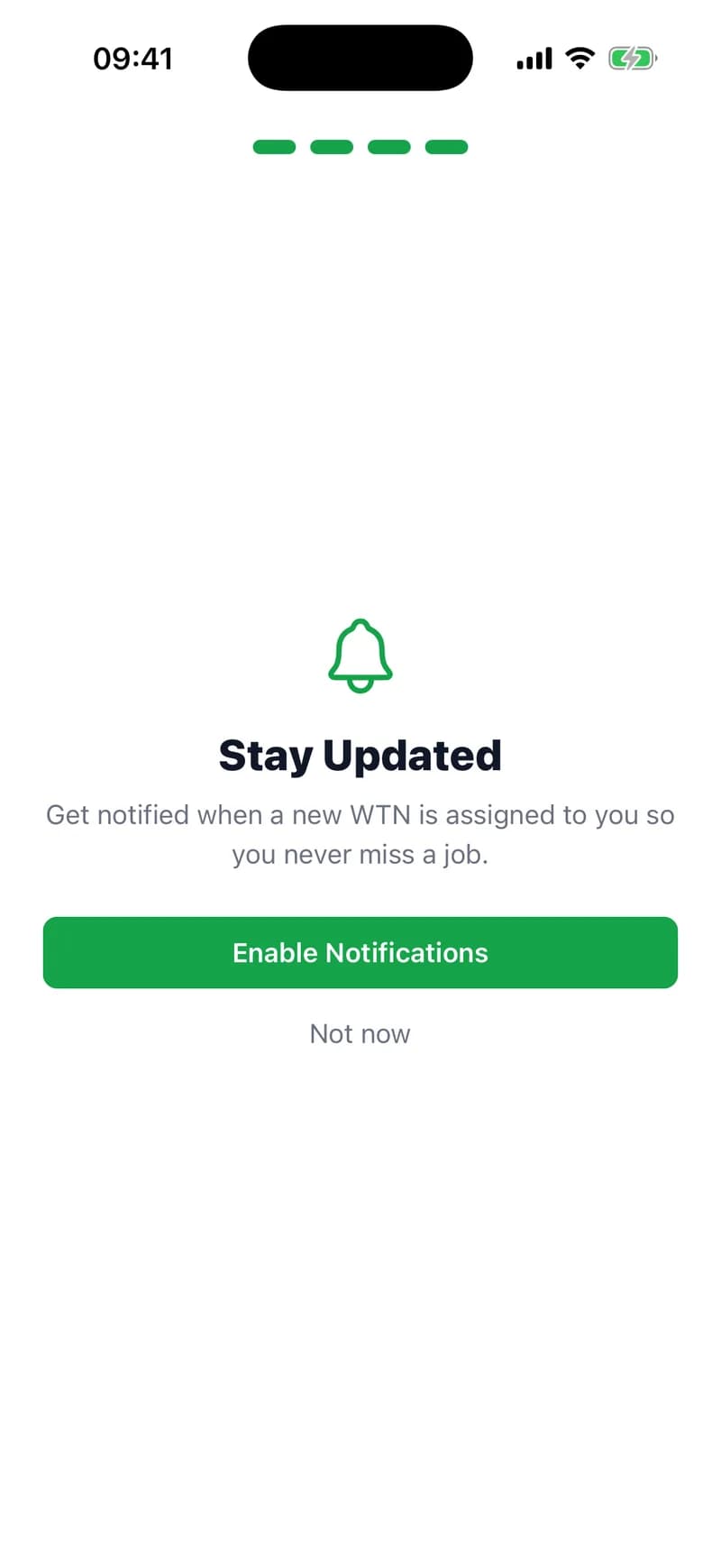
The first time, the app asks for their signature, which it adds to every note they complete. Then it offers to save their usual vehicle and transfer station, which they can skip, and to switch on notifications for new jobs.
- Prefer a computer? Drivers can sign in on the WTNcloud website with the same details and complete their jobs in the browser.
Step 3: Decide what drivers can see and do
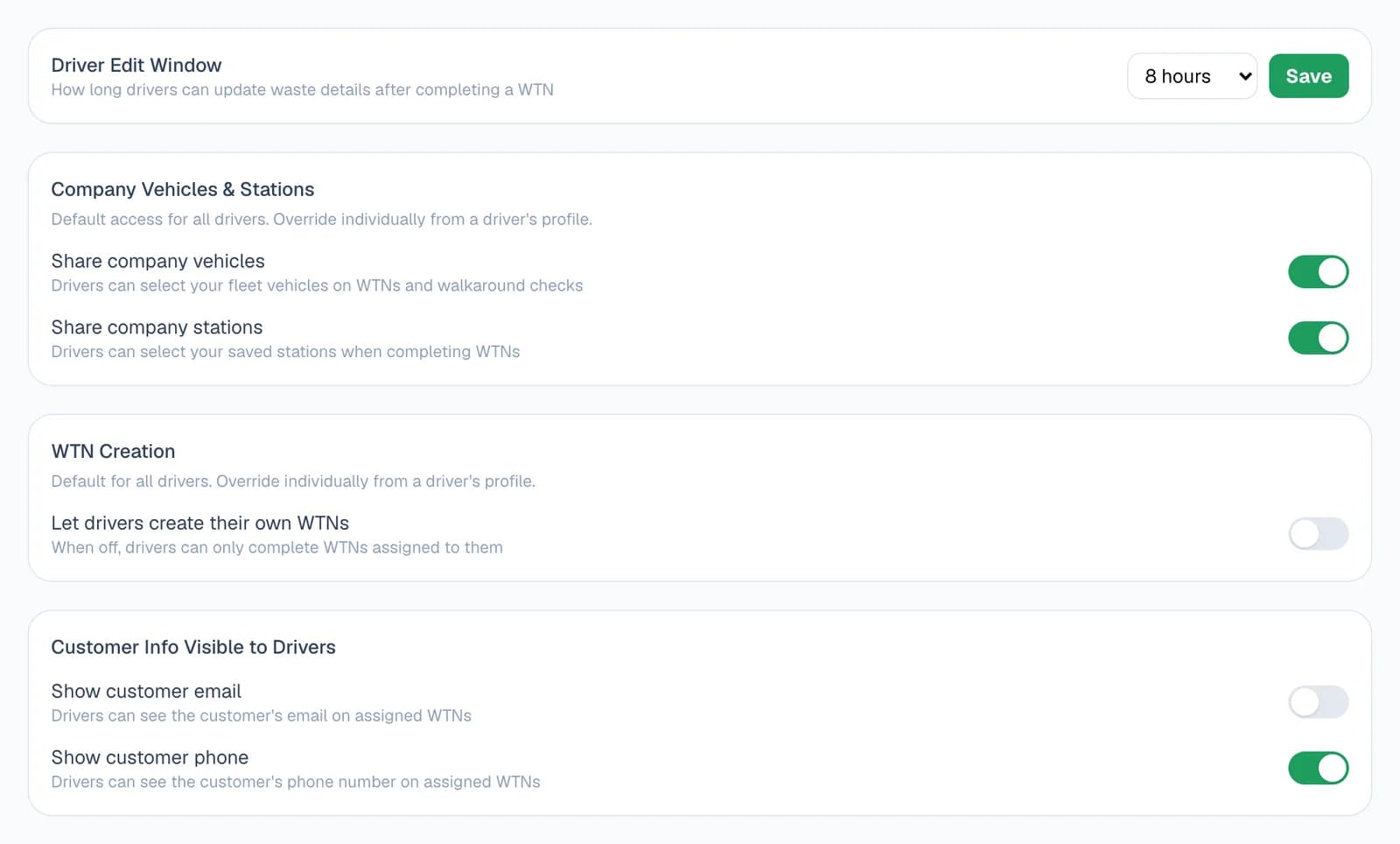
The Drivers page sets the rules for every driver: how long they can correct a job after finishing it, whether they can pick your company's vehicles and destination sites, whether they can start notes of their own, and whether they see a customer's email address and phone number.
Until you change them, drivers only complete the notes you send them, don't see customers' contact details or your company's vehicles and sites, and have 4 hours to correct a finished job.
Step 4: Send them the job
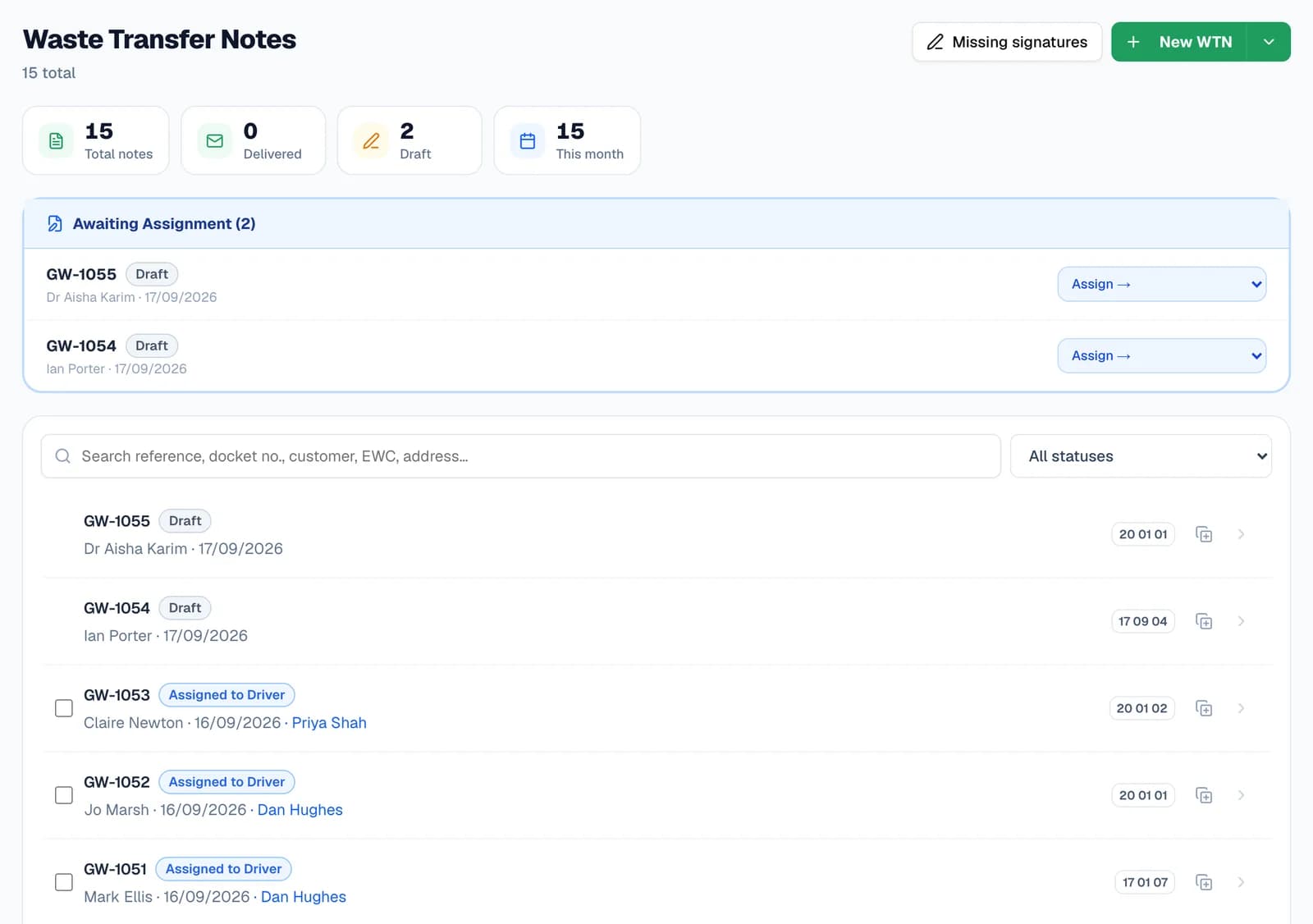
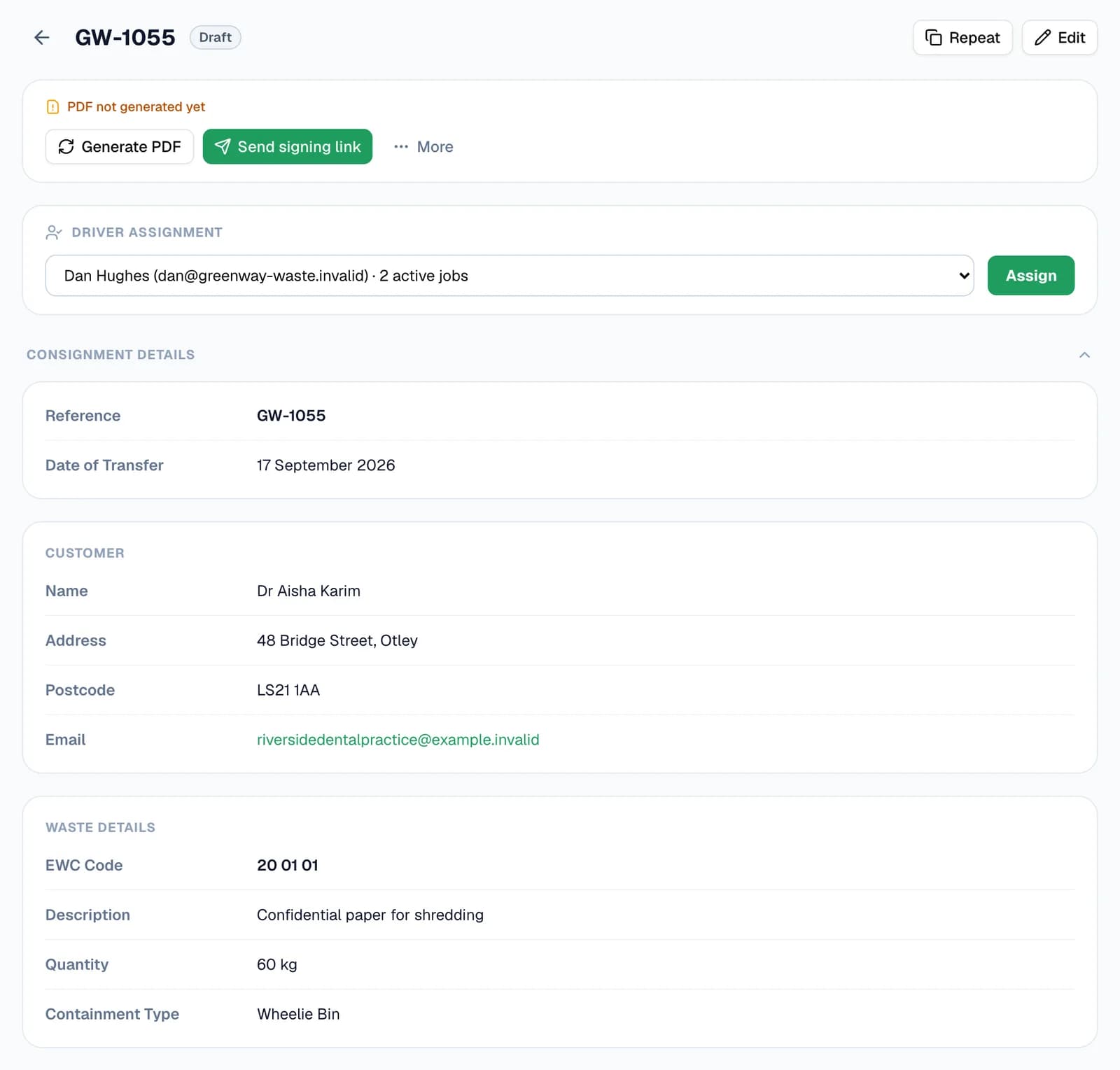
Open a note that isn't finished and pick the driver under Driver Assignment. Each driver shows how many jobs they already have on the go, so the work is easy to spread. Then choose Assign.
The note appears in the driver's app, with a push notification if they've allowed them. Change your mind, and you can unassign it at any point before it's completed.
- Drafts nobody has yet are listed under Awaiting assignment on your dashboard and your notes list, each with its own Assign picker.
- Hazardous waste consignment notes are assigned the same way, and appear under HWCN in the driver's app.
Step 5: They do the job on site
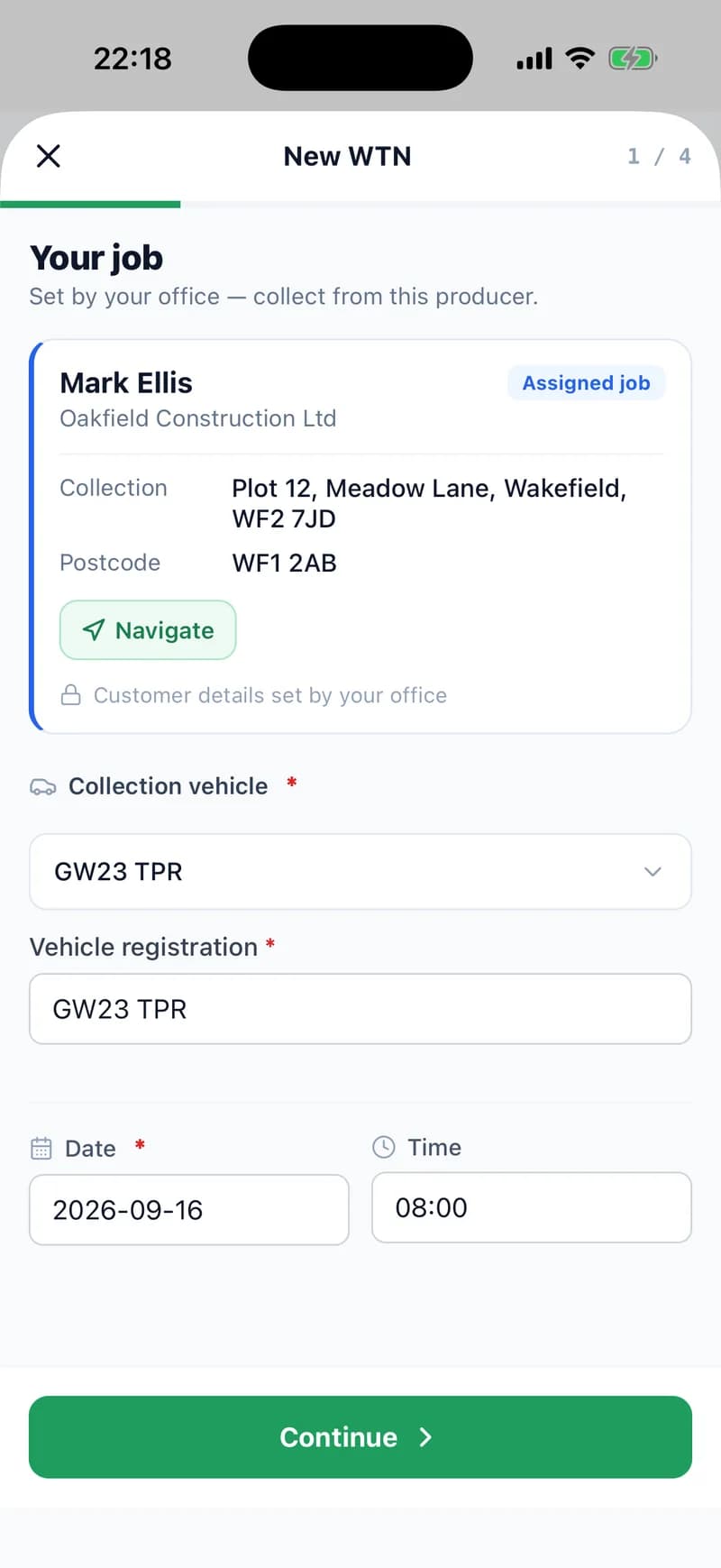
The driver's list puts today's jobs first. A tap opens the note with everything from the office already in it. The customer and collection address are locked, and Navigate opens the address in Google Maps.
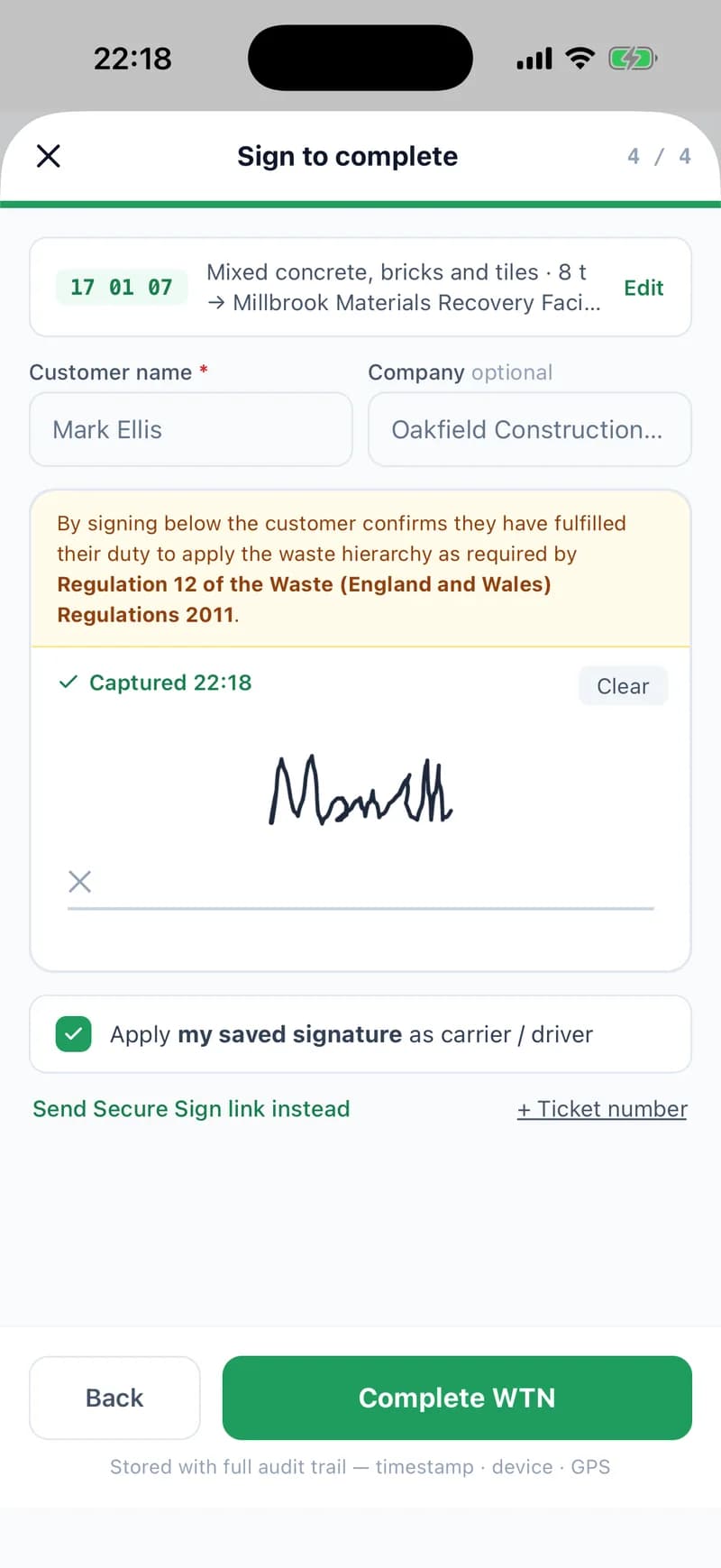
They check the waste, take photos if they need to, and hand the phone to the customer to sign. Their own saved signature goes on as the carrier, and Complete WTN finishes the job.
No signal at the site? A note signed there and then completes on the phone and sends itself once they're back in coverage. If the customer isn't around, the driver can send them a Secure Sign link instead, which does need a connection.
Step 6: Every job comes back to the office
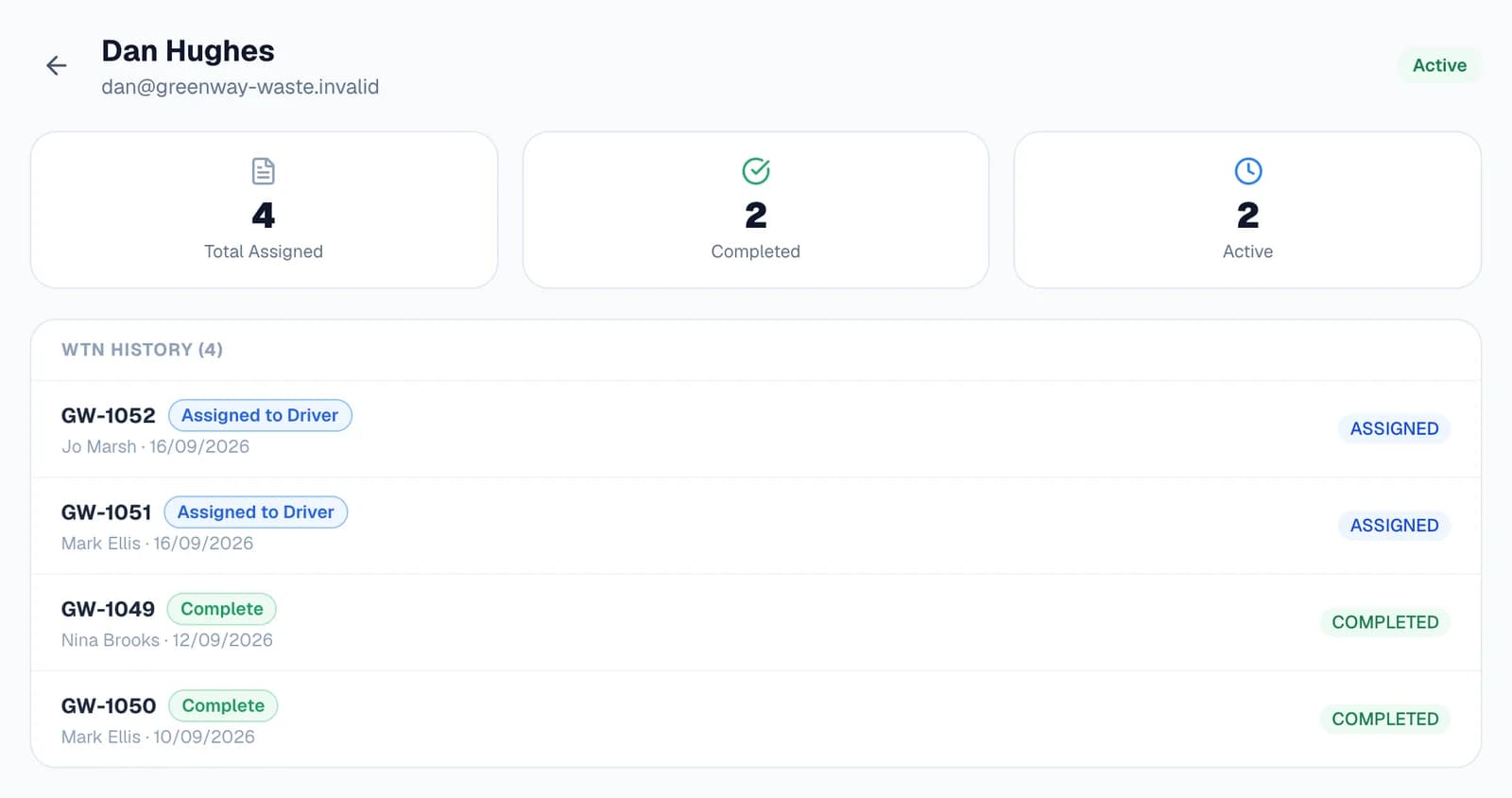
Your notes list shows which driver each open job is with. Each driver's profile adds up the jobs you've sent them, how many they've finished and how many are still open, with their recent notes underneath.
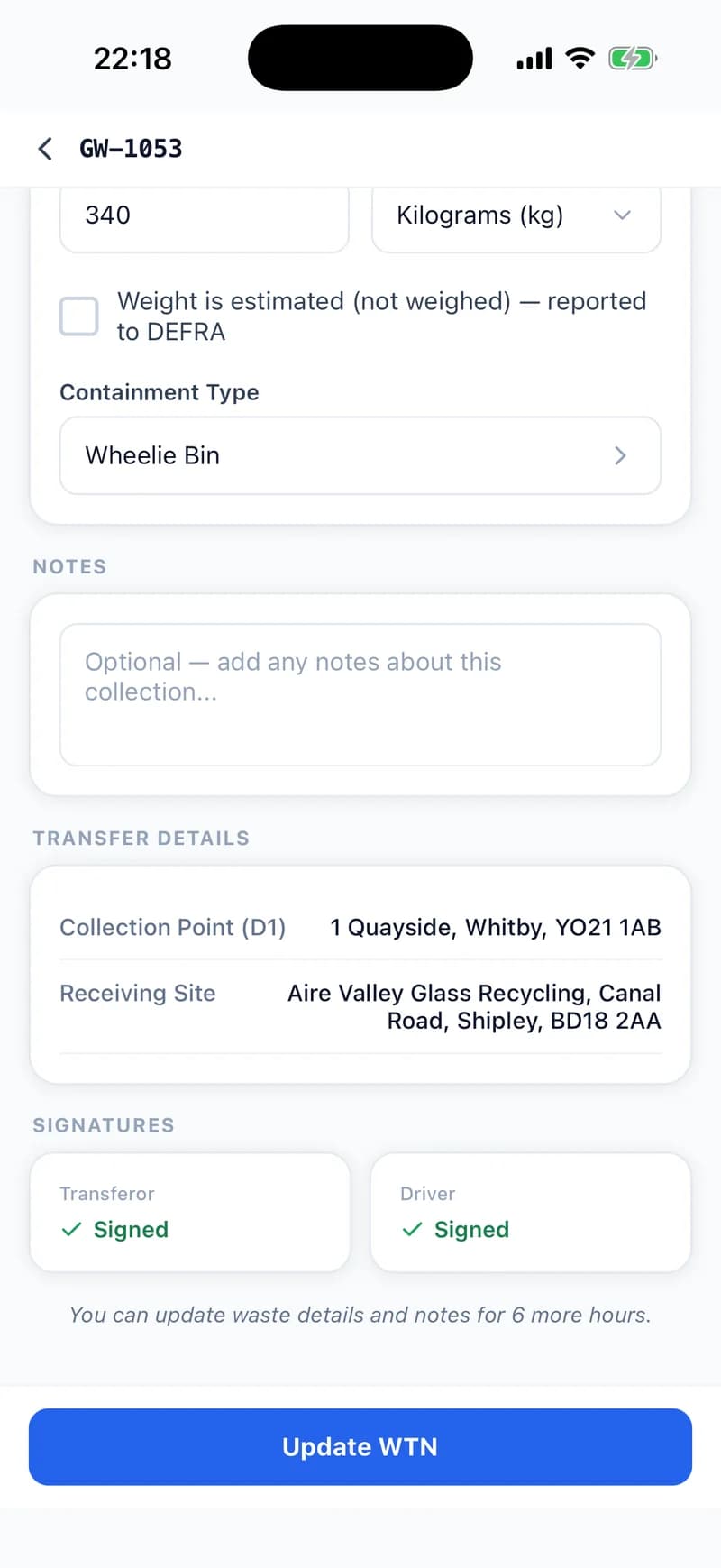
Spotted something wrong on a finished note? For as long as your edit window allows, the driver can still correct the waste details, notes and photos from the app, and the note's PDF is updated to match.
Three ways to send out work
Whichever you use, the job lands in the same place: the driver's app.
From the note
Open any note that isn't finished, draft or not, and pick a driver under Driver Assignment.
For any job
From your dashboard
Awaiting assignment lists the drafts nobody has yet, each with an Assign picker, so the day's work goes out from one list.
For drafts
From a waste profile
Click a regular run's tile, change what's different today, pick the driver and choose Create & assign. On Business and Enterprise.
For regular runs
Questions
Answered from how the product actually behaves.
How many drivers can I add?
Solo+ includes 2 driver seats, Business 5, and Enterprise as many as you need. Only active drivers take a seat, so deactivating someone who has left frees theirs, and their notes stay on your account.
How do drivers sign in?
With their email address and password, on the same sign-in screen as the rest of WTNcloud, in the app or a web browser. Adding a driver gives them a temporary password, which they can change in the app's Settings.
What if a driver forgets their password?
Open the menu beside them on the Drivers page and choose Reset Password to get a new temporary password, or have it sent to them by email or text. The app will ask them to sign in again with it.
Can drivers start their own notes?
Only if you let them. Switch on Let drivers create their own WTNs for everyone, or allow it for one driver from their profile. When it's off, drivers can only complete notes you've sent them.
Can drivers see my customers' phone numbers and email addresses?
Only if you switch them on under Customer Info Visible to Drivers, for every driver or for one at a time.
Can a driver fix a mistake after completing a job?
Yes, within the Driver Edit Window you choose, from 1 to 24 hours, and 4 unless you change it. In that time they can correct the waste details, notes and photos, and the note's PDF is updated.
Does the driver need a signal?
Not to complete a job the customer signs there and then: the note is saved on the phone and sent once they're back in coverage. The job has to have reached their phone first, and sending a Secure Sign link needs a connection.
Do drivers get told when I send them a job?
Yes, by push notification, as long as they've allowed notifications on their phone and Push Notifications is switched on in their profile on the Drivers page.
Can I assign jobs from my phone?
Yes. In the WTNcloud app, account owners can assign a note to a driver, reassign it or unassign it, and the picker shows how many active jobs each driver has.