Feature guideBusiness+
Template builder
Ask your own questions on every waste transfer note.
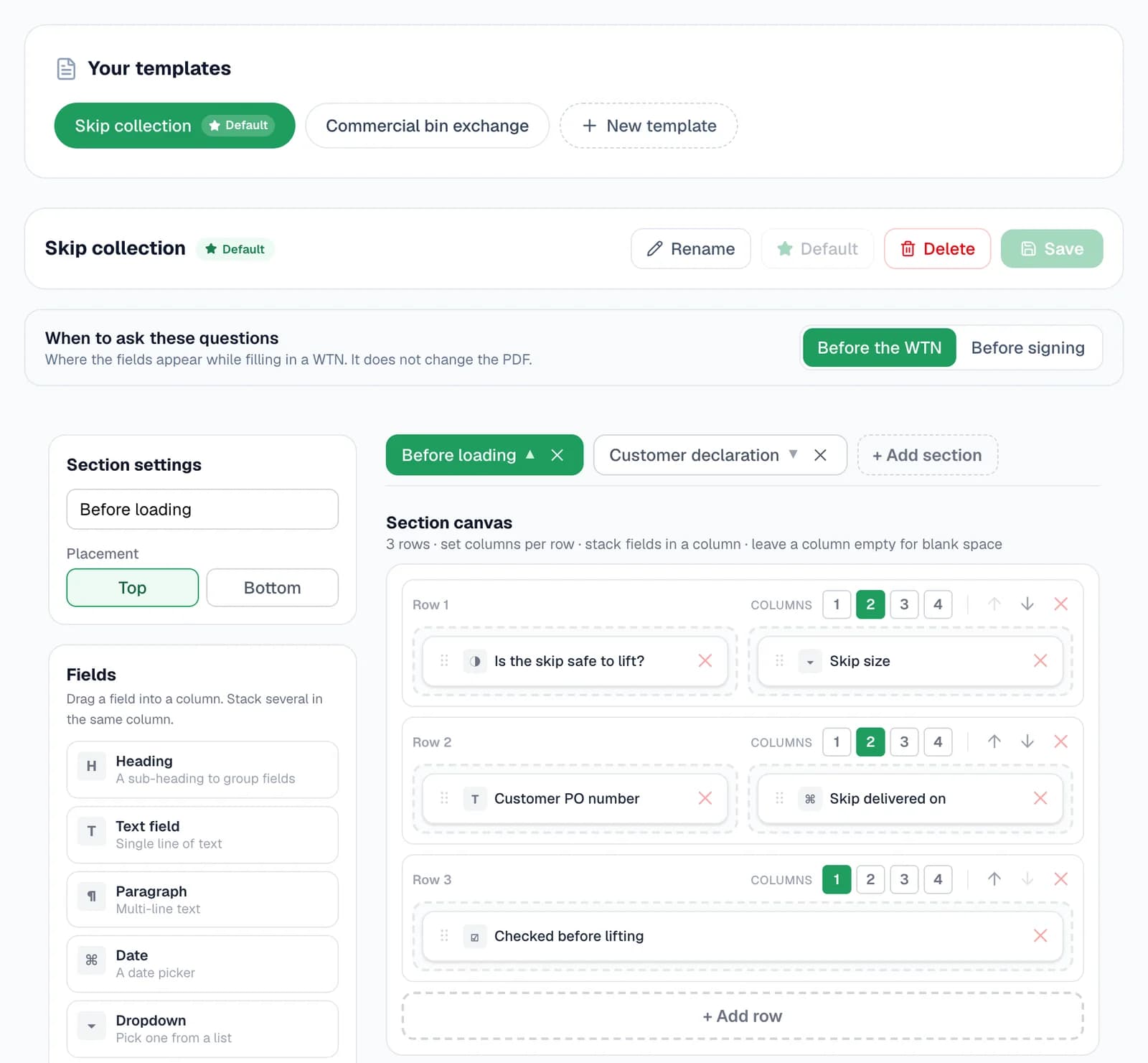
Build the extra sections your business needs: a safety check before loading, a PO number for the office, a declaration for the customer to sign. They're asked while the note is filled in, on the web or the phone, and printed above or below the regulated note, which keeps its standard layout.
Included on Business and Enterprise.
What a template can add
Any mix of these, laid out in rows of up to four columns. The regulated note itself is never changed.
- Sections above or belowEach section prints at the top of the note or under it, headed in your brand colour.
- Up to four columns a rowStack several fields in one column, or stretch a field across the row.
- Text, paragraphs and datesA reference, a job number, a note from the site, the day a skip went out.
- Dropdowns and checkboxesPick one answer from your own list, or tick any that apply.
- Yes / No questionsAdd an answer rule and the wrong answer stops the note going any further.
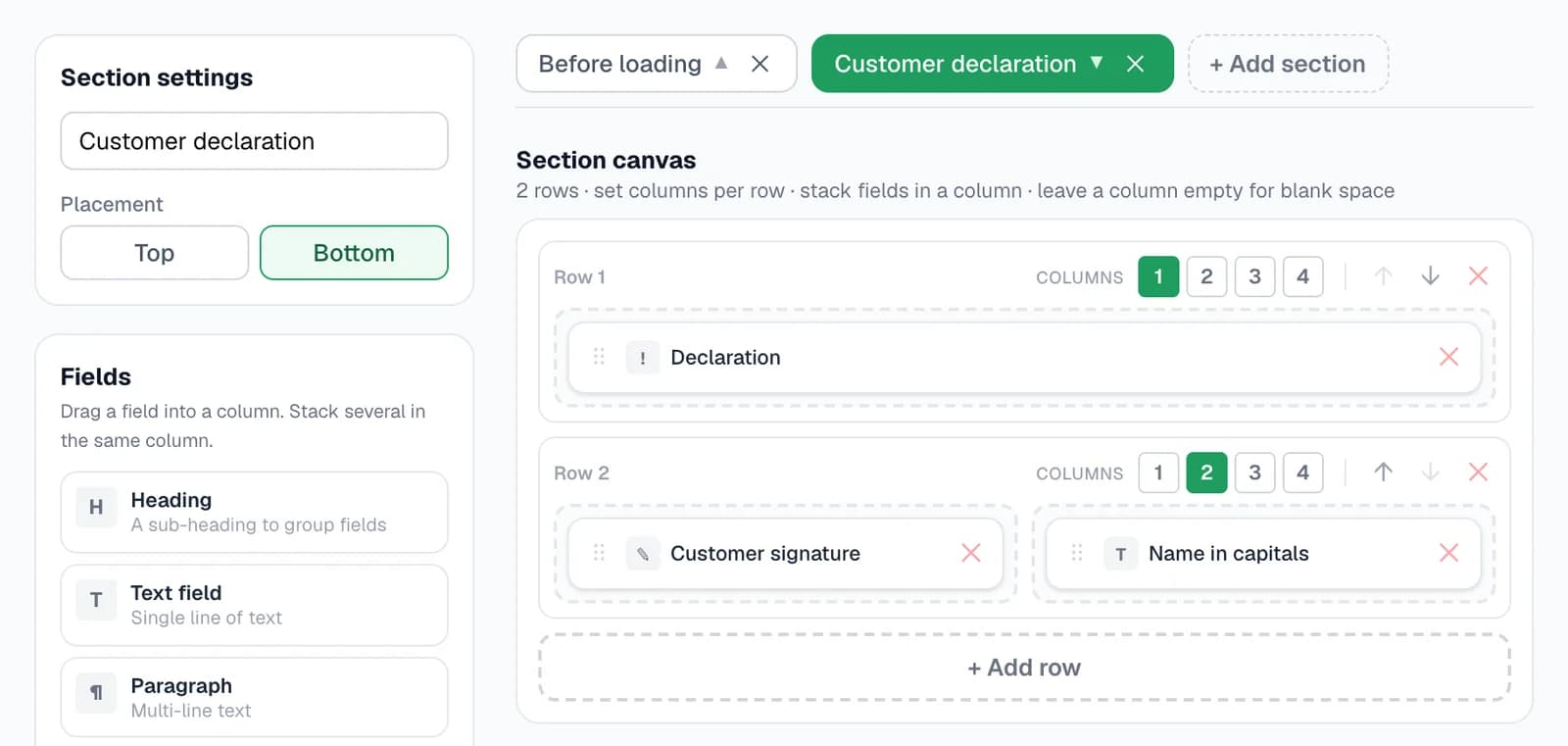
- SignaturesA drawn signature, printed in its own box on the note.
- Headings and fixed textWording such as a declaration, printed on every note that uses the template, plus spacers.
- Required fieldsMark a field required and the note can't move on until it's filled in.
Step by step
How it works
Step 1: Lay out your sections
Go to Settings → Notes → Template builder and choose New template. Give it a name, add a section, and choose whether that section prints at the top of the note or at the bottom.
Drag fields from the list into the section's rows. Each row can have one to four columns: stack fields in a column, or widen a field across the row in its properties. A live preview shows your sections on a sample note as you work, and nothing is kept until you press Save.
Step 2: Make a question stop the job
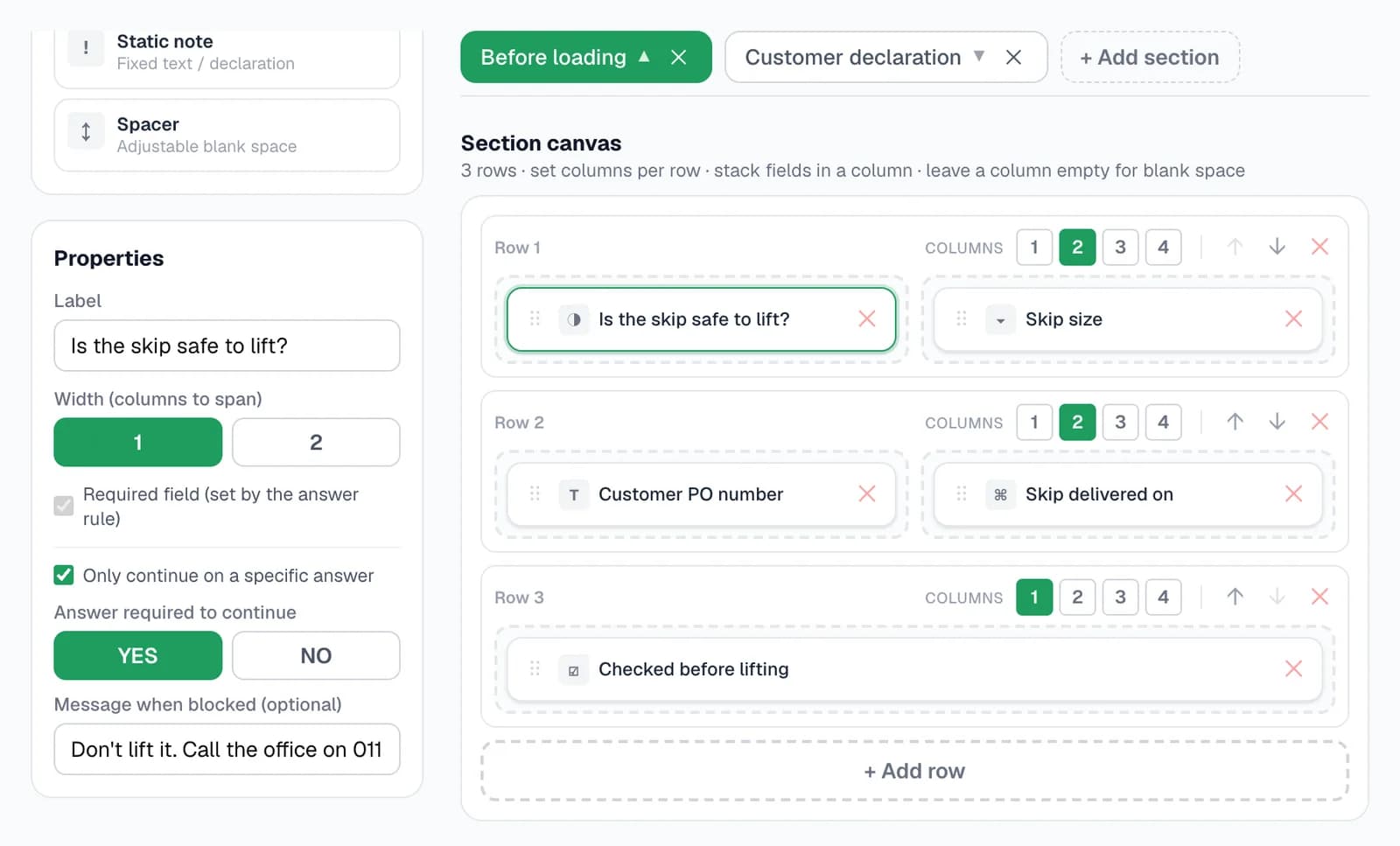
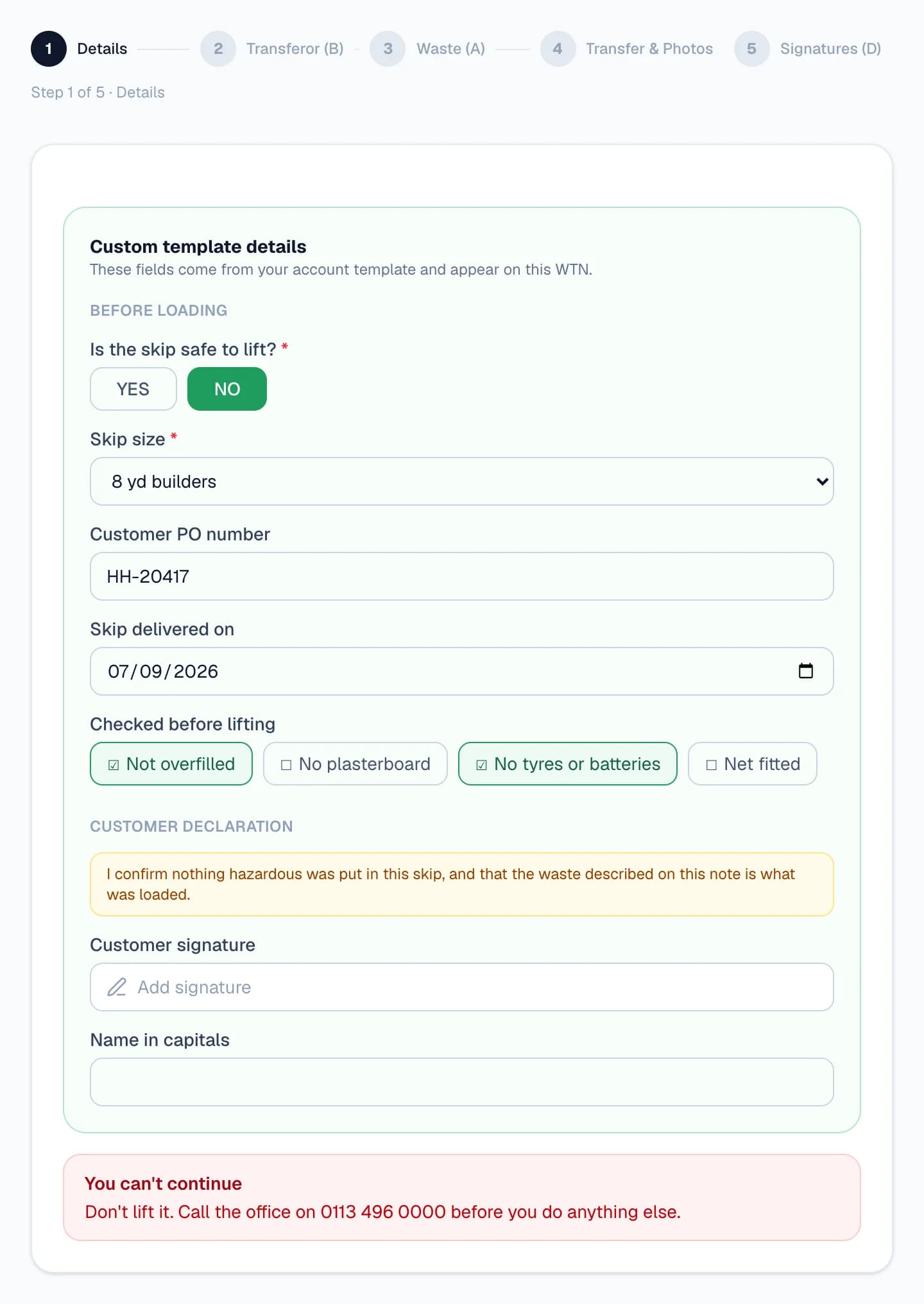
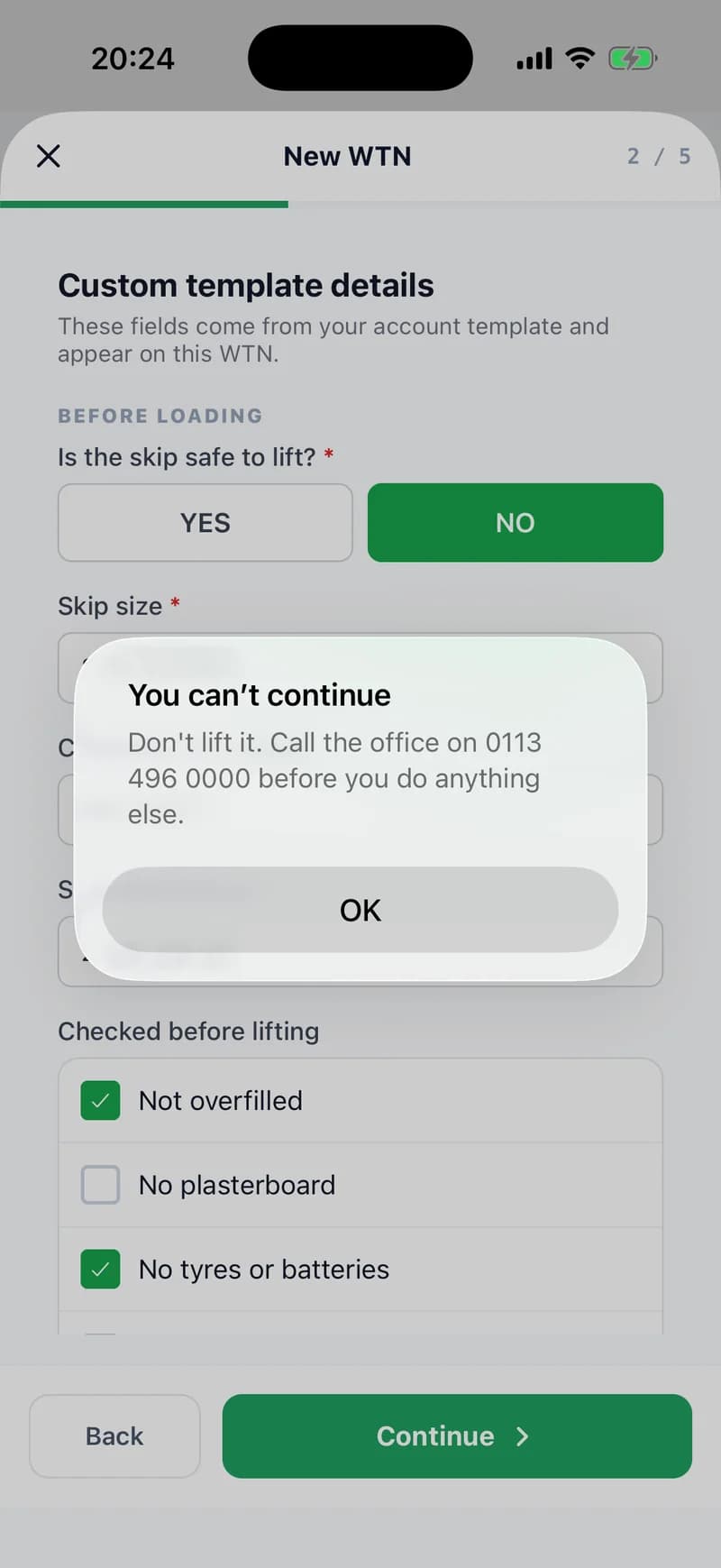
Select a Yes / No or dropdown field and tick “Only continue on a specific answer”. Choose the answer that lets the note carry on, and write what to do if it isn't given — “Don't lift it. Call the office”, for example.
Any other answer, or no answer at all, stops the note at that question and shows your message. For anything else that must be filled in, tick Required field.
Step 3: Answer it as part of the note
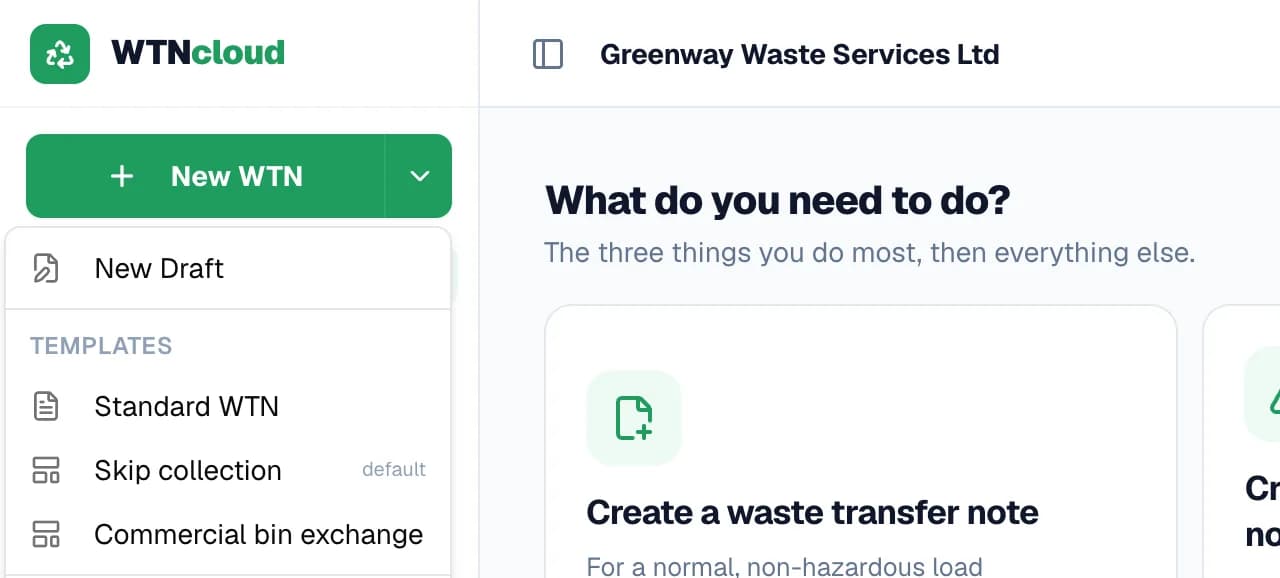
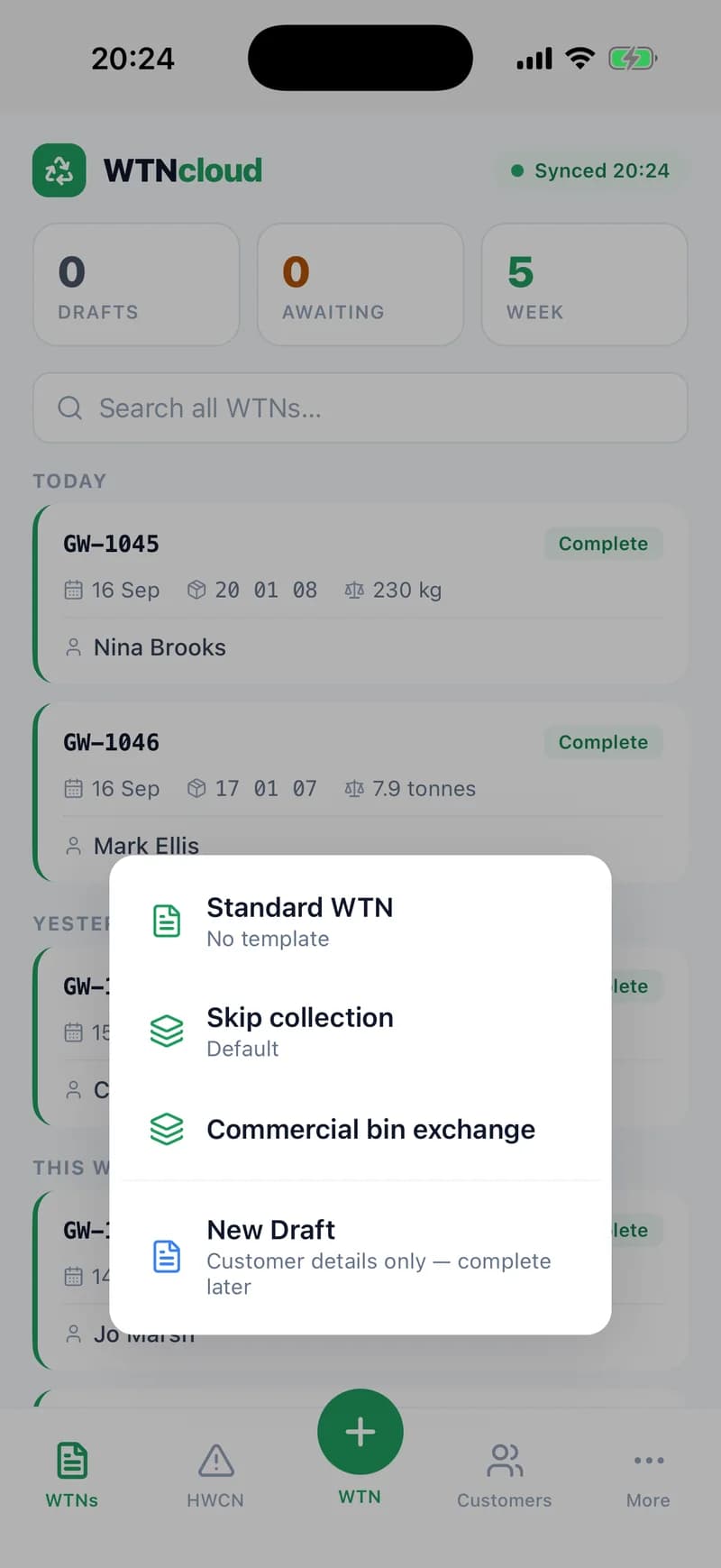
Set a template as your default and New WTN starts with it. To use a different one, or none, open the arrow beside New WTN and choose from Templates; Standard WTN leaves the extra questions off.
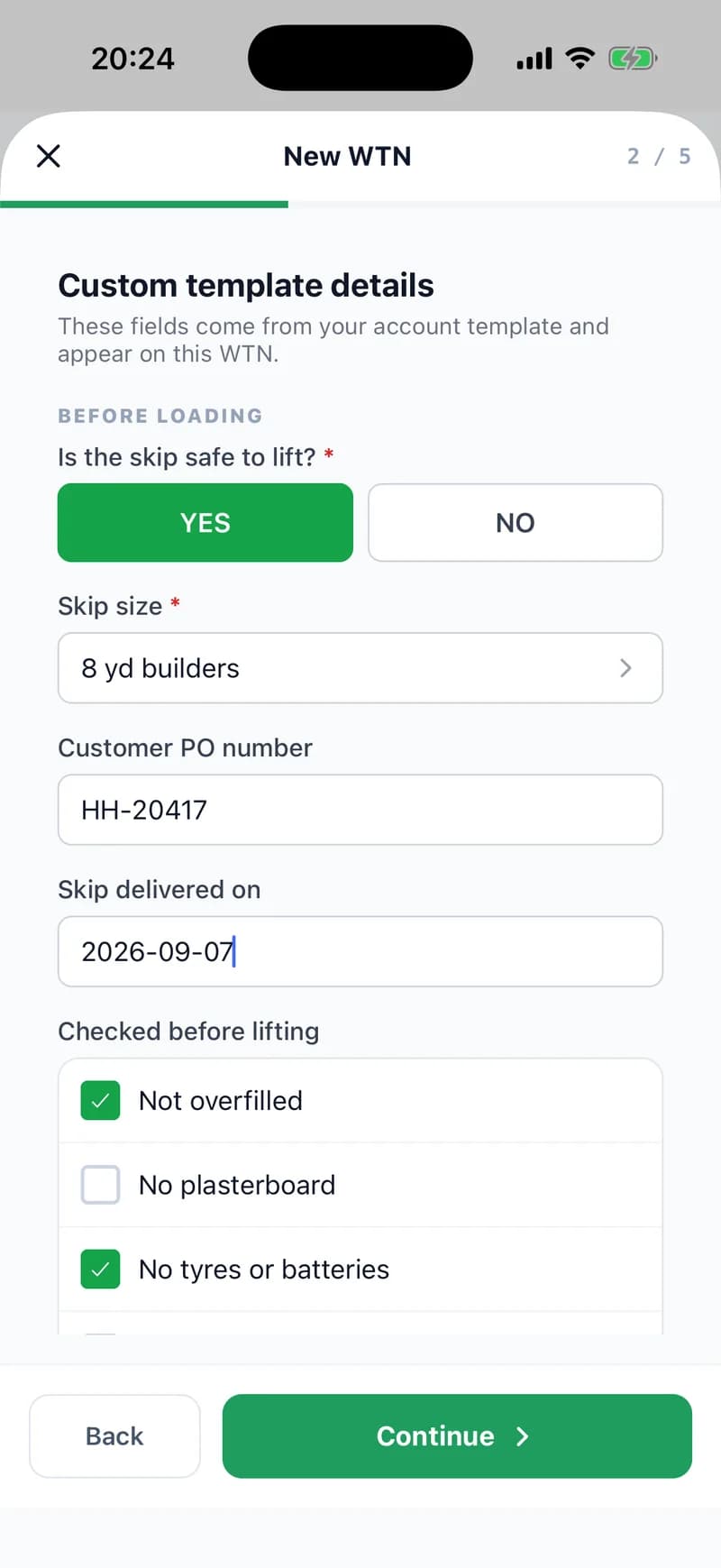
The template's questions get their own Details step. If an answer rule isn't met, Continue stays switched off and your message is shown instead.
Step 4: Printed around the regulated note
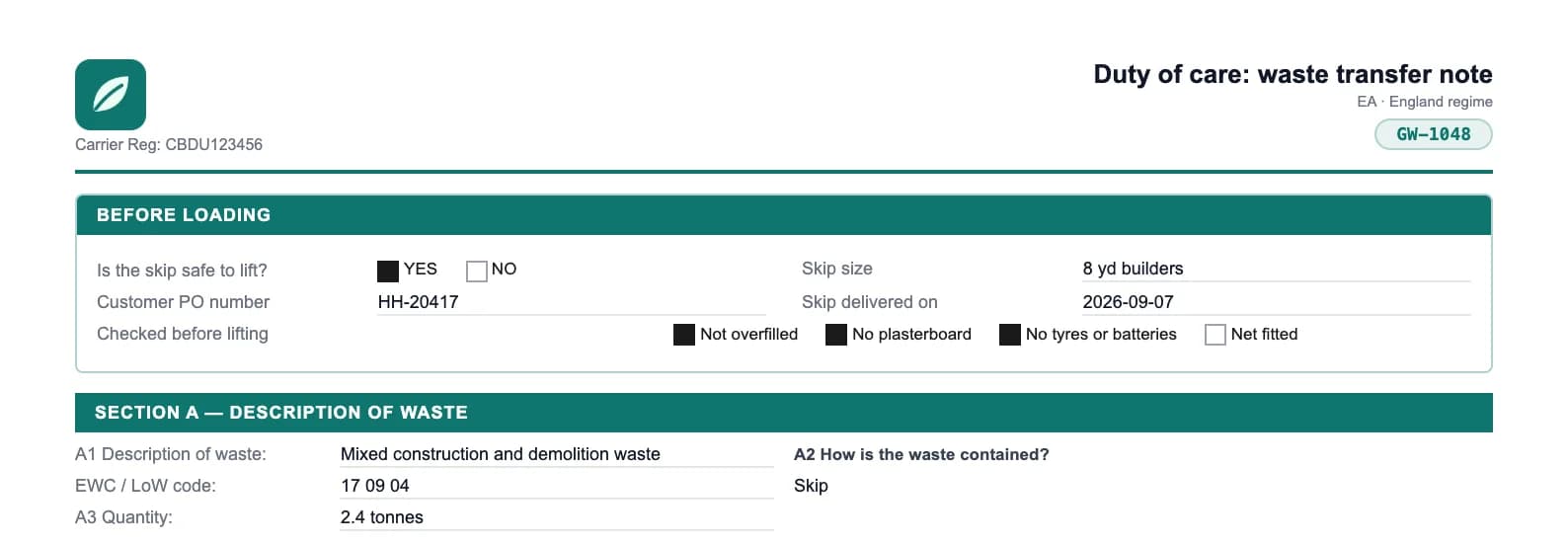
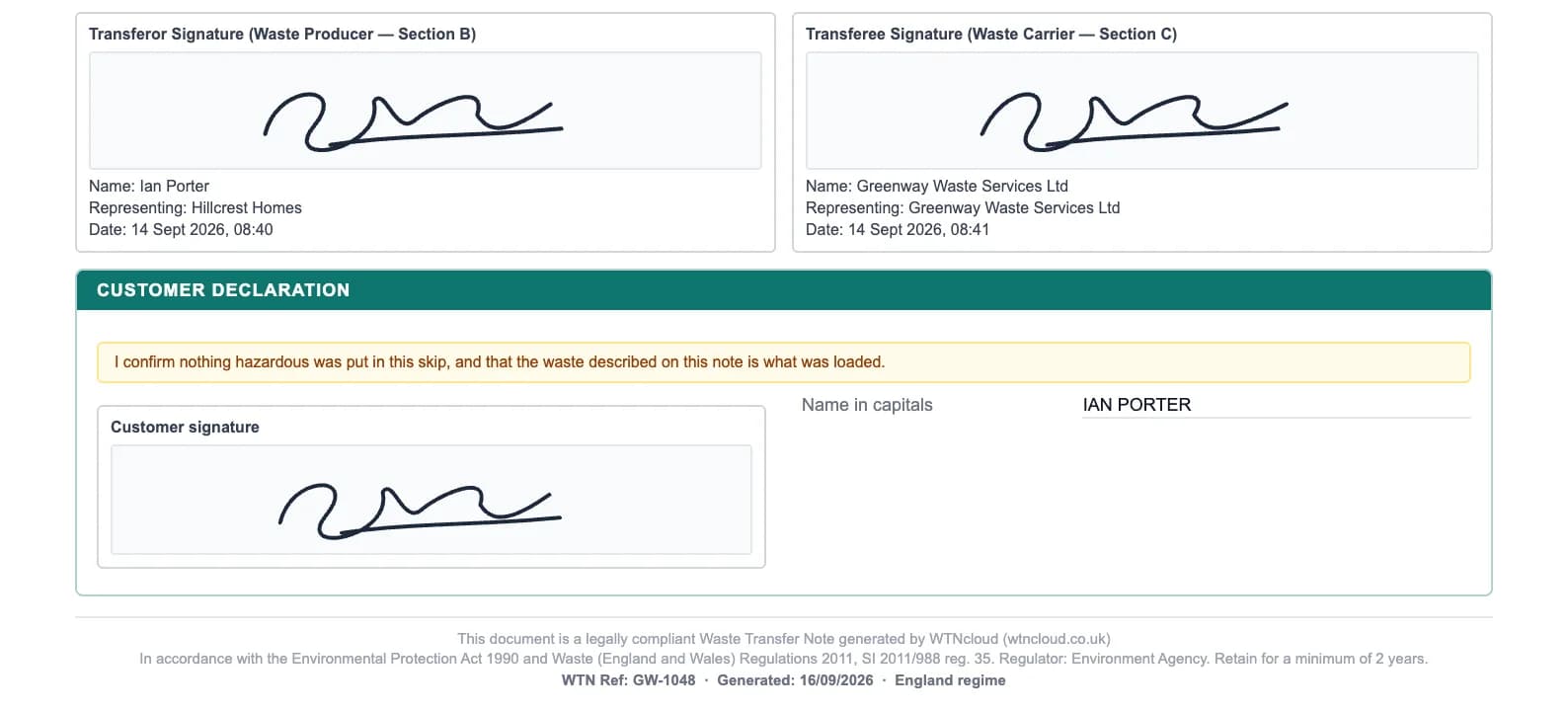
Your top sections sit under the note's heading, before Section A. Bottom sections come last, after the signatures. The standard sections in between are exactly as they'd be without a template.
Each note keeps a copy of the template it was made with, answers included. Change or delete the template later and the notes you've already made keep their own sections and answers.
Step 5: In the app
In the WTNcloud app, a tap on the green + button starts a note with your default template. Press and hold it to choose another template, or Standard WTN.
The questions get their own Details step. If an answer rule isn't met, Continue shows your message instead of moving on. Templates are saved on the phone, so they're there when the signal isn't.
- Drivers answer the questions on the notes you assign them, in the app or the driver web app.
- Drivers you let create their own notes can choose a template too.
Three things you could add
Examples built from the fields above. Mix them in one template, or keep a template per kind of job.
A stop/go check
A Yes / No question with an answer rule, asked before the waste details. The wrong answer stops the note and tells the driver what to do instead.
For drivers at the collection
Job details
PO numbers, container sizes, delivery dates and site checks, printed at the top of the note where the office and the customer both see them.
For the office and accounts
A declaration to sign
Fixed wording with a signature and a printed name underneath, placed at the bottom and asked just before signing.
For customers signing off
Questions
Answered from how the product actually behaves.
Which plans include the template builder?
Business and Enterprise. The account owner and admin logins build templates; office logins can start notes from them but can't change them.
Does a template change the regulated part of the note?
No. Your sections are added above or below it. The standard sections, their wording and their layout stay exactly as they are on a note without a template.
What happens to old notes if I edit or delete a template?
Nothing. Every note keeps a copy of the template it was made with, along with its answers, so its own sections stay exactly as they were.
Which fields can stop a note?
Yes / No questions and dropdowns, with “Only continue on a specific answer”. Any other answer, or no answer, stops the note at that question and shows your message. Any field that takes an answer can also be marked required.
Can I skip the template for one note?
Yes. Open the arrow beside New WTN (or press and hold the + button in the app) and choose Standard WTN. The default template is only used when you don't pick one.
Do drivers see the questions?
Yes. A note you assign carries its template, and the driver answers its questions when they complete it, in the app or the driver web app. On a draft made with New Draft, the questions are left blank for them.
Can I use a template on a hazardous consignment note?
Not yet. Templates are for waste transfer notes.
How is a template different from a waste profile?
A template changes what the note asks: it adds your own sections. A waste profile fills in the answers for one regular job: the customer, waste, vehicle and destination. You can use both on the same note.