Feature guide
Secure Sign links
Customer not there? Send them the note to sign.
Nobody on site when you collect? WTNcloud sends your customer a secure link by email or text. They open the note on their phone, check it and sign it, with no account and no app. Reminders go out on the days you choose, and one board lists every note still waiting for a signature.
What a signing link does
One link per note, sent to the customer on file. Everything they need to check and sign is behind it.
- Opens anywhereAny browser, on a phone or a computer. No account, app or password.
- In your brandingYour logo, company name and carrier registration at the top, in your brand colour.
- The whole noteA preview of the note itself, every waste line included, with your signature already on it.
- The right declarationIt says which part they're signing, and shows the declaration their part of the UK asks for.
- Can't be tampered withThe link is cryptographically signed, so changing it breaks it. Once signed, it can't be used again.
- Lasts 30 daysSend it again and they get a fresh link; the old one stops working.
- A record of the signatureThe time, IP address and device, plus GPS when their phone allows it.
- A copy to keepThey can download the signed note as soon as they've signed.
Step by step
How it works
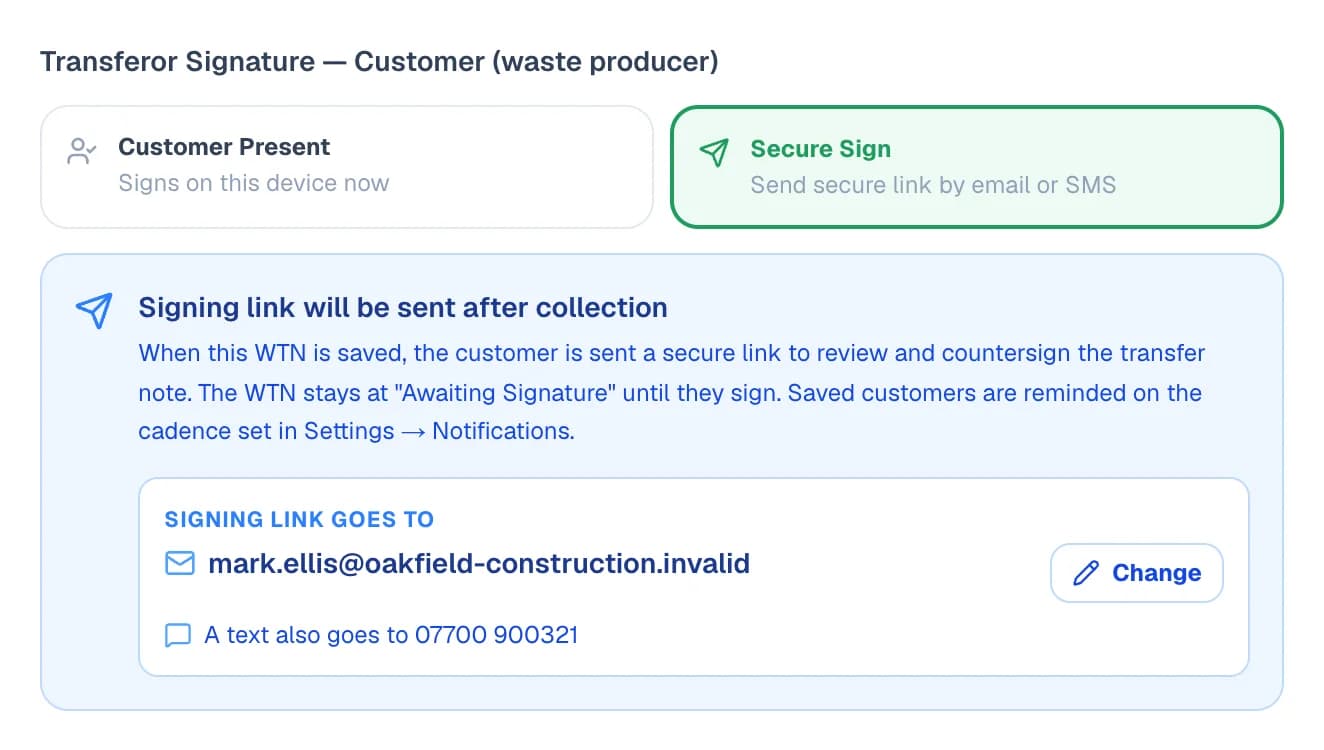
Step 1: Choose Secure Sign when the customer isn't there
On the last step of a new waste transfer note, choose Secure Sign instead of Customer Present. You sign as the carrier, and when the note is saved your customer is sent a link to review and countersign it.
The box shows where the link is going before you save: the customer's email address, which you can change there and then, and their mobile number, which gets a text as well.
- Already saved the note? Send signing link on the note's own page does the same.
- Drivers do it from the app: on the signing step, tap Send Secure Sign link instead. It needs a signal, as the link goes out when the job is completed.
- The text goes while Signing request by SMS is on in your settings. A customer with only a mobile number is always texted.
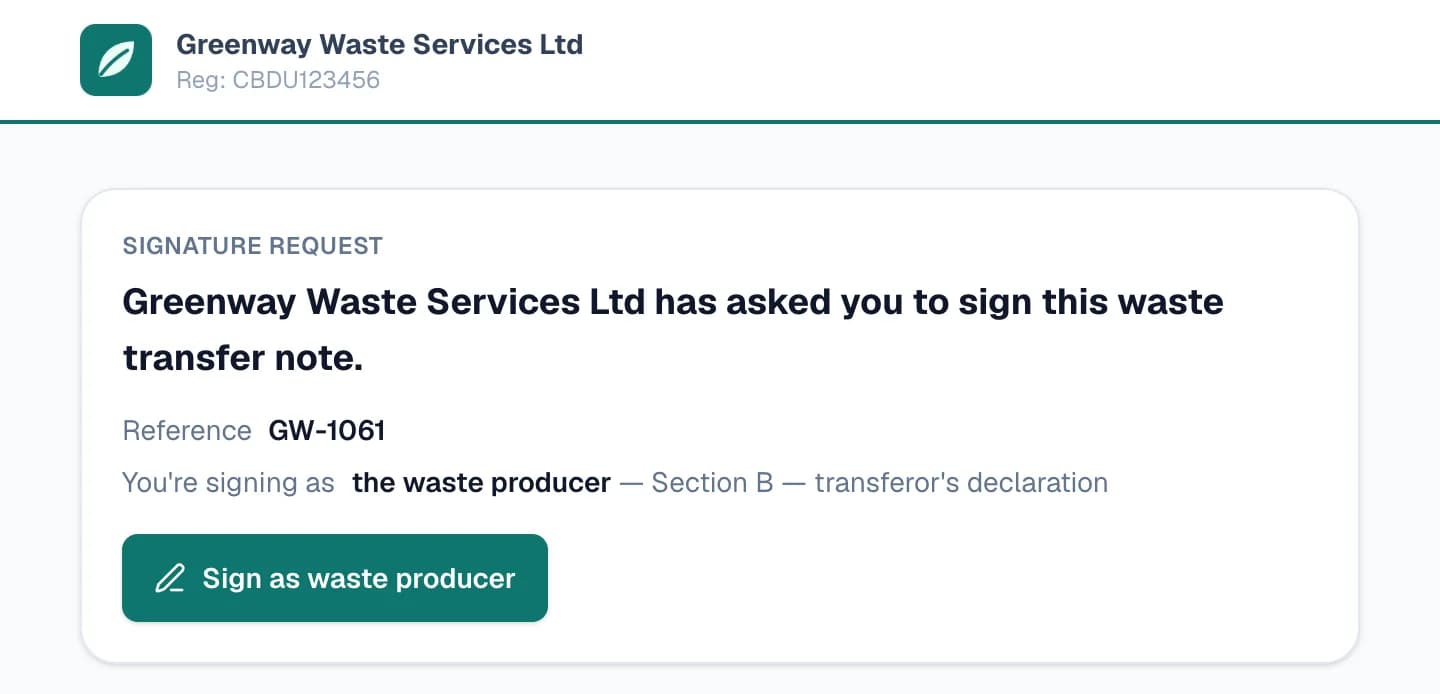
Step 2: Your customer checks the note and signs on their phone
The link opens a page in your branding that says who's asking, which note it is and which part they're signing. Underneath is the note itself, with your signature already on it, so they can check the waste, the quantity and the addresses first.
They check their name (it's filled in when you've saved a contact person), sign with a finger, and can download the signed copy straight away. On a computer, Sign on your phone shows a QR code that opens the same page on their phone.
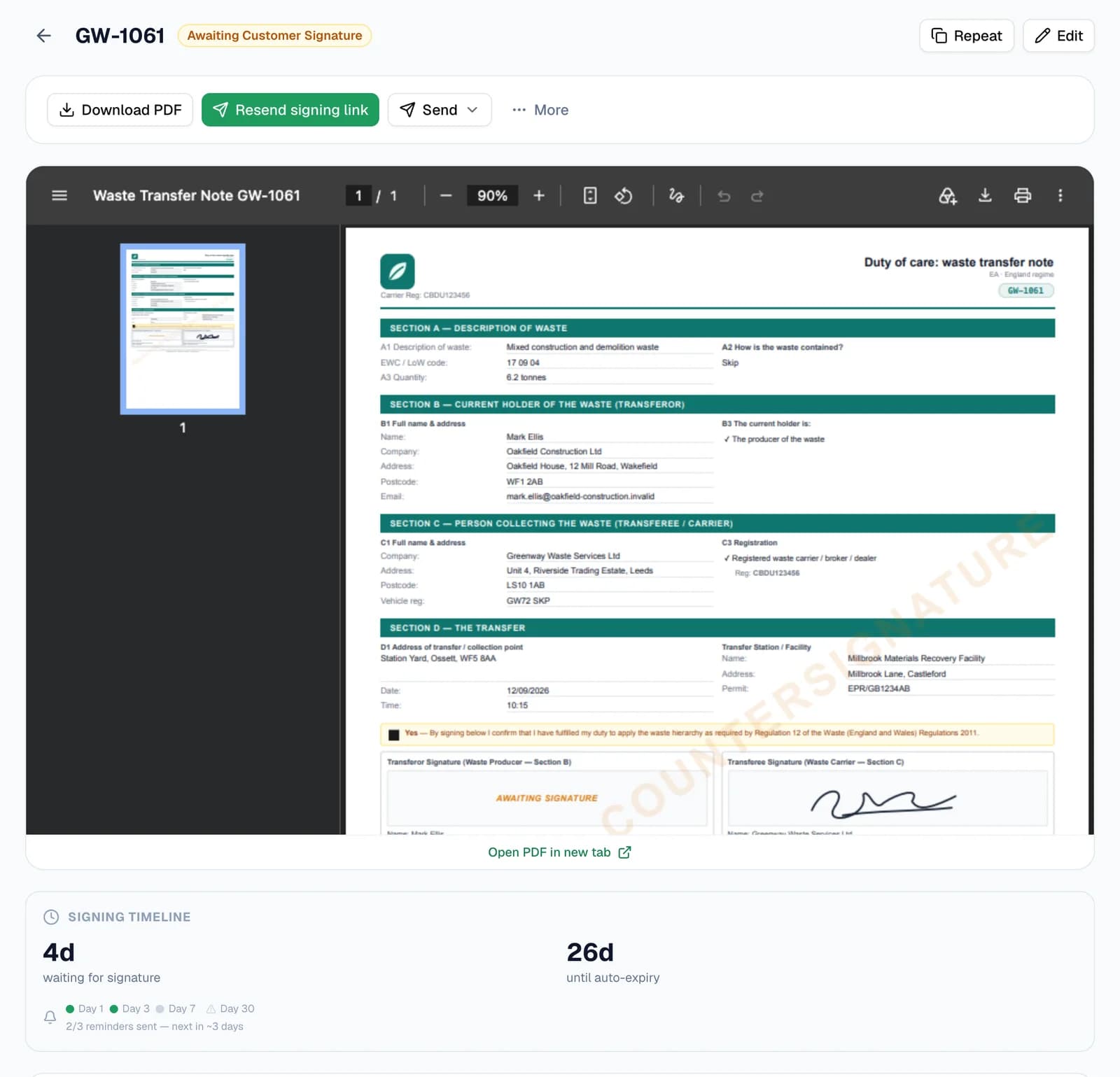
Step 3: See where every link stands
A note waiting on its customer shows a Signing timeline under the note: how many days it's been waiting, how long the link has left, and which reminders have gone. Resend signing link sits at the top of the page.
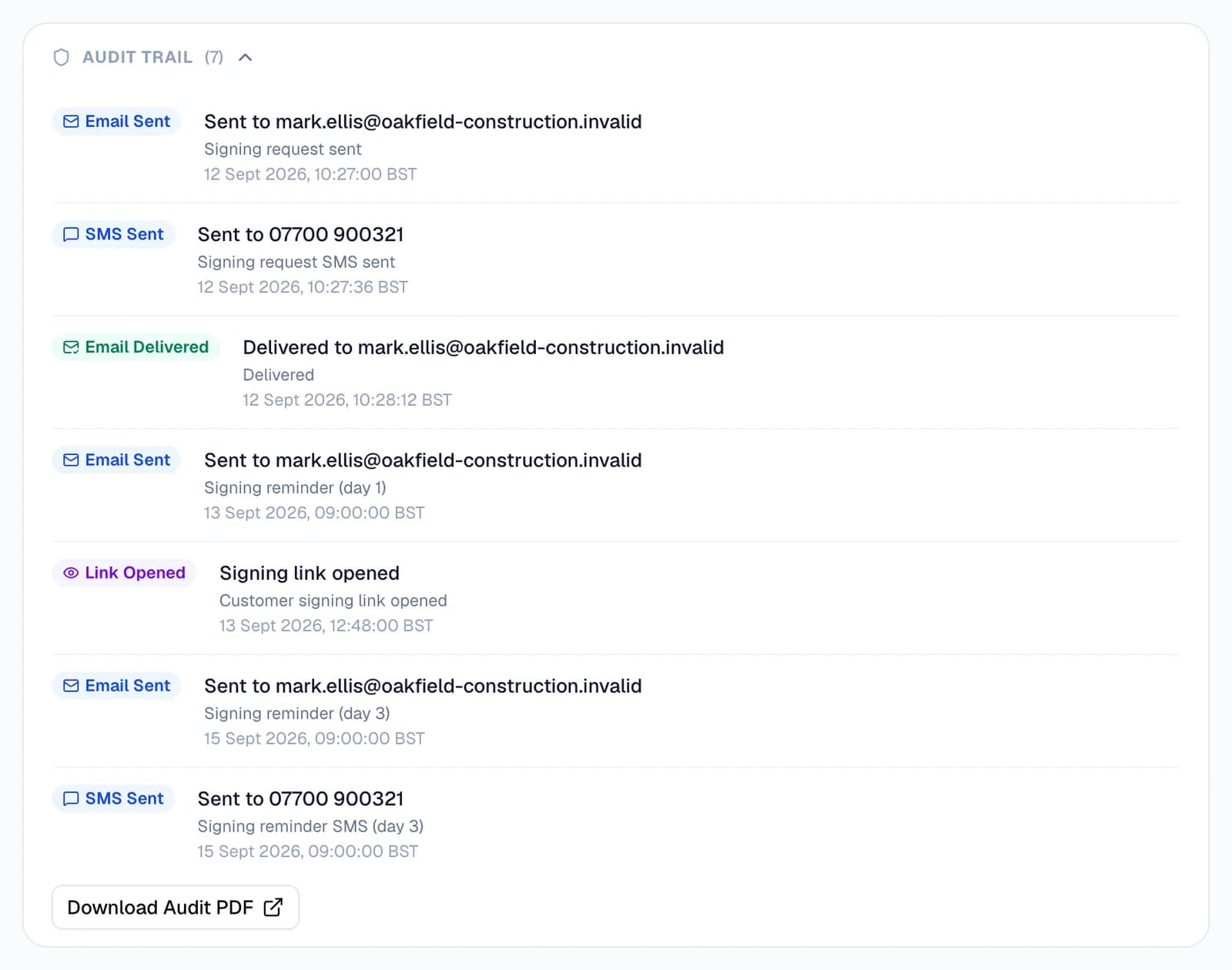
The audit trail records every step: the request by email and text, whether the email was delivered, when the customer opened the link, and each reminder.
Step 4: Let reminders do the chasing
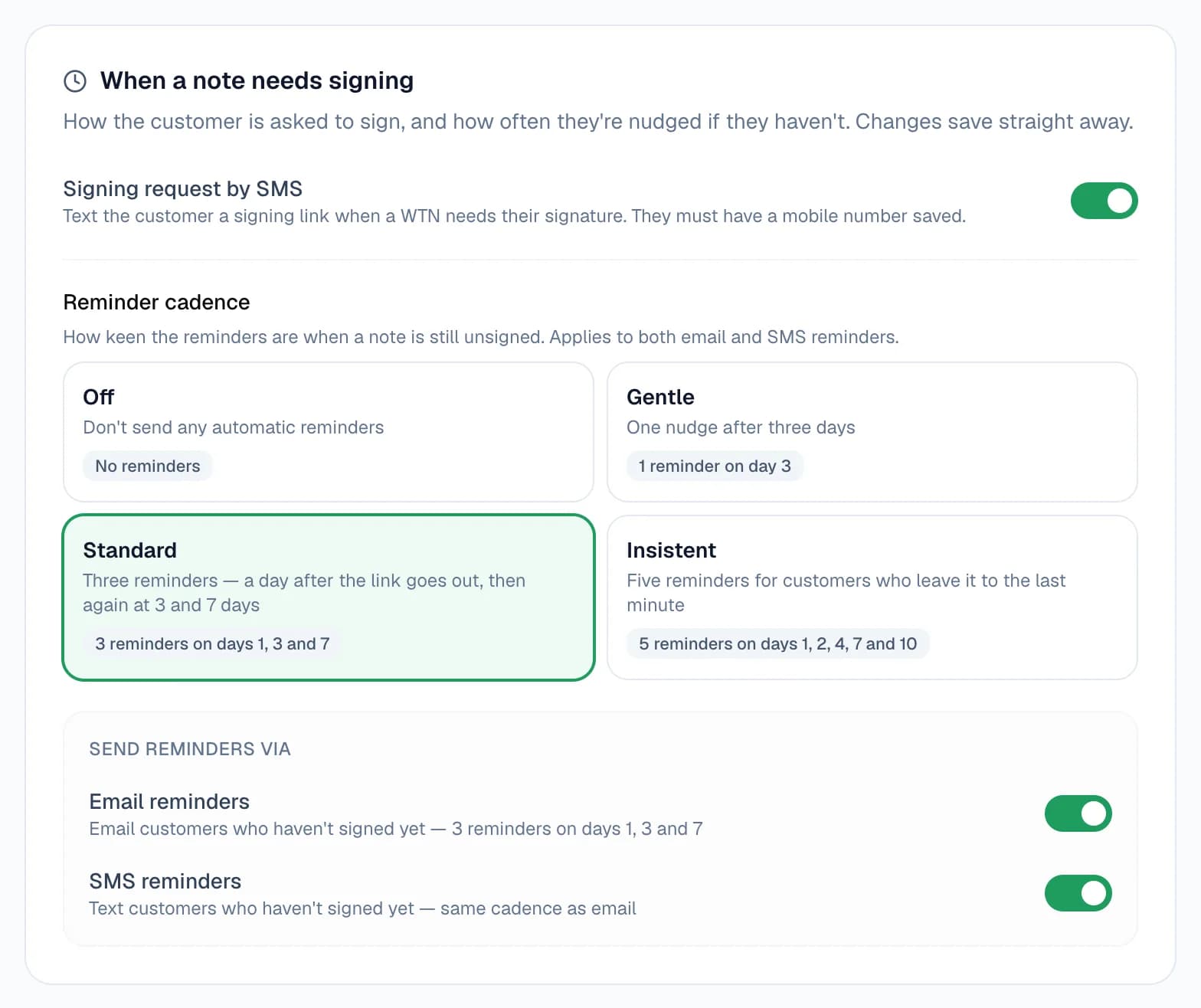
In Settings → Notifications, choose how keen the reminders are: Off, Gentle, Standard or Insistent. The days count from when the link went out, and each reminder carries the same link.
Send them by email, by text, or both. A new account starts on Standard, by email and text.
- Reminders go to customers saved in your customer list, on waste transfer notes waiting for their signature.
- They stop once the note is signed, the cadence has run its course, or the link expires.
- Office logins can't change these settings; admin logins can. Owners can also set them in the app under Email & SMS Alerts.
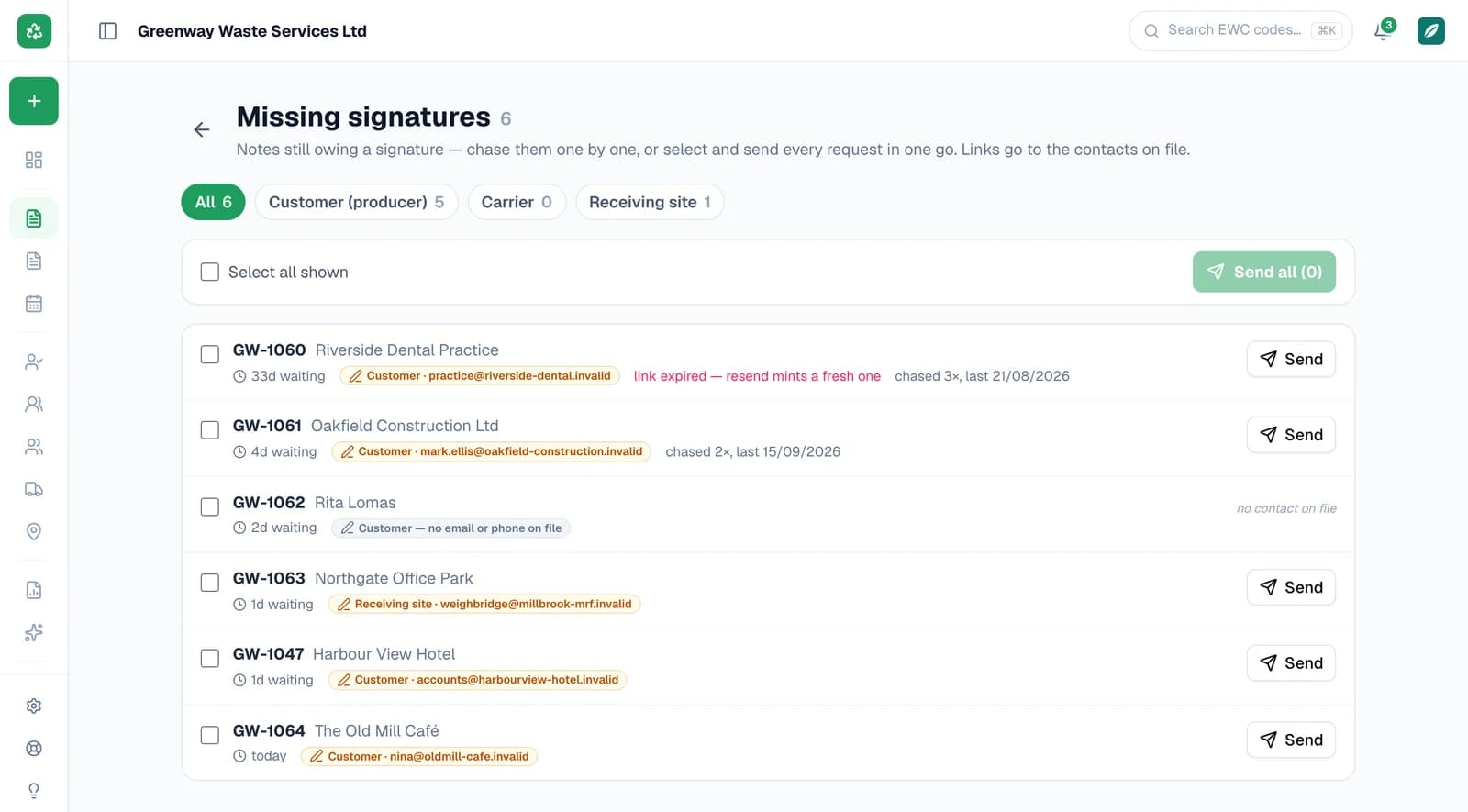
Step 5: Chase everything outstanding from one board
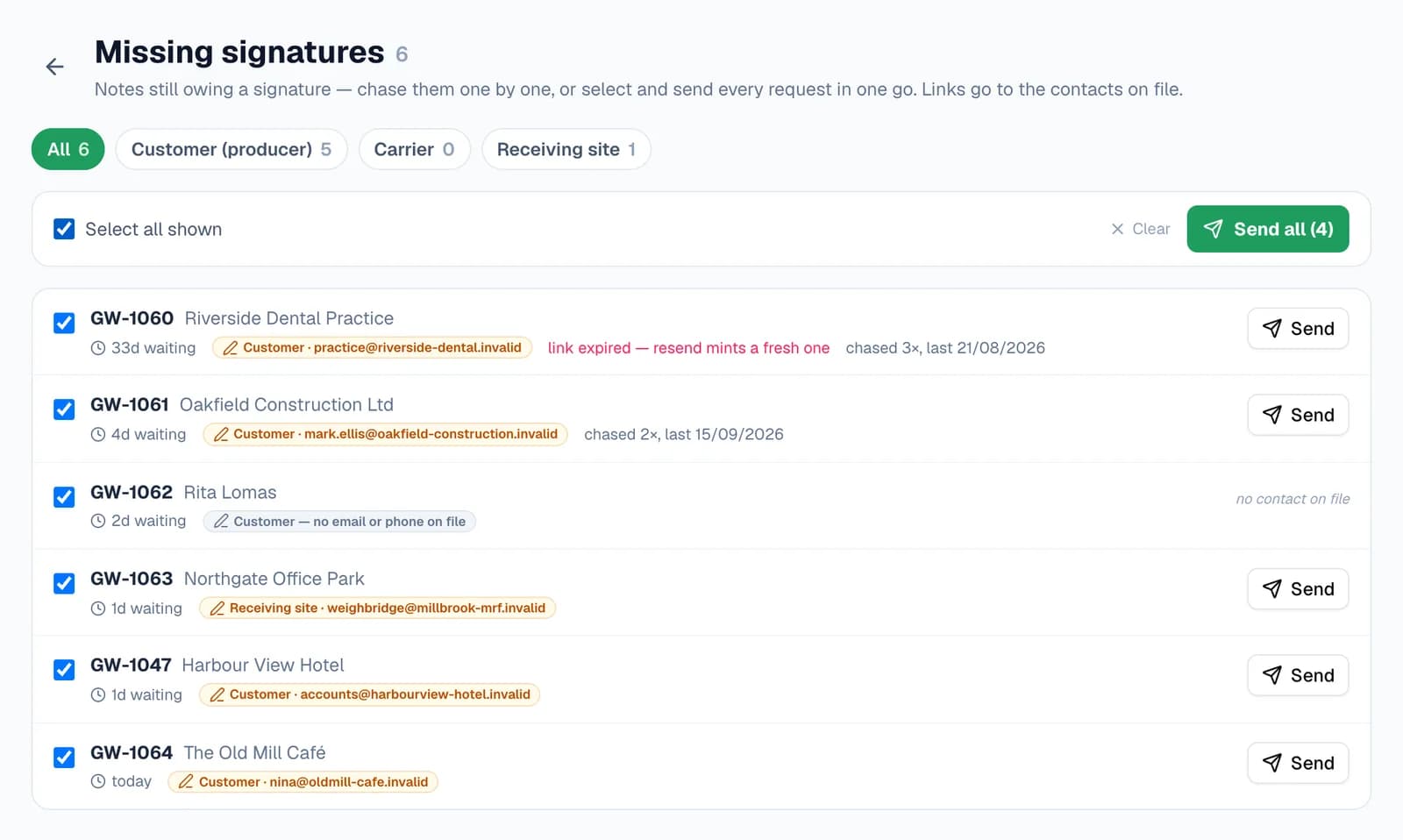
Missing signatures, at the top of your waste transfer notes, lists every note still owing a signature, oldest first, whoever owes it: your customer, a carrier you hired, or the receiving site's Part E.
Each row shows how long it's waited, where the link goes, whether it has run out and how often it's been chased. Send chases one. Tick several and Send all emails every customer and carrier in one go.
- A link that has run out isn't a dead end: sending again issues a fresh one.
- Receiving sites are chased one at a time, with their own Send.
- A row with no email or phone on file says so, so you know who to ring.
- Office logins can chase from the board too.
Step 6: When a link runs out
A link lasts 30 days. If it runs out unsigned, the note moves to Expired and stays on the Missing signatures board. Send it again from the board or the note, and your customer gets a fresh link for another 30 days.
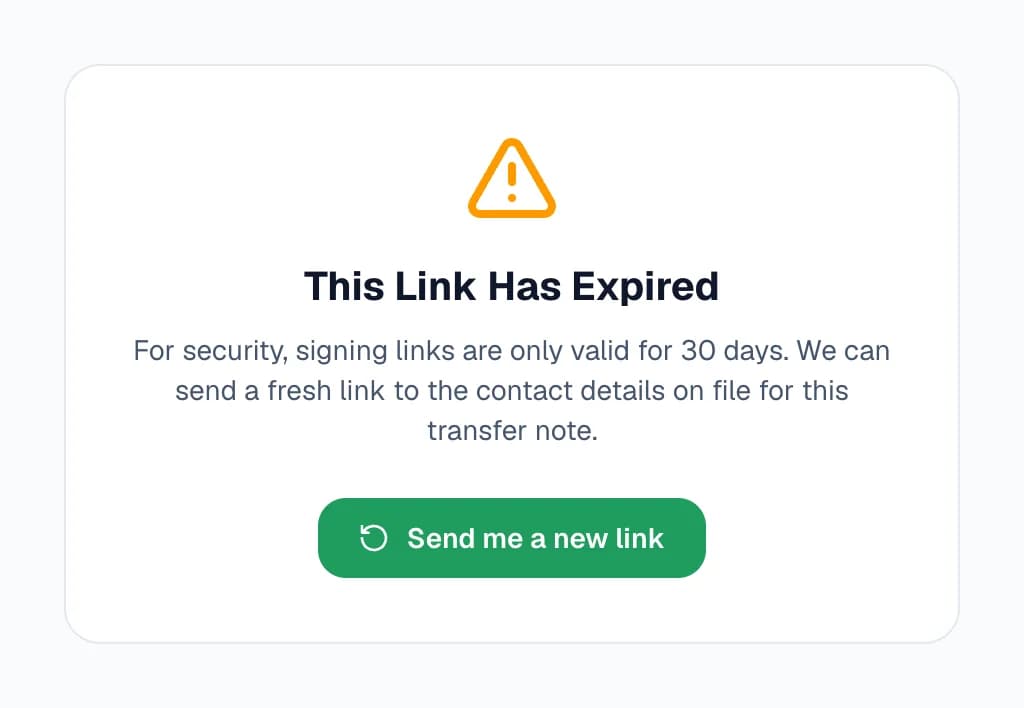
Your customer doesn't have to wait for you, either. Opening an expired link offers Send me a new link, which sends a fresh one to the contact details you have on file for them, never to an address they type in.
- Asking for a new link themselves works on waste transfer note links. Other links are sent again from your side.
A link for every signature
The same kind of link goes to whoever still has to sign.
Waste transfer notes
Your customer signs Section B. Automatic reminders, the Missing signatures board and asking for a new link all work here.
For your customers
Carriers and receiving sites
On a note you raise as the waste producer, the carrier you hired signs Part C by link. Where your account asks for the receiving site's Part E, the note's Part E card sends the site its own link, or copies it for you to share.
For carriers you hire, receiving sites
Consignment notes and season tickets
Each part of a hazardous waste consignment note can go to its own signer by link. A season ticket can be sent for the customer to sign when you create it, and sent again from the ticket.
For hazardous waste, repeat collections
Questions
Answered from how the product actually behaves.
Does my customer need an account or an app?
No. The link opens a web page in any browser, on a phone, tablet or computer. There's nothing to install and no password.
How long does a signing link last?
30 days. Sending it again gives your customer a fresh link for another 30 days, and the old one stops working. If it runs out unsigned, the note moves to Expired and stays on the Missing signatures board until you send it again.
Can a link be reused or changed?
No. Once the note is signed, the link can't be used to sign it again. The link is cryptographically signed, so changing any part of it stops it working, and sending a new link replaces the old one.
How do I know if my customer got it?
The note's audit trail shows the request by email and text, whether the email was delivered, and when the link was opened. If an address was wrong, correct it on the customer and send the link again.
Which notes get automatic reminders?
Waste transfer notes waiting for the signature of a customer saved in your customer list, on the cadence you choose in Settings → Notifications. Consignment notes, season tickets, carriers, receiving sites and one-off customers aren't reminded automatically. Chase those from the note, or from the Missing signatures board.
What's recorded when my customer signs?
Their signature, name and company, the time, their IP address and device, and GPS coordinates when their phone allows it. Download Audit PDF on the note prints that record.
Can office staff chase signatures?
Yes. Office logins can use the Missing signatures board and send links from notes. Changing the reminder settings needs the owner or an admin login.