Feature guideEnterprise
Receiver inbox
Check loads in without typing a note.
Carriers on WTNcloud send their notes to your site as they arrive. Paper notes come in through a QR code at the gate or by email, and are read for you. Accept each load with the weight you took in, and sign Part E for hazardous waste, all from one inbox.
Included on Enterprise.
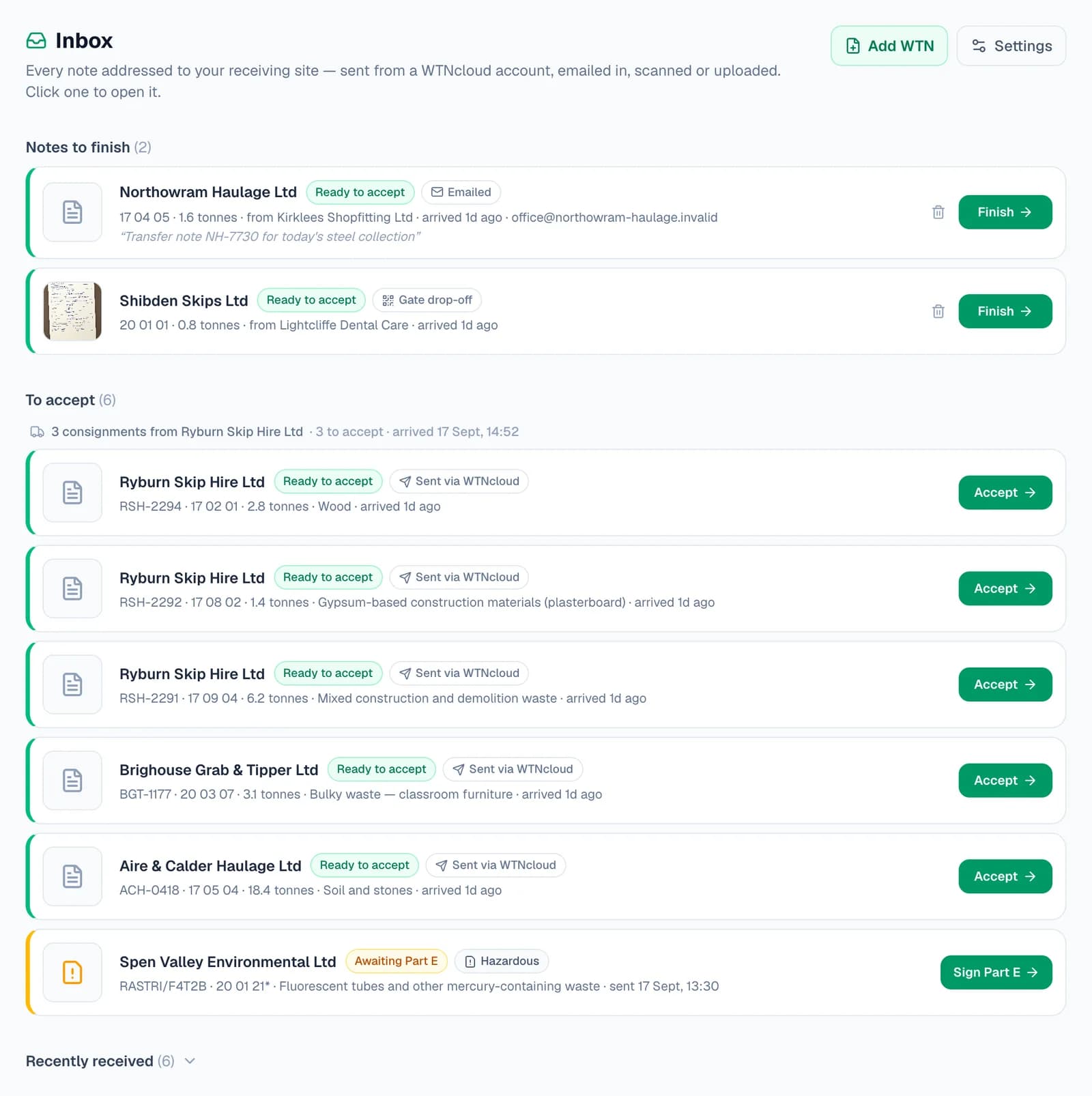
What lands in your inbox
Everything addressed to your site's environmental permit, and every note someone hands you, in one place.
- Loads carriers send youCarriers on WTNcloud send the note as they arrive. It finds you by your permit number.
- Paper at the gateA QR code at your gate lets a driver photograph the note or upload a PDF, with no login.
- Notes by emailYour site's own email address turns each attached PDF or photo into a note to finish.
- Read for youCarrier, producer, waste and weight are read off the paper, and anything uncertain is marked to check.
- Hazardous consignmentsConsignment notes addressed to you, marked until you sign Part E.
- The weight you took inConfirm it or enter gross and tare. Less than the note says is recorded as partly accepted.
- Filed with DEFRA as you acceptGive an R/D code and Accept files the receipt, once your DEFRA filing is set up.
- Live on your dashboardA count of everything waiting, checked every 15 seconds without a refresh.
Step by step
How it works
Step 1: See what's arrived
When a carrier on WTNcloud reaches your site, they press Send to receiver inbox on the note, in the app or on the web. It finds your inbox by the environmental permit number on your receiving site, and you get an email saying what has arrived.
Your dashboard counts every load, paper note and hazardous consignment waiting for you, and checks for more every 15 seconds while it's open. Anything that arrives while you're watching is marked New, and clicking one opens it right there, over the dashboard.
- The inbox needs your receiving site's permit number, set once in your DWT settings.
Step 2: Accept the load, or turn it away
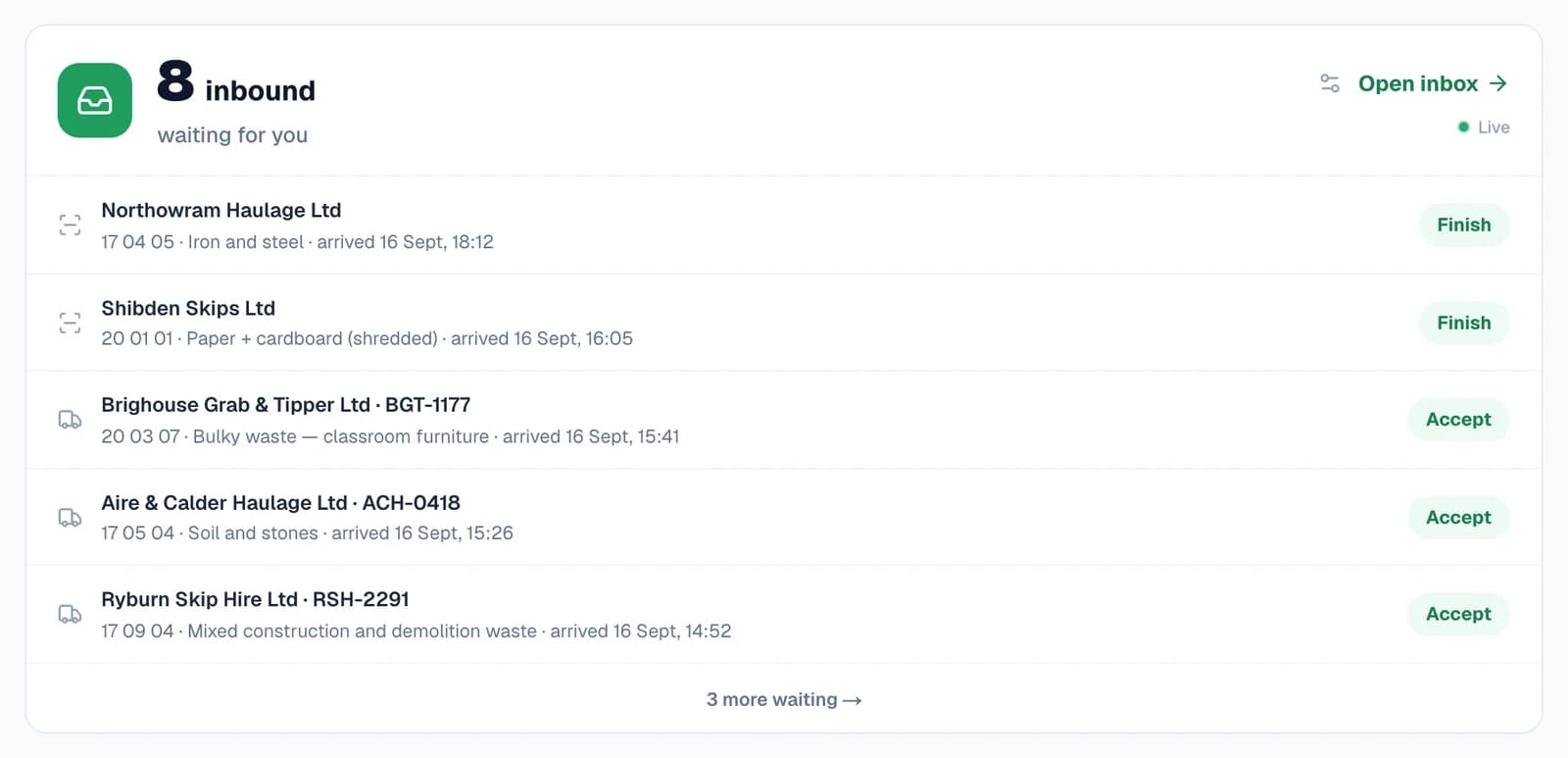
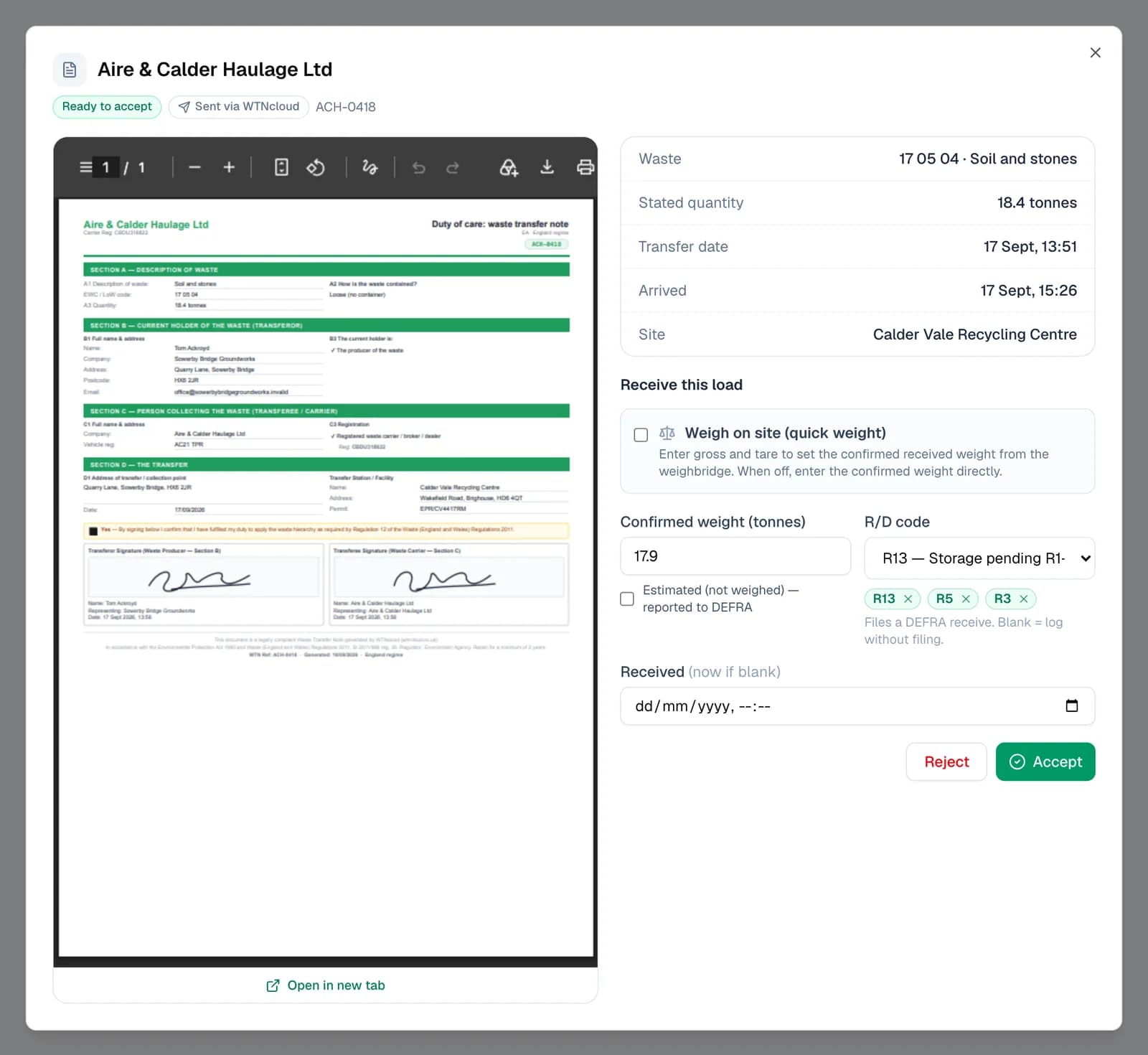
Open a load and it comes up in a window over the list, with the carrier's note beside the receipt, and the vehicle and carrier registrations to check against the lorry. If a different lorry turned up, change the plate there: your receipt and the DEFRA receive name the vehicle you saw, and the carrier's note is left as written. The confirmed weight starts at what the note says. Change it to what you took in, or tick Weigh on site and enter gross and tare. A weight below the note's is recorded as partly accepted.
If the load came in as more than one waste, timber and general say, Add a waste line beside the note's own and give each its weight. The receipt and the DEFRA receive list every line; the carrier's note is left as written.
Choose the R/D code for what you'll do with the waste; up to three codes you pin sit underneath as one-tap shortcuts. With a code, Accept records the receipt and files it with DEFRA, once your DEFRA filing is set up. Leave it blank to record the load without filing.
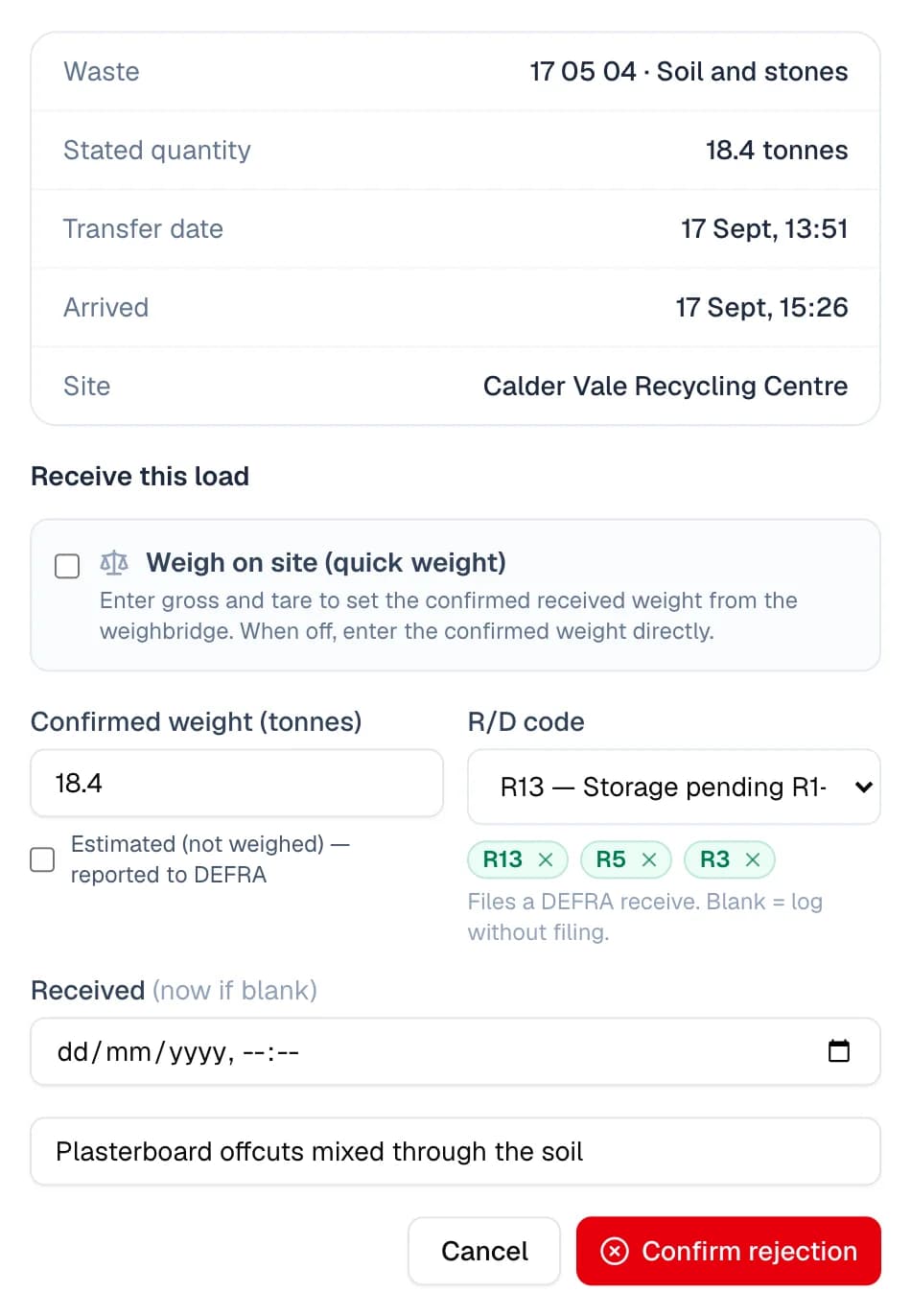
Reject asks for a reason. A rejected load isn't filed, and the carrier sees it marked Rejected, with your reason in the note's history.
Step 3: Take paper notes at the gate
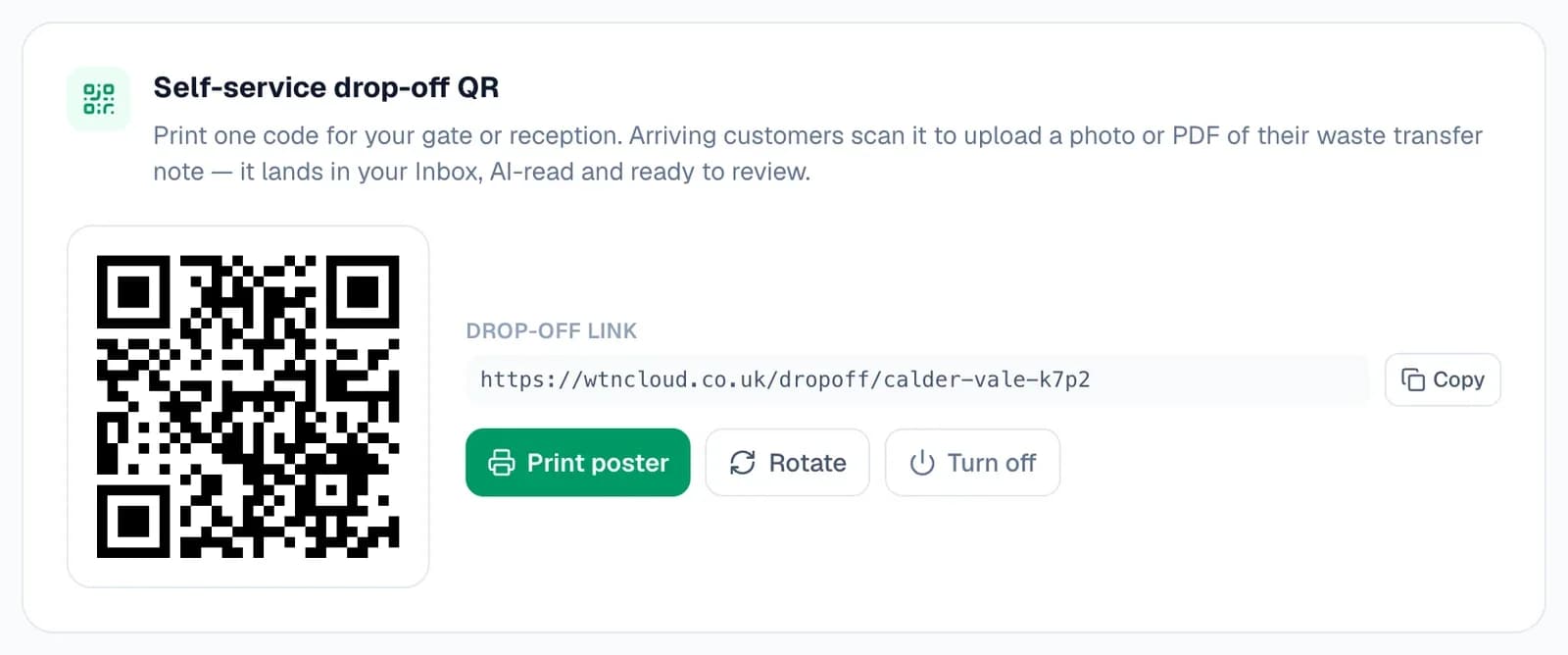
Inbox → Settings gives your site a drop-off QR code. Print the poster for your gate or reception. A driver scans it with their phone camera, then takes a photo of the note or uploads a PDF. There's no app to install and no login.
They can add an email address or mobile number to get a confirmation that you have it. The note lands in your inbox under Notes to finish, and is read for you.
Step 4: Or have notes emailed in
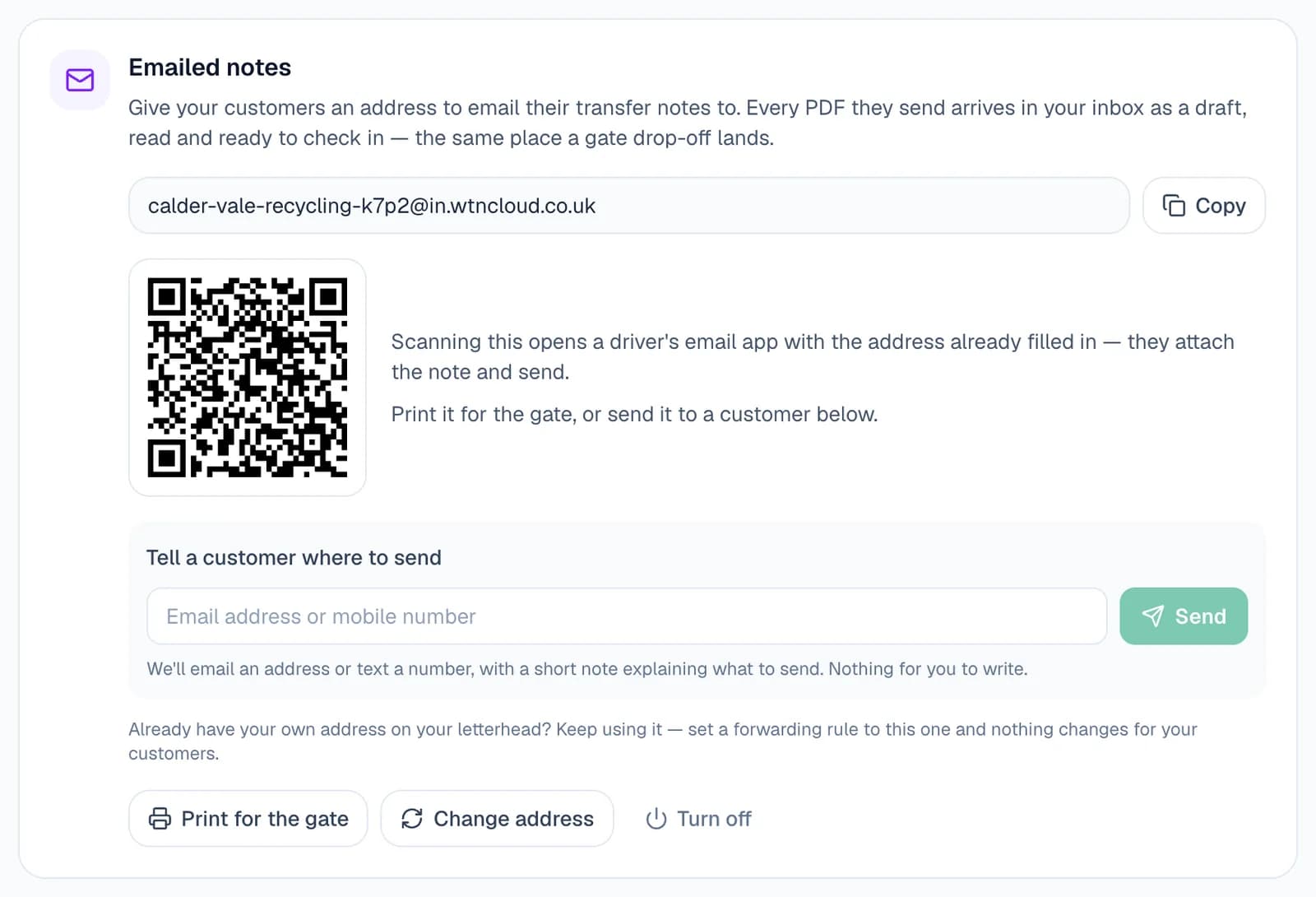
Create your site's own email address in Inbox → Settings. Every PDF or photo attached to an email sent there becomes a note to finish, up to 10 from one email, each marked emailed with the sender and subject.
To tell a customer about it, type their email address or mobile number and press Send. WTNcloud emails or texts them the address with a short note on what to send. There's also a QR code that opens a driver's email app with the address filled in, and a page to print for the gate.
- Already have an address on your letterhead? Forward it to this one and nothing changes for your customers.
Step 5: Finish a paper note
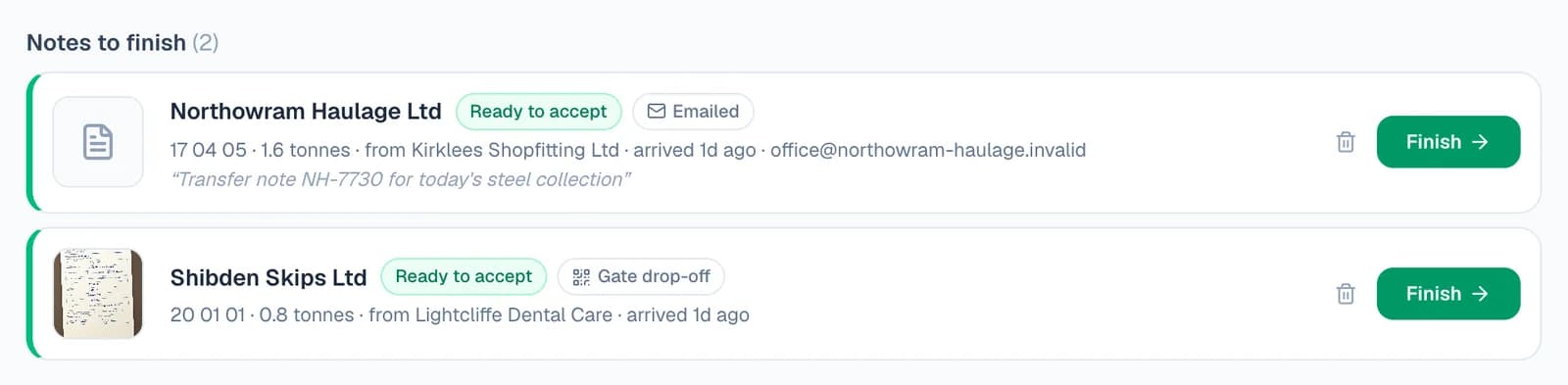
Notes to finish holds everything that came in on paper: dropped off at the gate, emailed, or scanned with your own phone. Each shows who delivered it and the waste and weight read off the note, with a thumbnail when it's a photo.
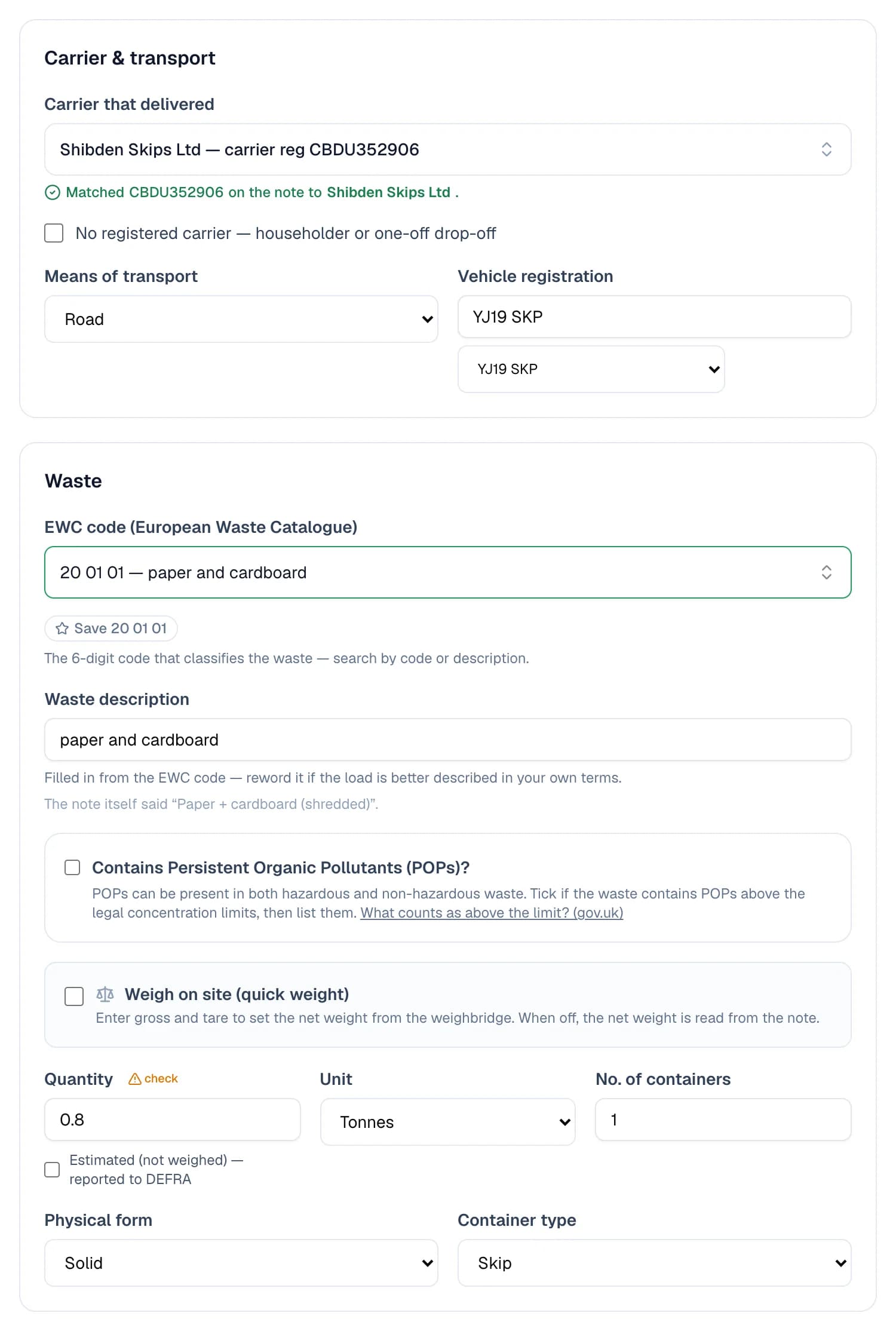
Finish opens the form already filled in from the note. The carrier is matched from your own carriers by registration number or exact name, and anything the read wasn't sure of is marked check. Confirm the EWC code and its standard description is used, with what the note said shown underneath. Add the R/D code, then Save & file receipt.
- A carrier you haven't added yet can be looked up on the public register and added from the form.
- Not a real note? The bin discards it, file and all.
Step 6: Sign Part E for hazardous waste
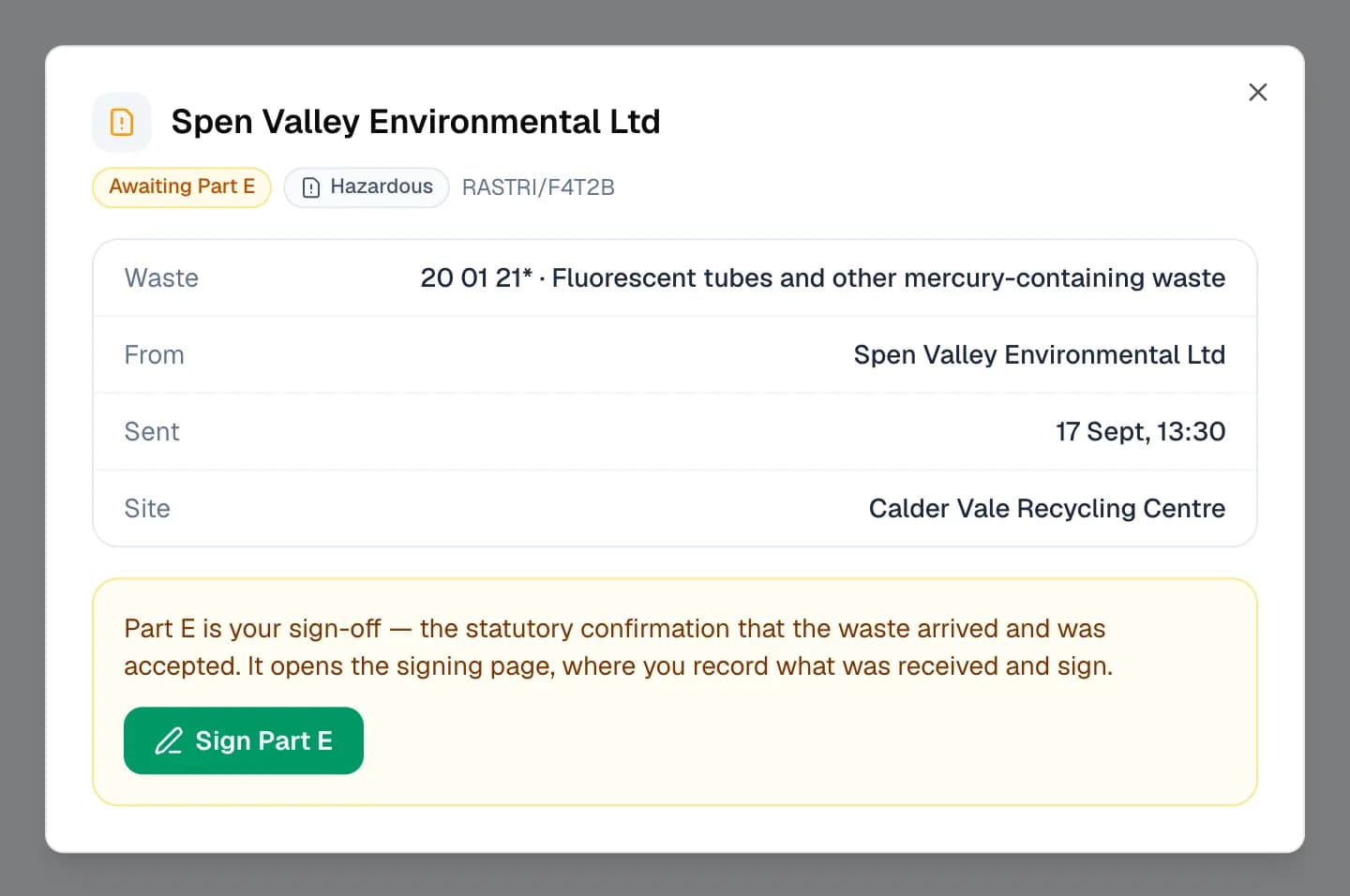
Hazardous consignment notes addressed to your permit wait under To accept, marked Awaiting Part E. Open one and choose Sign Part E. Once it's signed it moves to Recently received, marked Part E signed.
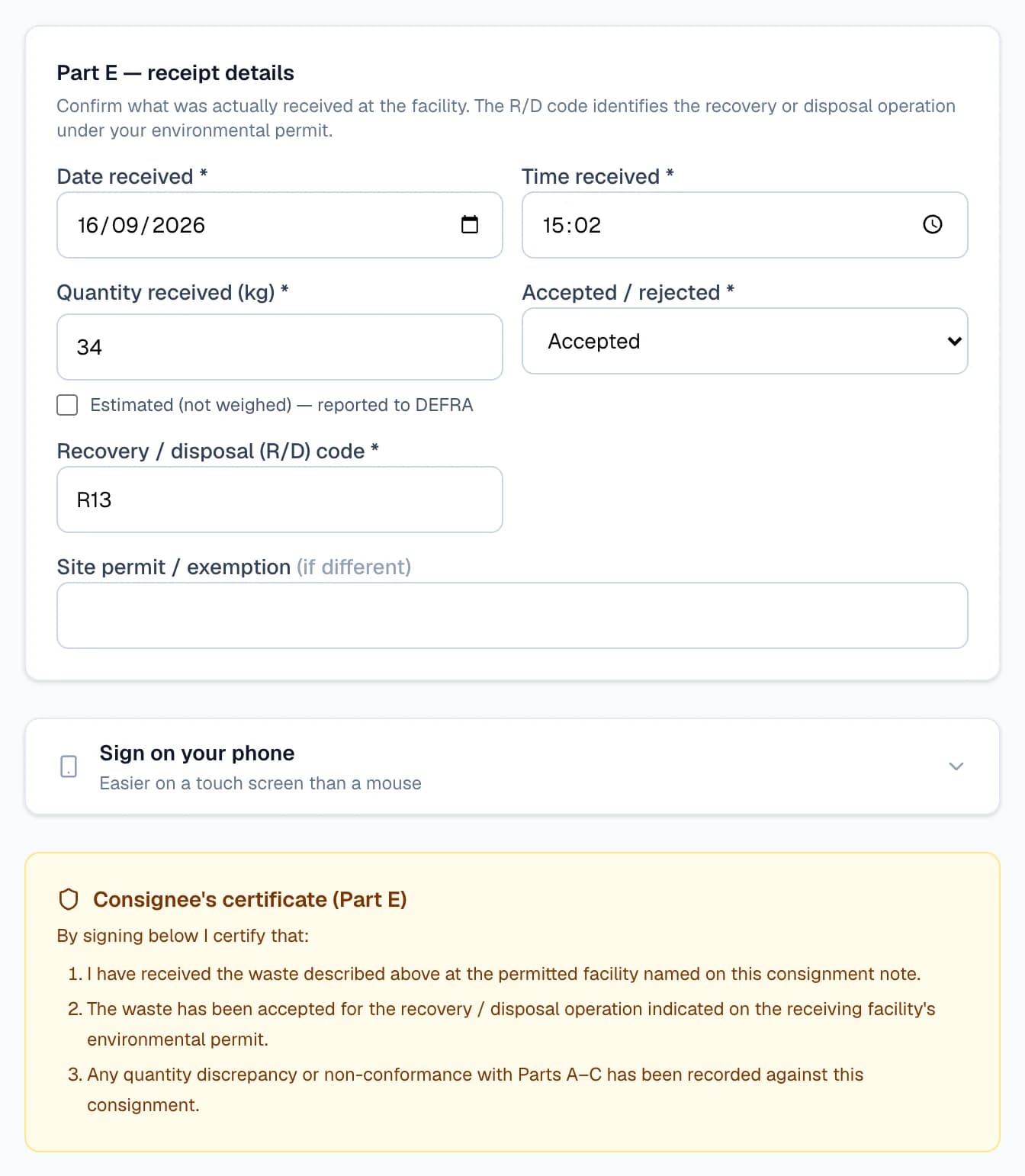
Sign Part E opens the consignee's receipt. Enter the date and time you received it, the quantity in kilograms, whether you accepted, partly accepted or rejected it, and the R/D code. Then sign, tick the consignee's certificate and choose Sign & complete.
Step 7: Look back at what you've taken in
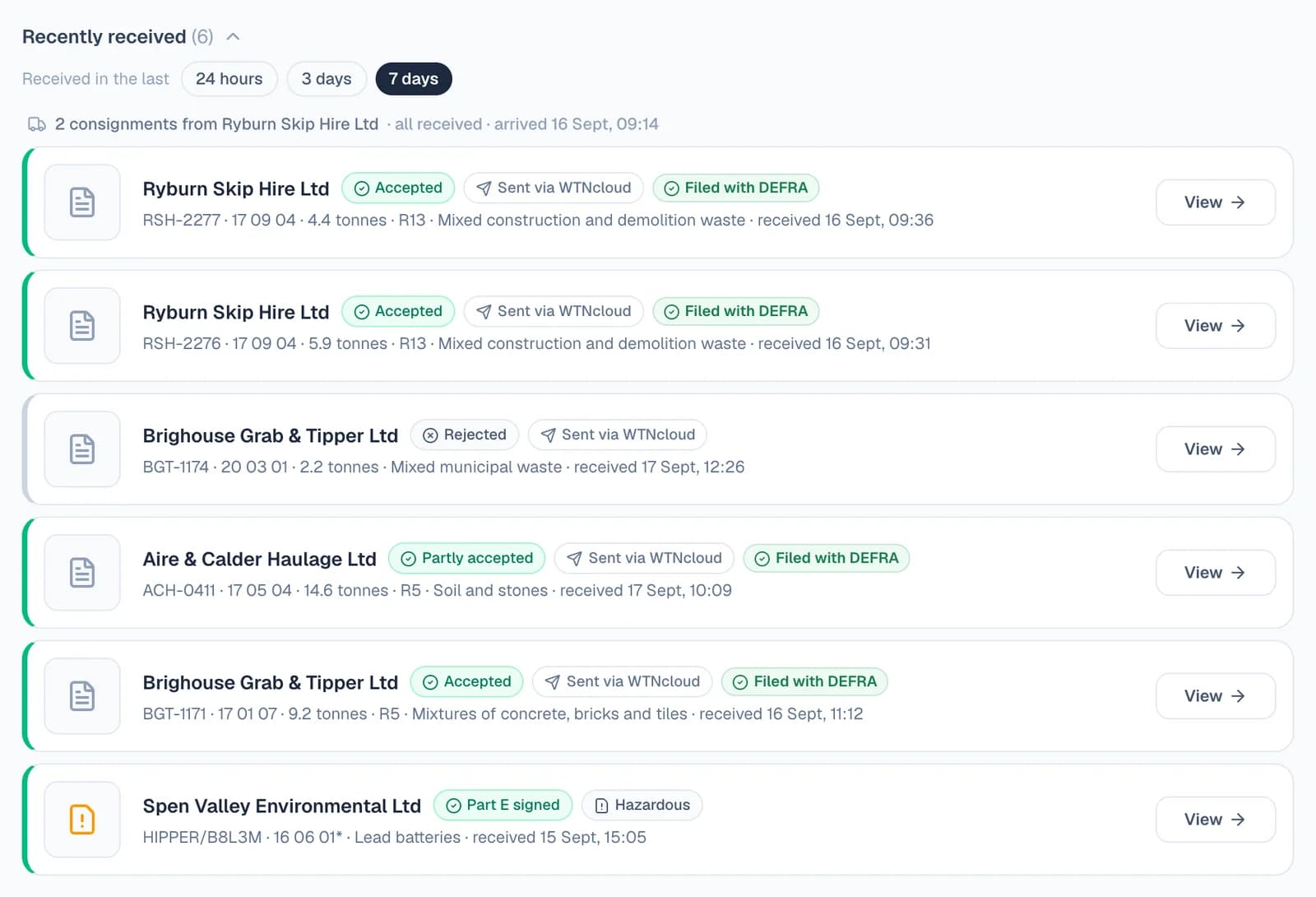
Recently received shows the last 24 hours, 3 days or 7 days: each load accepted, partly accepted or rejected, with its DEFRA filing status, and each hazardous note you've signed. If a filing fails, open the load to put it right in its Digital Waste Tracking panel.
Every load you accept is also kept on your WTNs page as a Received load: your copy of the carrier's note, which can't be changed.
- Loads sent to your permit before your inbox started wait under Arrived before you joined, out of the way.
- If you connect Xero or QuickBooks, Create invoice appears on the Load received window a moment after you accept, and under the receipt whenever you open a received load from your inbox, including loads emailed in or sent through the API. Every load you haven't billed also waits on the Invoices page until you bill the carrier who tipped it.
Who does what
One inbox, used from both sides of the weighbridge.
The weighbridge office
Accept and reject loads, finish paper notes and sign Part E, from the inbox or the dashboard.
For owner, admin and office logins
Whoever runs the site
Set up the drop-off QR code and the email address, and tell customers how to send their notes.
For owner and admin logins
Carriers and drivers
Carriers on WTNcloud send the note from the app or the web. Anyone else scans the gate QR code or emails the note, without an account.
For every haulier and customer
Questions
Answered from how the product actually behaves.
How does a load find my inbox?
By your environmental permit number. A carrier's note names the site it's going to and that site's permit. When the carrier sends it, it goes to the WTNcloud account whose receiving site has that permit number, so set yours in your DWT settings.
What if the carrier isn't on WTNcloud?
The driver can drop the note off with your gate QR code, or email it to your site's address. Either way it lands in Notes to finish, read for you, ready to check and save.
Can I accept several loads in one go?
No. Each load is accepted on its own, with its own weight and R/D code.
Does accepting a load file it with DEFRA?
Yes, when you give an R/D code and your DEFRA filing is set up. Leave the code blank to record the receipt without filing. A rejected load is never filed.
What does the carrier see?
Their note is marked Accepted, Partly accepted or Rejected, and its history records who accepted it and how much was received, or why it was turned away.
Can office staff use the inbox?
Yes. Office logins can accept and reject loads, finish notes and sign Part E. Only owner and admin logins can change the drop-off QR code or the email address.
Is the inbox in the app?
No, the inbox is on the web. Loads you've received do show in the app alongside your other notes, marked Received.